teckel: App User Guide
teckel App User Guide
Contents
- 1. READ ME
- 2. What is the teckel App?
- 3. Getting Started
- 4. teckel AI — the Multi-Model AI Chat
- 4.1 One Question, Several Minds
- 4.2 The Balance Strip
- 4.3 Choosing Your Models — Selected LLMs
- 4.4 CrossTalk — Let the Models Debate
- 4.5 CrossListen — Address a Subset
- 4.6 The Chat-Control Icons
- 4.7 Model Variants and Parameters
- 4.8 Message Actions
- 4.9 The Prompt Gallery and Your Prompt Library
- 4.10 The teckel Voice Agent
- 4.11 What a Conversation Costs
- 4.12 A Note on AI Answers
- 5. Your Ethereum Accounts
- 6. Creating Your Benedict
- 7. teckel Credits (tc)
- 8. teckel talk — Anonymous Secure Messaging
- 9. IPFS
- 10. Settings
- A. Frequently Asked Questions (FAQ)
- B. Contact Us
- C. Report Abuse
This is the web edition of the teckel App User Guide, written for App version 2.0.6 on Android and iPhone. Long-press any icon in the App for its own short explanation; this guide covers the rest.
1. READ ME
- IN ORDER TO MITIGATE THE POTENTIAL OF FINANCIAL LOSS, YOU MUST CAREFULLY READ, FULLY UNDERSTAND, AND COMPLY WITH THE teckel Terms at teckel.io/terms-and-conditions AND THIS teckel App User Guide.
- There is one teckel App, available on the Google Play Store and the Apple App Store. The original “full” teckel App — a sideloaded Android APK with smart-contract creation and an NFT marketplace — has been discontinued, along with those features. For what was retired and what carries forward, please see the teckel FAQ at teckel.io/faq.
- The best way to think of teckel talk is that it is your old-school telephone landline on your mobile device, and “chat-rooms” are similar to old-school telephone landline “party lines” — untappable once every member of a room sets the same secret key (Section 8.5).
- The teckel App offers no facility for sending ether as part of normal use (teckel Terms, teckel.io/terms-and-conditions). If you send Ethereum transactions another way — for example through the teckel Web3 services such as Ethereum RPC — remember that a blockchain transaction can take an unpredictable time to complete, depending on its size and on worldwide demand on the Ethereum network.
- In order to maximise the anonymity feature of teckel talk, let the teckel App automatically and randomly create a new Ethereum Account within the App by tapping the “Create” icon in the App's Accounts area (see Figure 5.2). Furthermore, avoid using this newly created Ethereum Account in any Ethereum blockchain transactions such as transferring ether (ETH). For a detailed discussion on this, please see the teckel FAQ at teckel.io/faq.
2. What is the teckel App?
2.1 The teckel App in a Nutshell
The teckel App puts four tools on your mobile device:
- teckel AI — a multi-model AI chat, and the App's home screen. Ask a question once and have several leading AI models answer it side by side — or talk it over among themselves (see Chapter 4).
- Your Ethereum Accounts — built-in, non-custodial account management: create and manage the Ethereum Accounts that identify you on the teckel Platform and hold your teckel credits (see Chapter 5).
- teckel talk — anonymous, secure messaging: a public general chat-room plus any number of private groups, which become end-to-end encrypted when their members set the same secret key (see Chapter 8).
- IPFS — access to content on the InterPlanetary File System (see Chapter 9).
The App is also where a practice creates its Benedict — the compliance documentation assistant from teckel — via the built-in setup wizard, and where Benedict's sign-in access codes are generated (Chapter 6).
Everything is paid for with teckel credits (“tc”) on a pay-as-you-go basis — there is no subscription and no sign-up. On initial installation the App automatically generates your first Ethereum Account and gives it 50,000 free tc to start you off (that first auto-generated Account is the only one that receives the free grant); additional tc can be purchased in the App using your ordinary (fiat) currency (see Chapter 7).
The teckel App requires an internet connection and will not operate without one.
2.2 Mobile-first
The teckel Platform adopts a “mobile-first” ethos: the App is developed first for mobile device operating systems, and for other platforms only as the need arises. The teckel App is currently available for Android phones (Google Play Store) and iPhone (Apple App Store).
2.3 Built-in Help — Long-press Any Icon
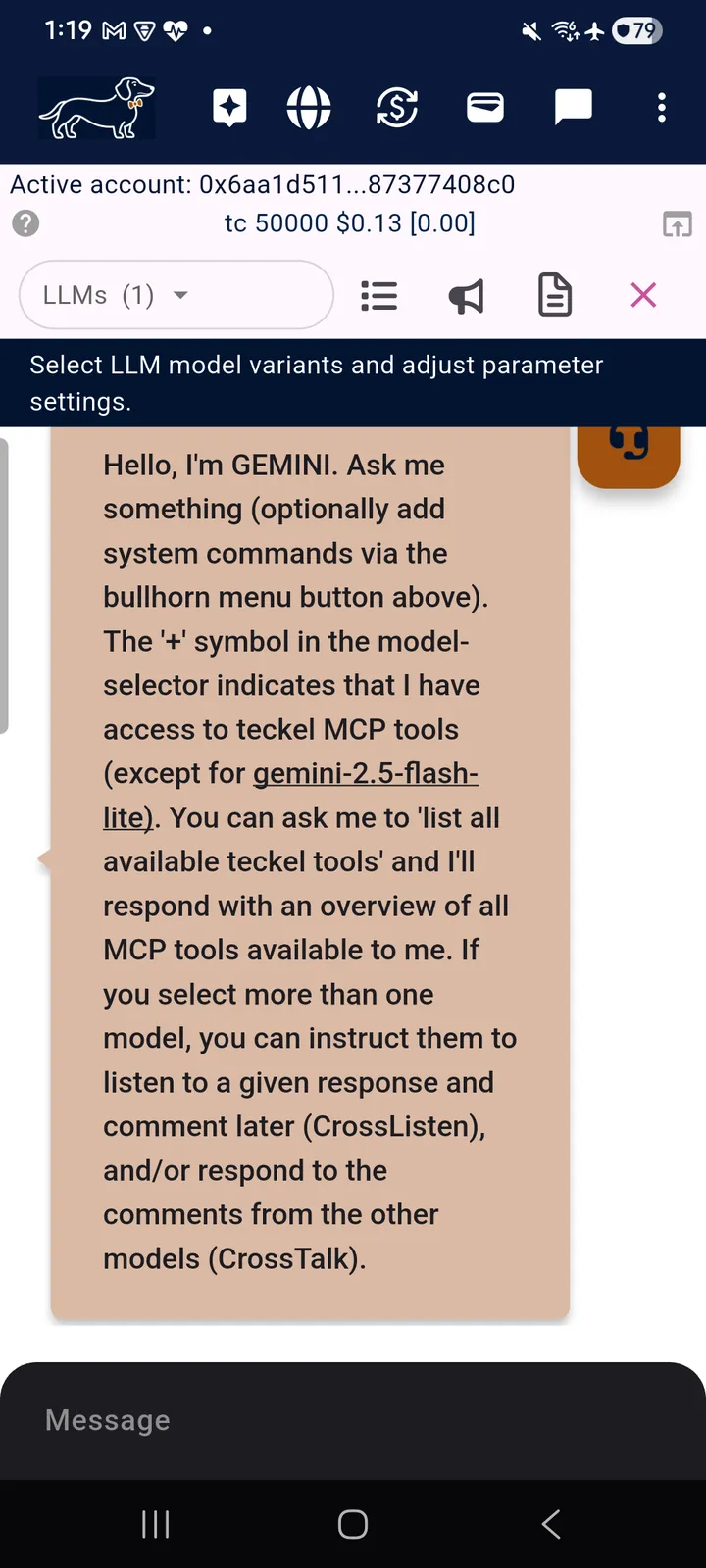
The teckel App carries its own explanations: long-press any icon in the App and a short description of what that icon does will appear. This guide reproduces those descriptions where helpful, but the habit of long-pressing an unfamiliar icon will answer most questions on the spot. (See Figure 2.1.)
2.4 The Top Navigation Bar
The navy bar at the top of the App is the way around. From left to right (each description below is the App's own long-press text):
- The dachshund — the teckel home: the teckel AI chat screen.
- Sparkle — “Open the Prompt Gallery (curated by teckel) or my Prompt Library.”
- Globe — “Interplanetary File System (IPFS) content.”
- Dollar arrows — “Purchase teckel credits.”
- Card — “Manage Ethereum accounts (wallets).”
- Speech bubble — “Goto teckel talk anonymous secure messaging.”
- Three vertical dots — the App menu, leading to Settings (see Chapter 10).
3. Getting Started
3.1 Installation
Only download the teckel App from the Google Play Store or the Apple App Store. Downloading the teckel App from any other source must NEVER be done.
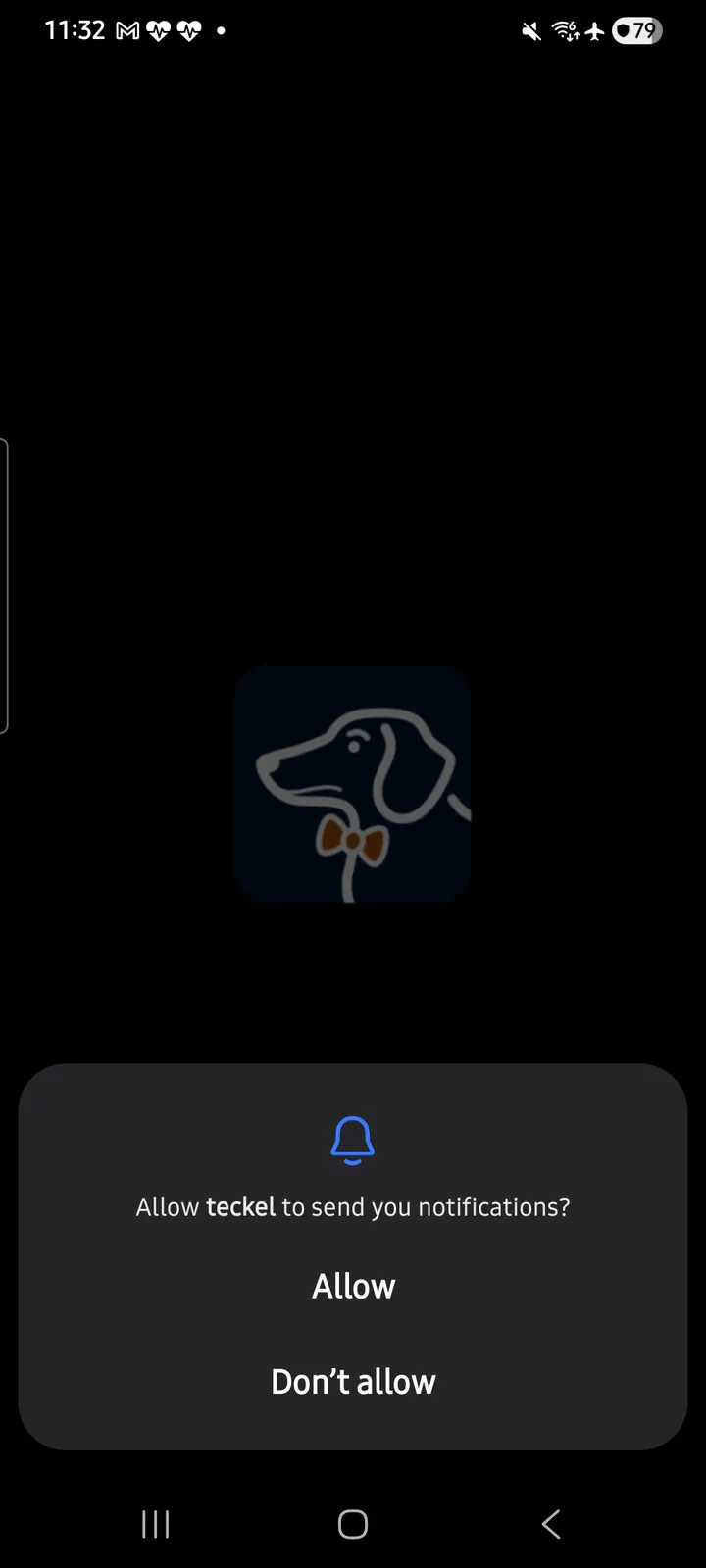
On first launch the App initialises (it will not operate without an internet connection) and asks permission to send you notifications. Initial App launch requires your phone's screen lock — PIN or biometric — the same protection that guards private-key access thereafter (Chapter 5); a device without a screen lock configured should set one up first.
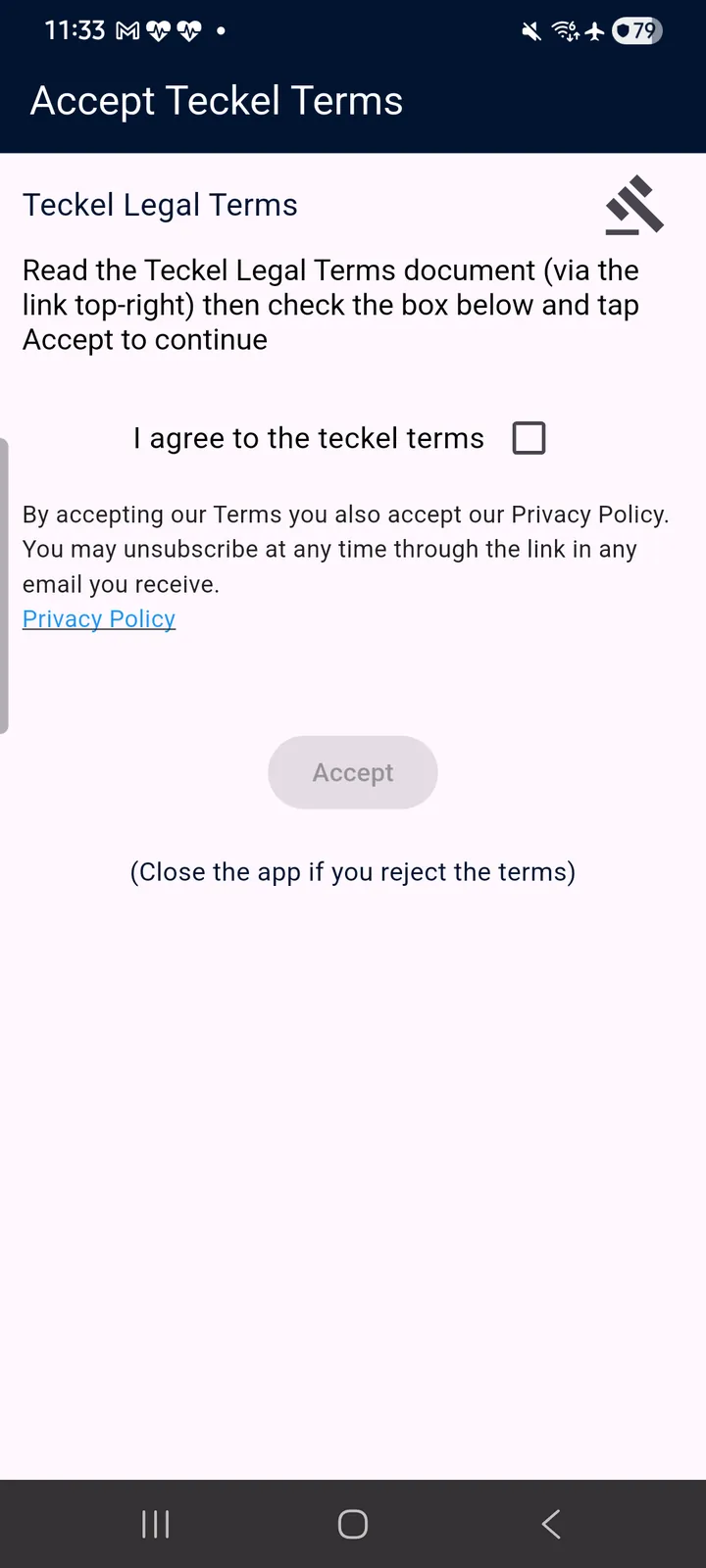
By accepting the Terms you also accept the teckel Privacy Policy, linked on the same screen. If you later choose to receive teckel credit bonuses and other promotions by e-mail — an optional tick-box offered in the setup wizard (Chapter 6) — you can unsubscribe at any time through the link in any e-mail you receive.
The App then automatically generates your first Ethereum Account (a public/private key pair, kept on the phone in the App's Accounts area) and gives it fifty-thousand (50,000) free teckel credits (tc) — no forms, no sign-up, nothing to buy. The free-tc grant applies to that first auto-generated Account only; there is no limit to the number of further Accounts you may create or import. Everything about Accounts — creating more, importing existing ones, backing up — is Chapter 5; for a discussion of when to create versus import, see the teckel FAQ at teckel.io/faq.
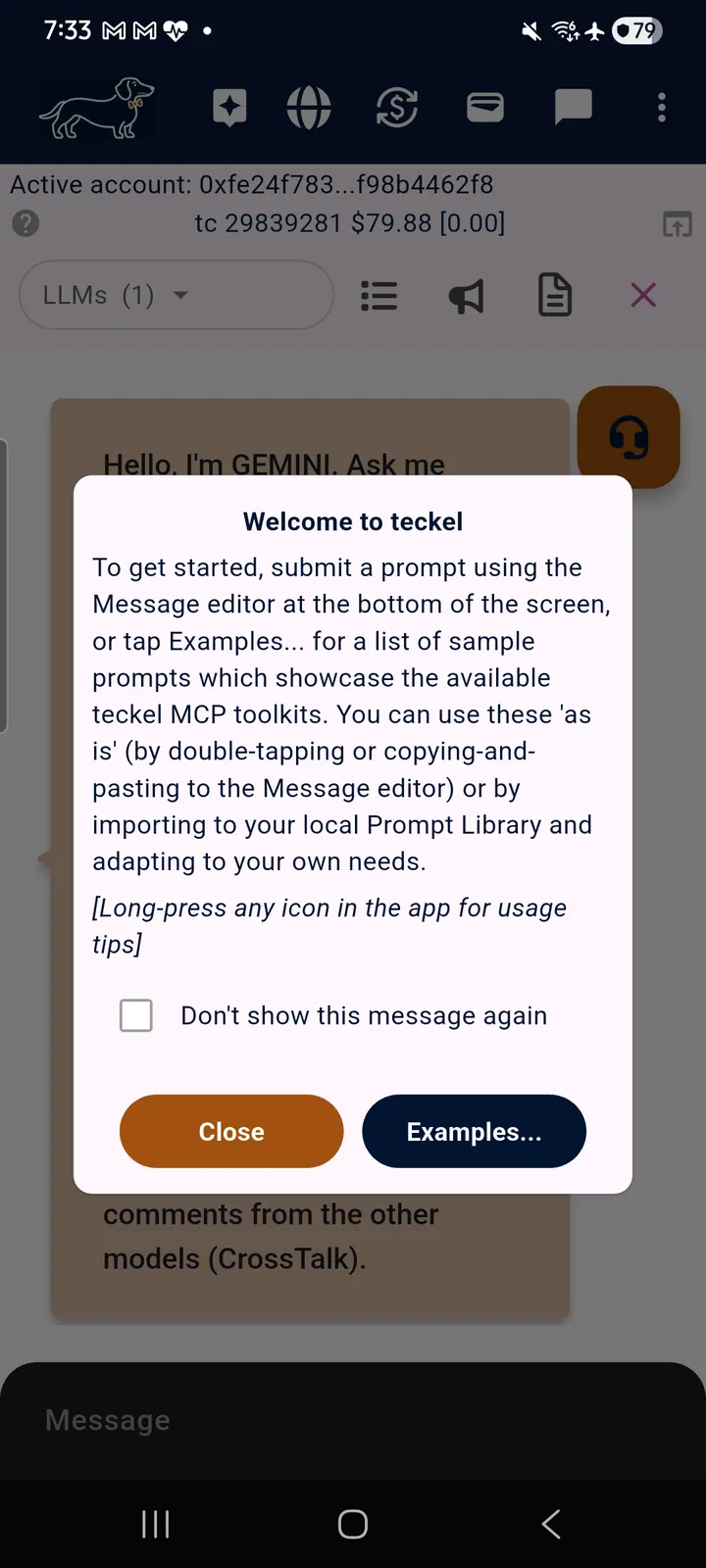
Once the App opens on the teckel AI chat screen, you are ready — that screen is the subject of the next chapter. The first time it opens, a Welcome to teckel dialog (Figure 3.3) sits over the chat: it points you to the Message editor at the bottom of the screen and to Examples…, a list of sample prompts showcasing the teckel MCP toolkits that you can use as they are, copy into the editor, or import into your Prompt Library and adapt. Tap Close to start with an empty editor, or Examples… to open the samples; tick “Don't show this message again” if you would rather not see the dialog on later launches (the same reminder — long-press any icon for usage tips — is repeated in Section 2.3).
4. teckel AI — the Multi-Model AI Chat
4.1 One Question, Several Minds
The home screen of the teckel App is teckel AI — a chat window connected to several leading AI models at once. Instead of committing to one provider's app and one provider's answers, you choose which models are listening, put your question to all of them in one go, and read their answers side by side. You can also have the models respond to one another, referee-style, before they hand the conversation back to you.
Every message you send draws on the teckel credits (tc) of your active Ethereum Account on a pay-as-you-go basis. Current pricing is published at teckel.io/pricing.
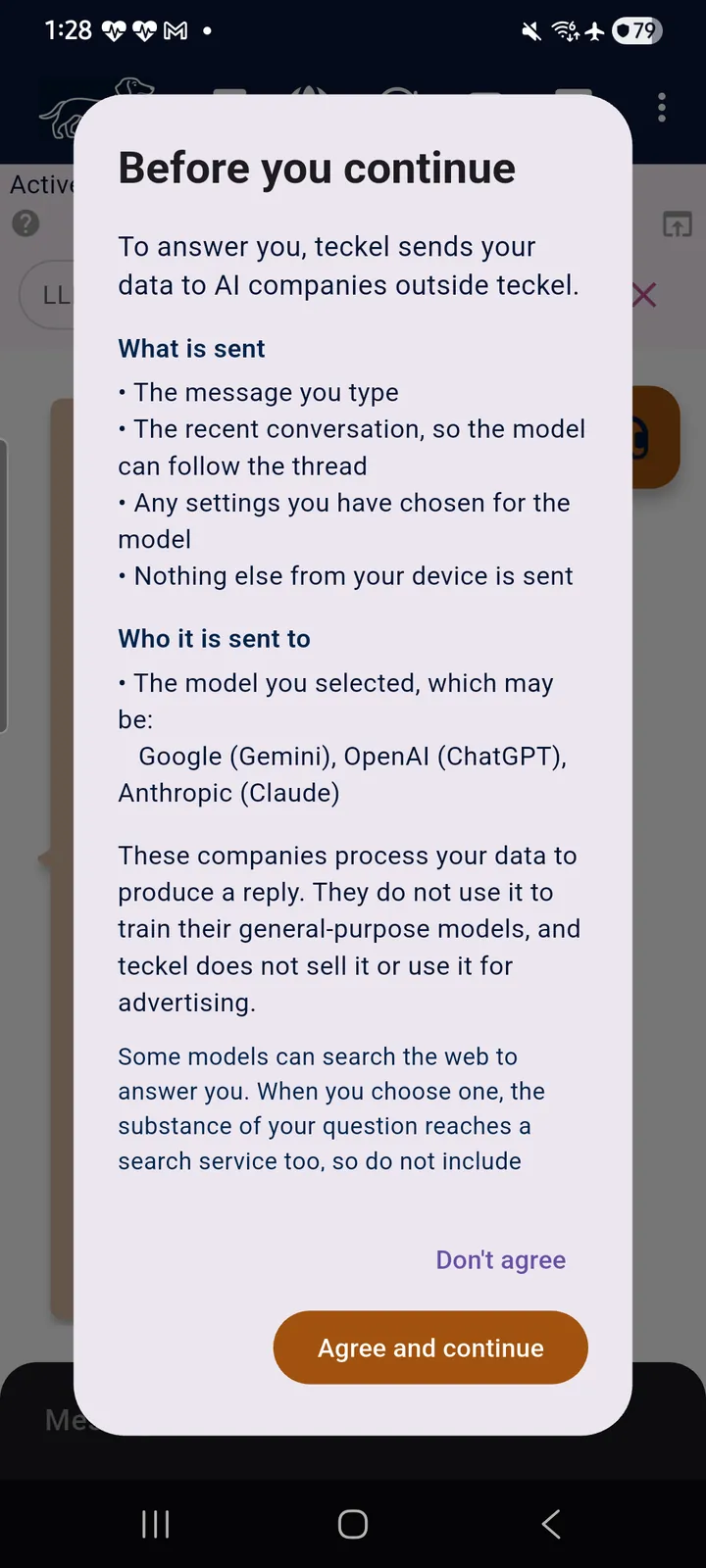
Before your words leave the phone, the App tells you where they go. Sending a message can first bring up a Before you continue screen: to answer you, teckel sends your data to AI companies outside teckel. It lists what is sent (the message you type, the recent conversation so the model can follow the thread, and any settings you have chosen for the model — nothing else from your device) and who it is sent to (the model you selected: Google (Gemini), OpenAI (ChatGPT) or Anthropic (Claude)). It also warns that some models can search the web, so the substance of your question can reach a search service too — do not include confidential information. Tap Agree and continue to send, or Don't agree to go back without sending. (The voice agent has its own version of this screen — Section 4.10.)
4.2 The Balance Strip
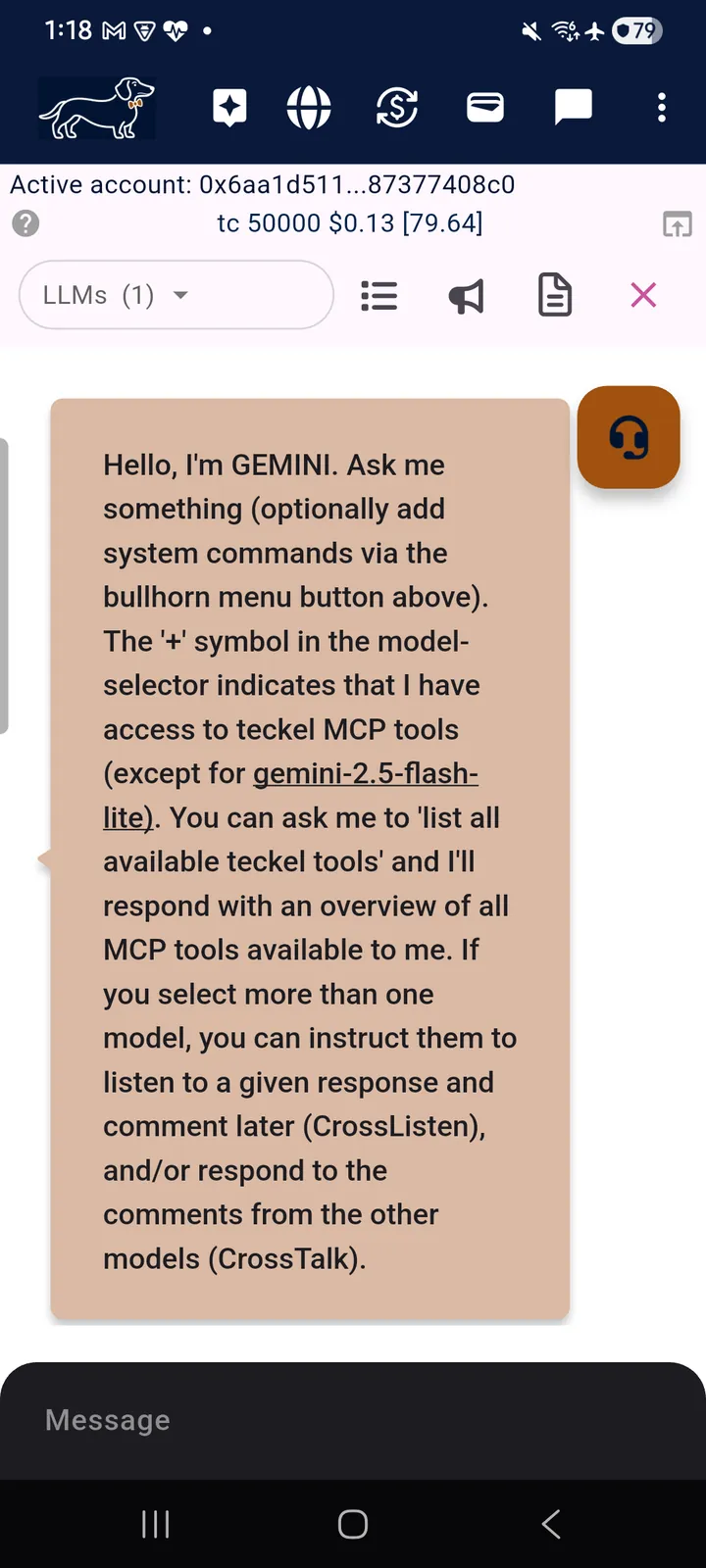
Directly under the top navigation bar, the balance strip shows the Ethereum address of your active Account and its tc balance, with its approximate value in your local currency and, in square brackets, what the current chat session has cost so far. Long-press the “?” icon for an explanation of the display — a tap does nothing; like every informational icon in the App, it answers to a long press — and use the share icon at the right-hand end to export.
4.3 Choosing Your Models — Selected LLMs
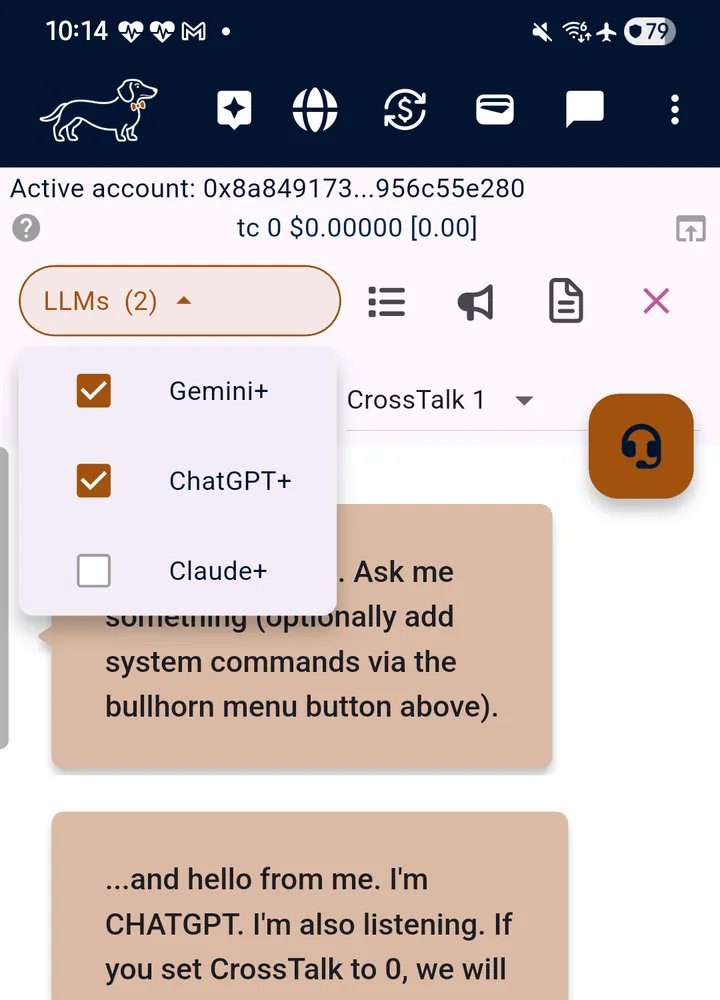
Tap the “Selected LLMs” picker to choose which AI models participate in the conversation. You may select any combination — the count in the picker shows how many are currently listening. As of this writing (App 2.0.6) the roster is three providers — Gemini, ChatGPT and Claude — each offering several editions (Section 4.7); the available models may change over time.
The “+” after a model's name means it has access to the full set of teckel MCP tools (Model Context Protocol — the mechanism that lets an AI model call real tools rather than only talk about them). Ask any “+” model to “list all available teckel tools” and it will respond with an overview of every MCP tool available to it. In our tests (App 2.0.6) the set covered IPFS content management (upload, publish, list, pin, remove, retrieve), navigation (flight planning, distance and bearing, time zones, drive time and distance), web search and Ethereum blockchain interaction. One exception: the gemini-2.5-flash-lite model variant does not have access to the MCP servers (model variants are chosen in the LLM parameters screen — Section 4.7).
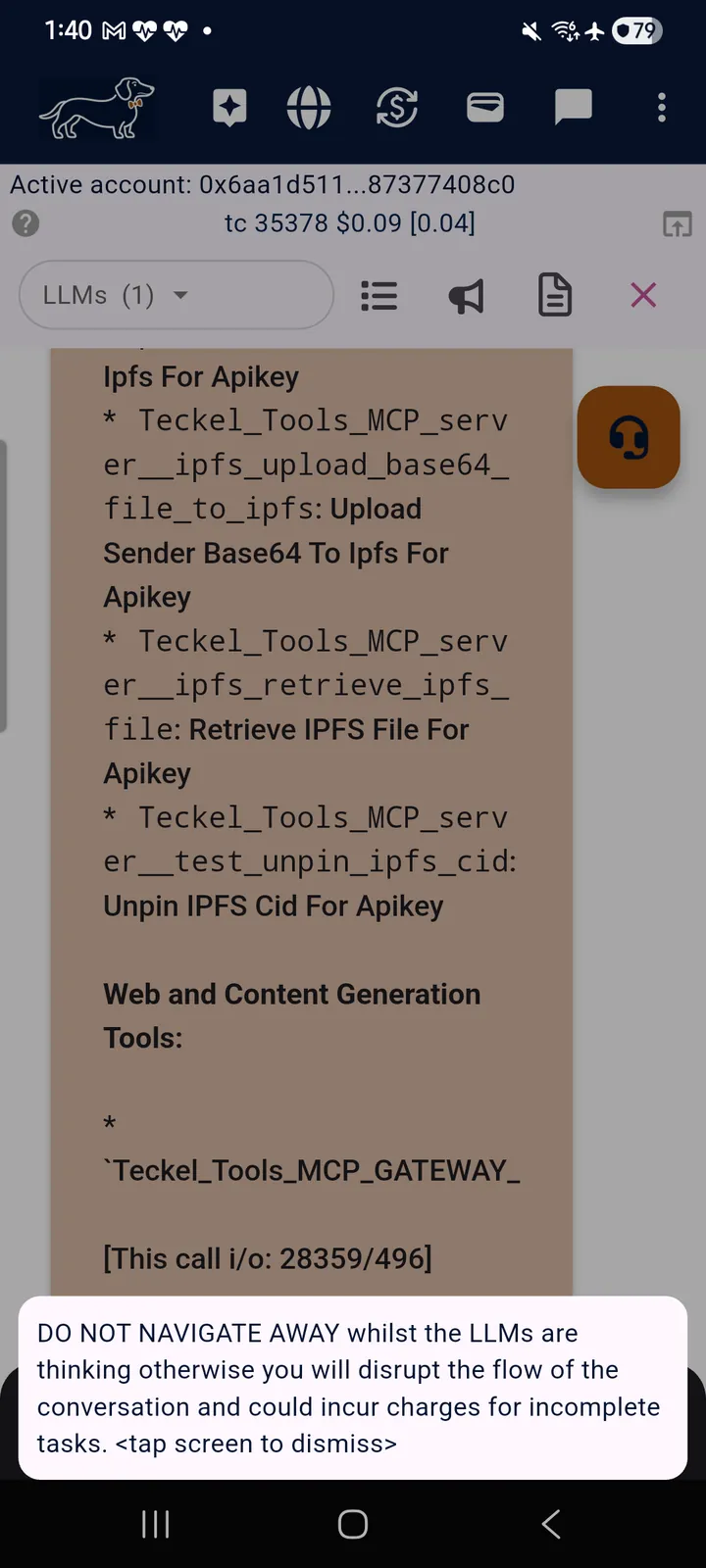
Teckel_Tools_MCP_server tools the model can call. Note the per-call token counter at the end of a response, and the App's warning not to navigate away while the models are thinking (an interrupted call can still incur charges).4.4 CrossTalk — Let the Models Debate
With two or more models selected, a CrossTalk control sits below the picker. Tap it and choose a number from CrossTalk 0 to CrossTalk 10 (Figure 4.4, left). The number controls whether the selected models talk to each other. As ChatGPT puts it in its greeting: “If you set CrossTalk to 0, we will interact only with you individually. If you set CrossTalk to another number, we will respond to one another that number of times before waiting for you to say something else.” With CrossTalk 1, for example, each model answers your question and then responds once to the other models' answers before the conversation comes back to you. It is a simple way to run a short debate, a peer review, or a brainstorm between models — and then step back in.
Every answer is a separate call, charged as it happens. Two models with CrossTalk 1 give you four answers instead of two, and each ends with its own token count (the “[This call i/o: …]” line); the running cost of the session is the figure in square brackets in the balance strip (Section 4.2).
4.5 CrossListen — Address a Subset
CrossListen lets you direct your next prompt to a subset of the selected models — useful mid-conversation, when you want one model's view on another model's answer without deselecting anyone. Tap the pointing-hand icon beside the word CrossListen to open its dialog: “CrossListen: select a subset of models to respond directly to the next prompt. The others will listen quietly” (Figure 4.4, right). Tick the box beside each model that should answer, then tap Select.
The models you leave unticked do not answer that prompt, but they listen: with CrossTalk above 0 they join in afterwards, responding to the answers given. With no box ticked, every selected model answers as usual. The dialog opens with every box unticked each time — even straight after a Select — so it does not show a choice already made.
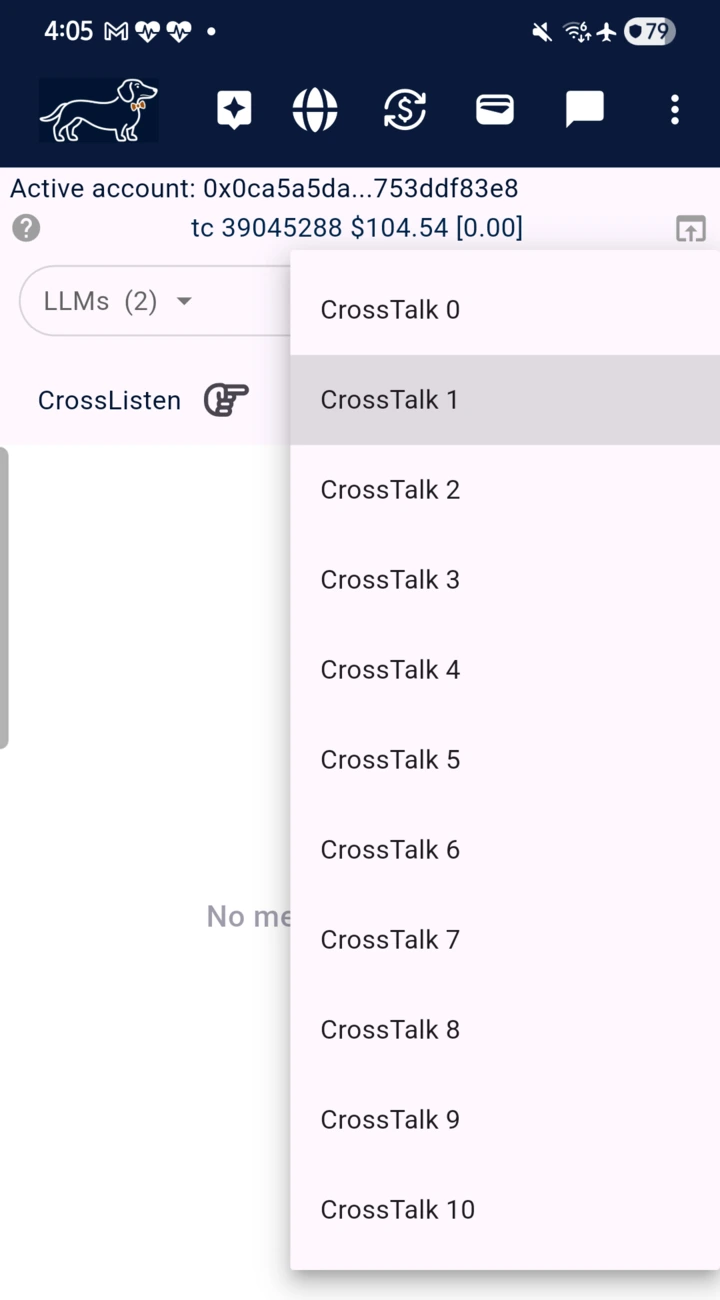
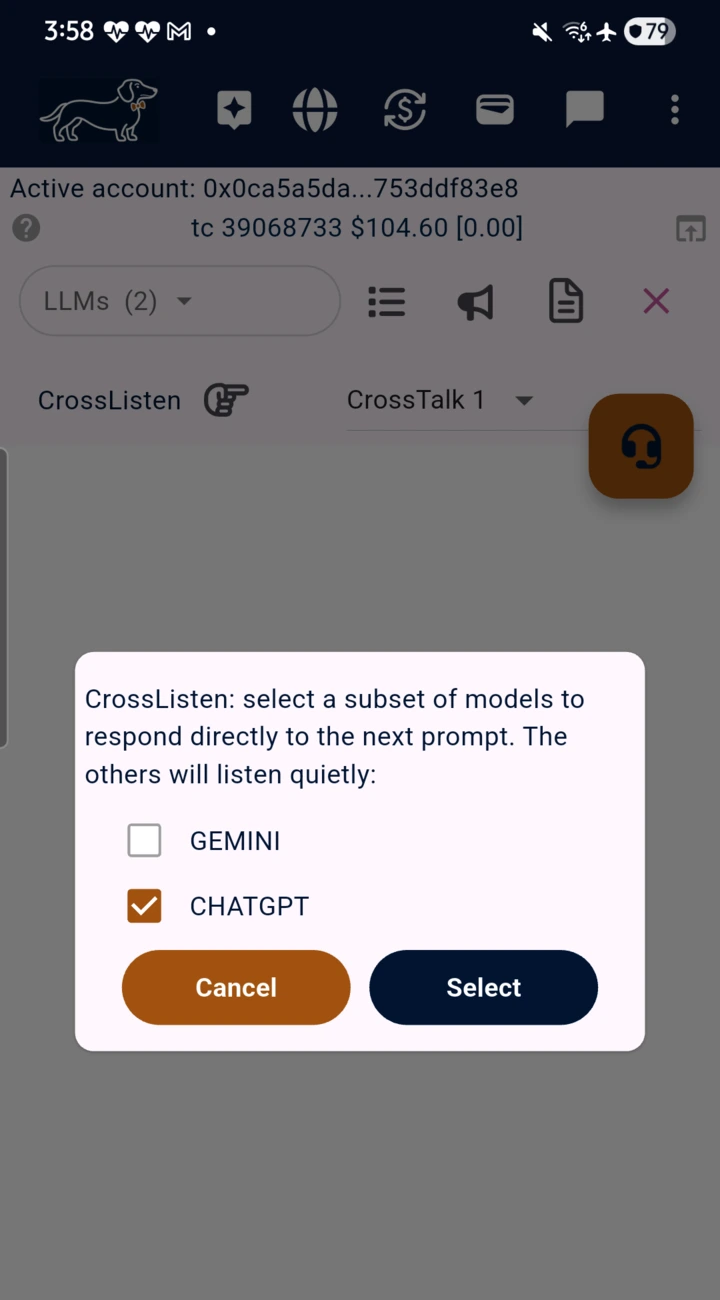
The CrossTalk number and the CrossListen choice return to their defaults when the App is restarted, and switching the active Account also returns CrossTalk to 0; your choice of Selected LLMs is kept.
4.6 The Chat-Control Icons
Beside the “Selected LLMs” picker sit four controls (long-press any of them in the App for its own description):
- List icon — “Select LLM model variants and adjust parameter settings” (Section 4.7). Allow a few seconds for the settings to load.
- Bullhorn icon — system commands to the selected AI models. A system command shapes how the models answer — for example, “Keep your response short.”
- Document icon — export a transcript of the chat window as a text file.
- Pink “×” — clear the session and start fresh.
4.7 Model Variants and Parameters
The list icon opens LLM Model Selection: one entry per provider, plus a “Display LLM errors” option that shows the detailed error message if a model fails to respond.
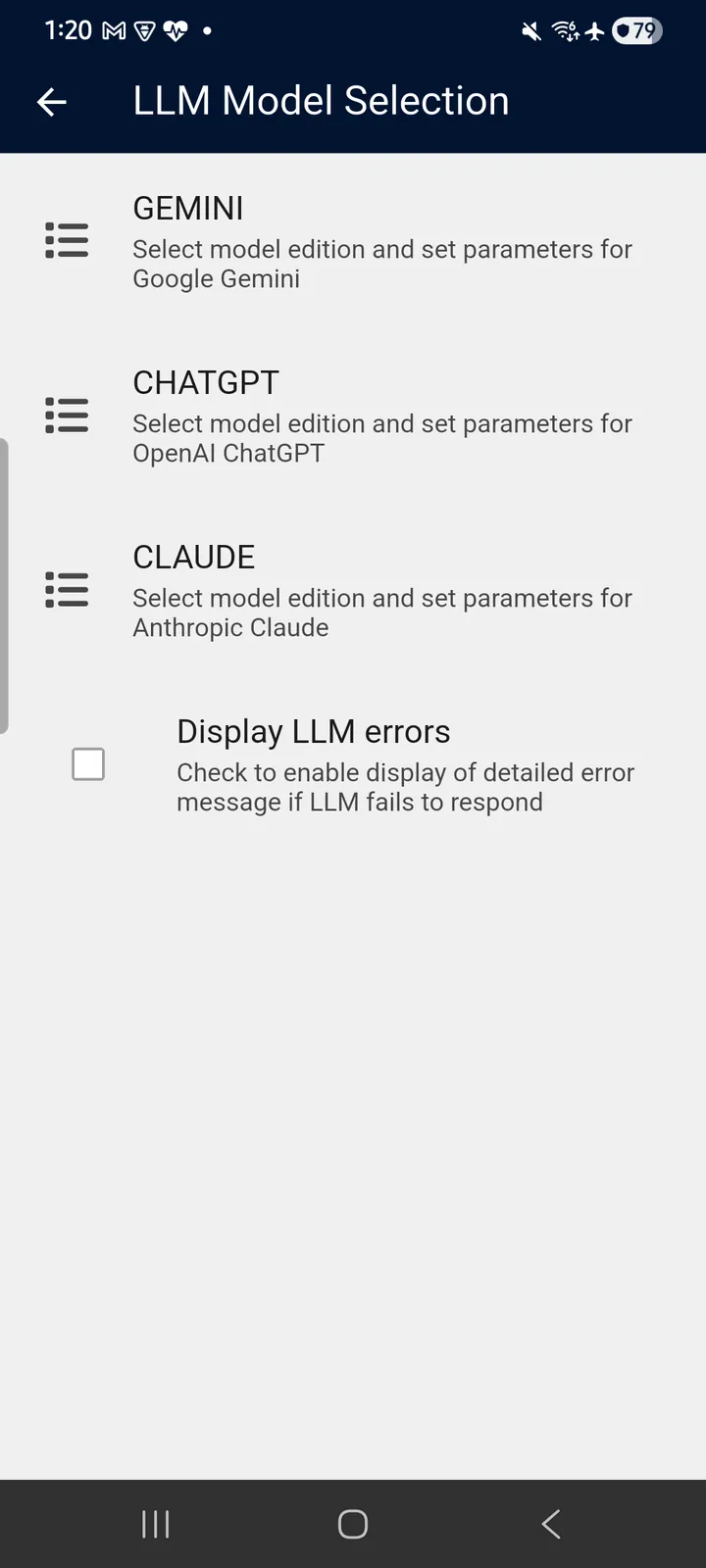
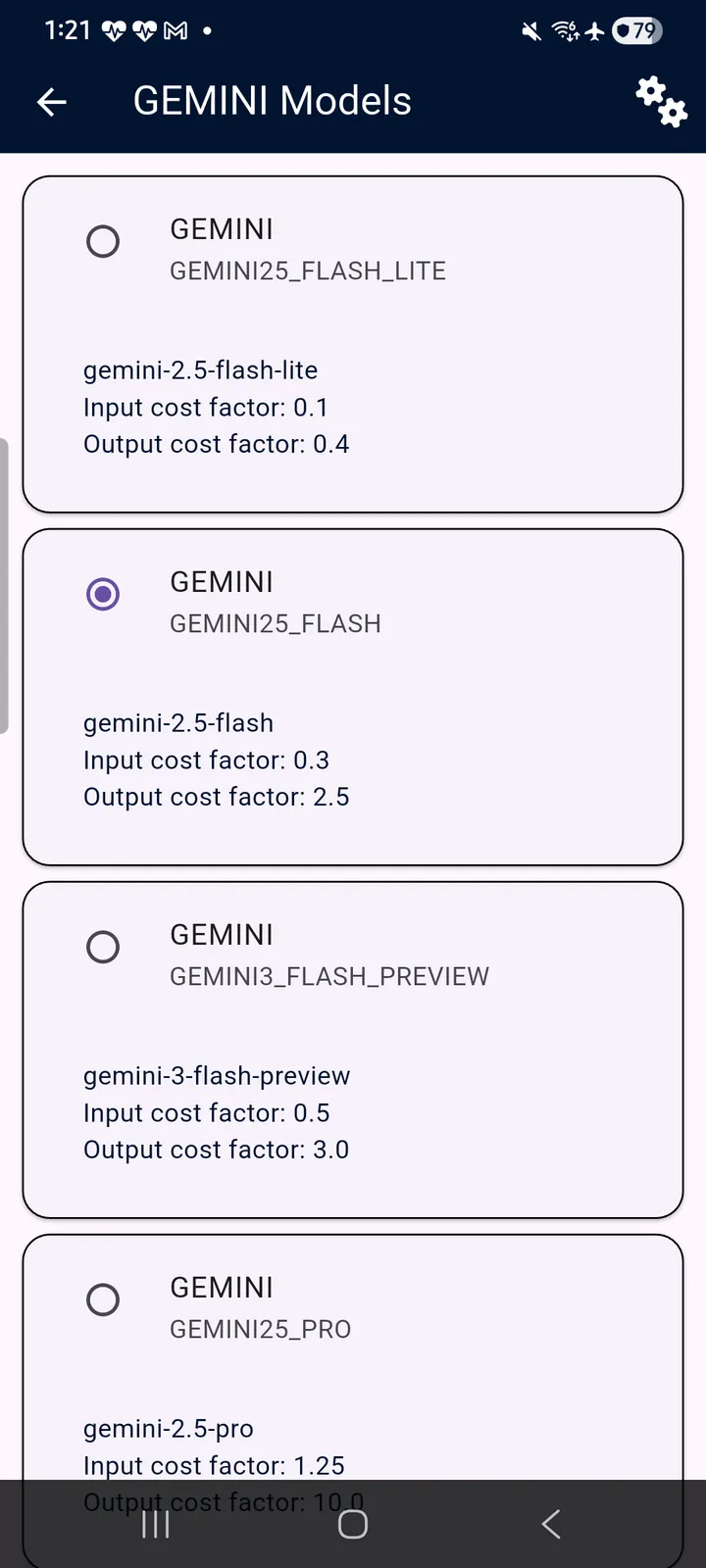
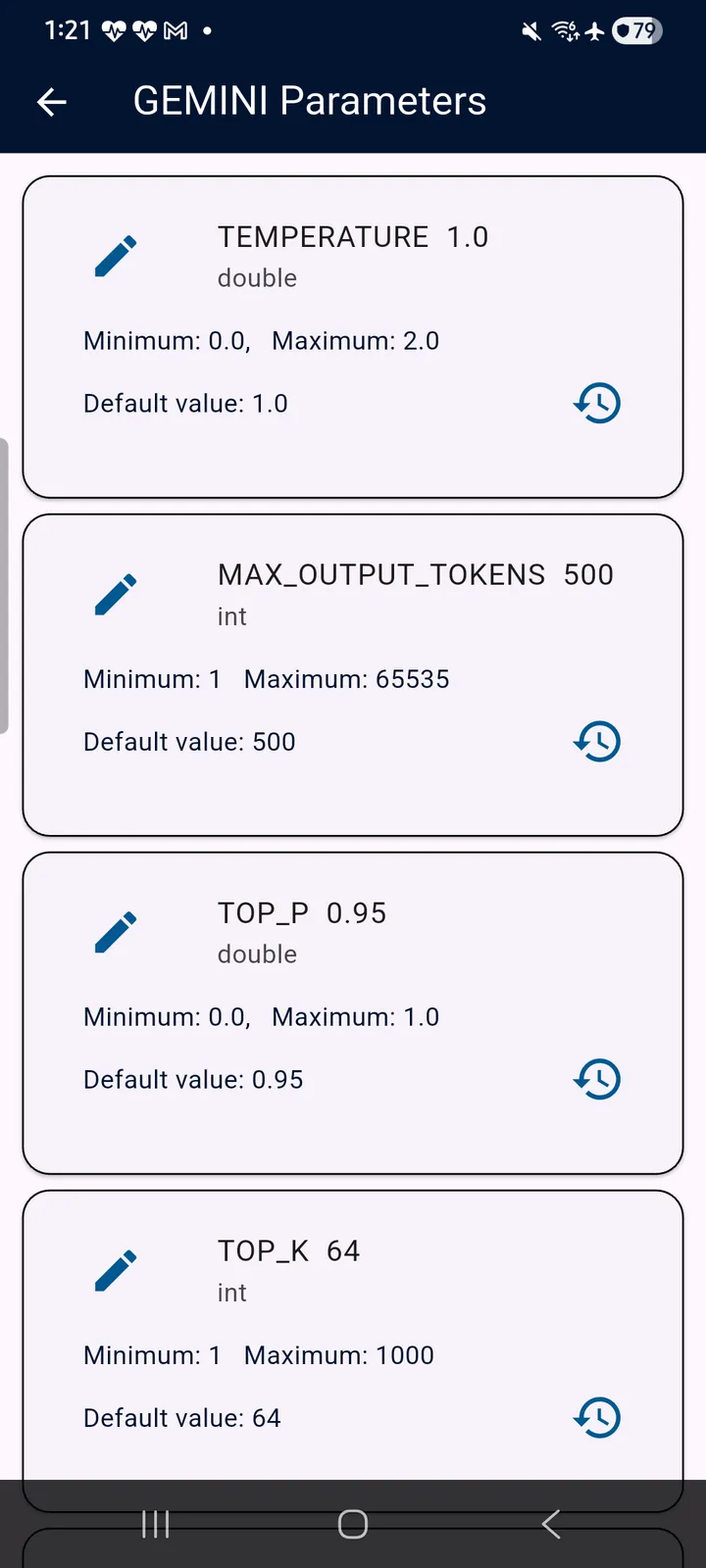
gemini-2.5-flash-lite is the one edition without MCP tool access.The gear icon at the top right of a provider's model list opens its parameters: TEMPERATURE, MAX_OUTPUT_TOKENS, TOP_P, TOP_K and so on, each showing its type, permitted range and default value. Tap the pencil to edit a value, or the history icon to restore the default.
4.8 Message Actions
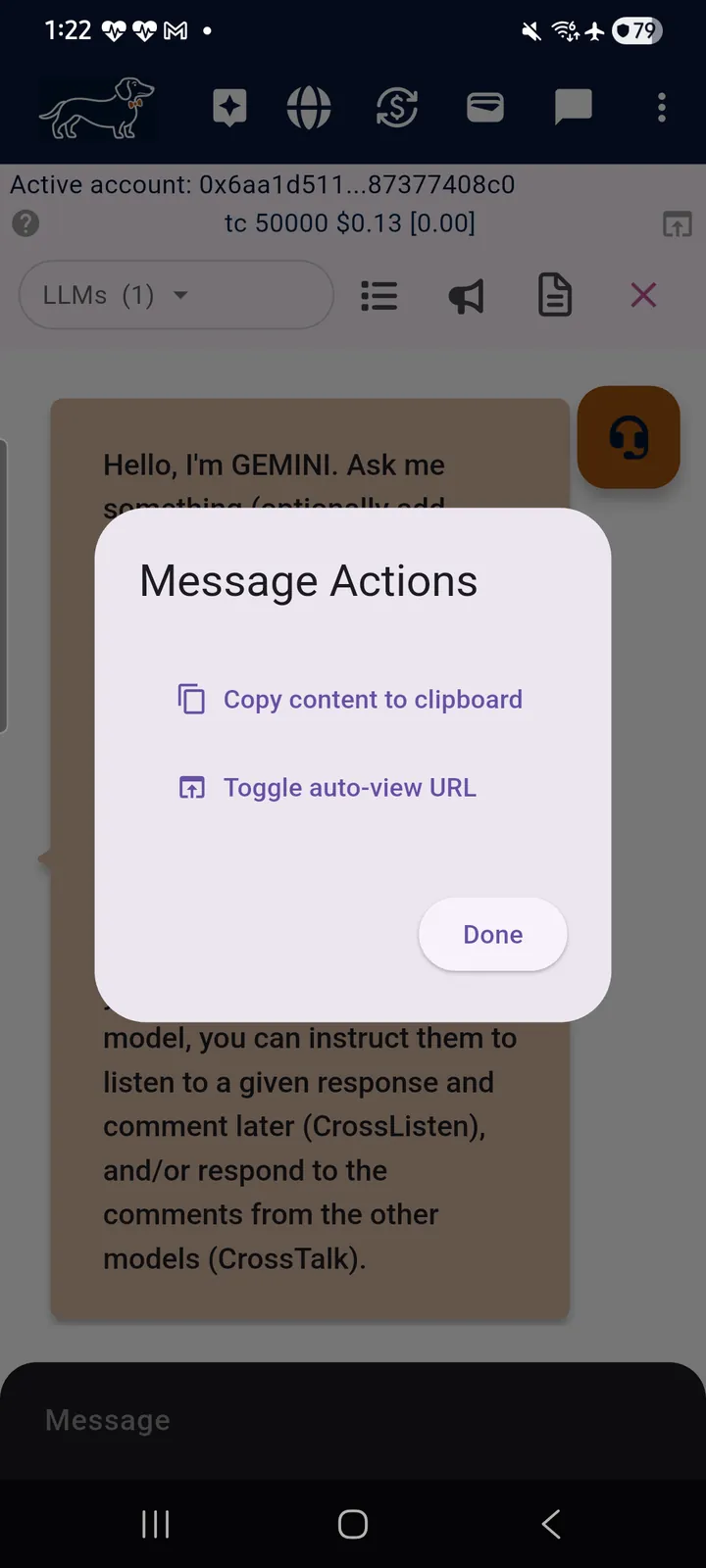
Tap any message in the chat to open its Message Actions: copy the message content to the clipboard, or toggle auto-view for URLs it contains. (teckel talk messages carry a different, larger action set — see Chapter 8.)
4.9 The Prompt Gallery and Your Prompt Library
The sparkle icon in the top navigation bar opens the Prompt Gallery — a collection of ready-made prompts curated by teckel — and my Prompt Library, where you keep your own. A good prompt is reusable; the gallery gives you working starting points and the library keeps the ones you refine.
4.10 The teckel Voice Agent
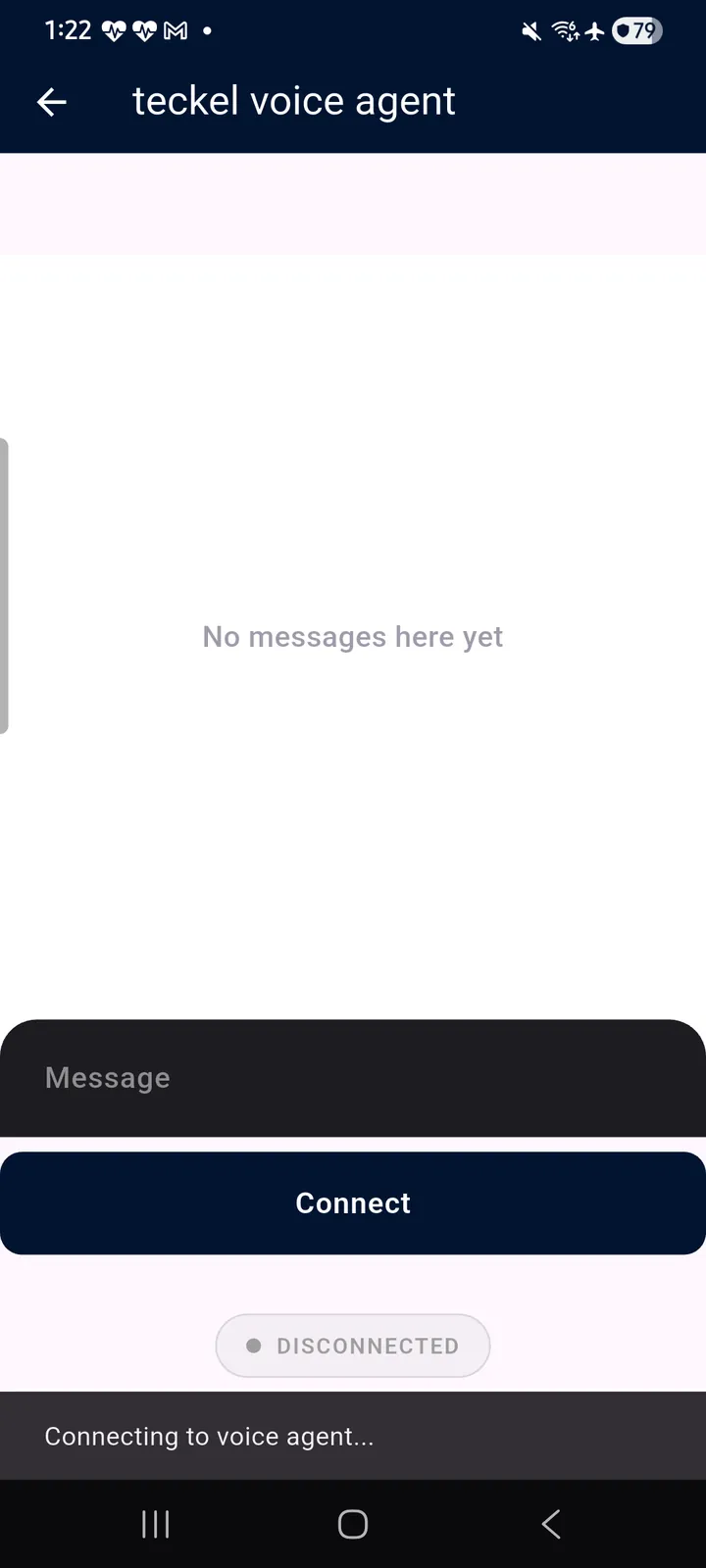
The orange headset button on the teckel AI screen opens the teckel voice agent — a voice-driven assistant you can speak with about teckel. Tap “Connect” to start a session (the status indicator shows when you are connected), speak or type your message, and tap “Disconnect” when you are done.
The voice agent needs a positive tc balance. On an Account with no tc, the headset button shows a brief “insufficient tc” message and does not open the agent — top up first (Chapter 7). The balance is checked when you connect, and a session is charged as it runs, so a long session can take the balance below zero (Section 7.1).
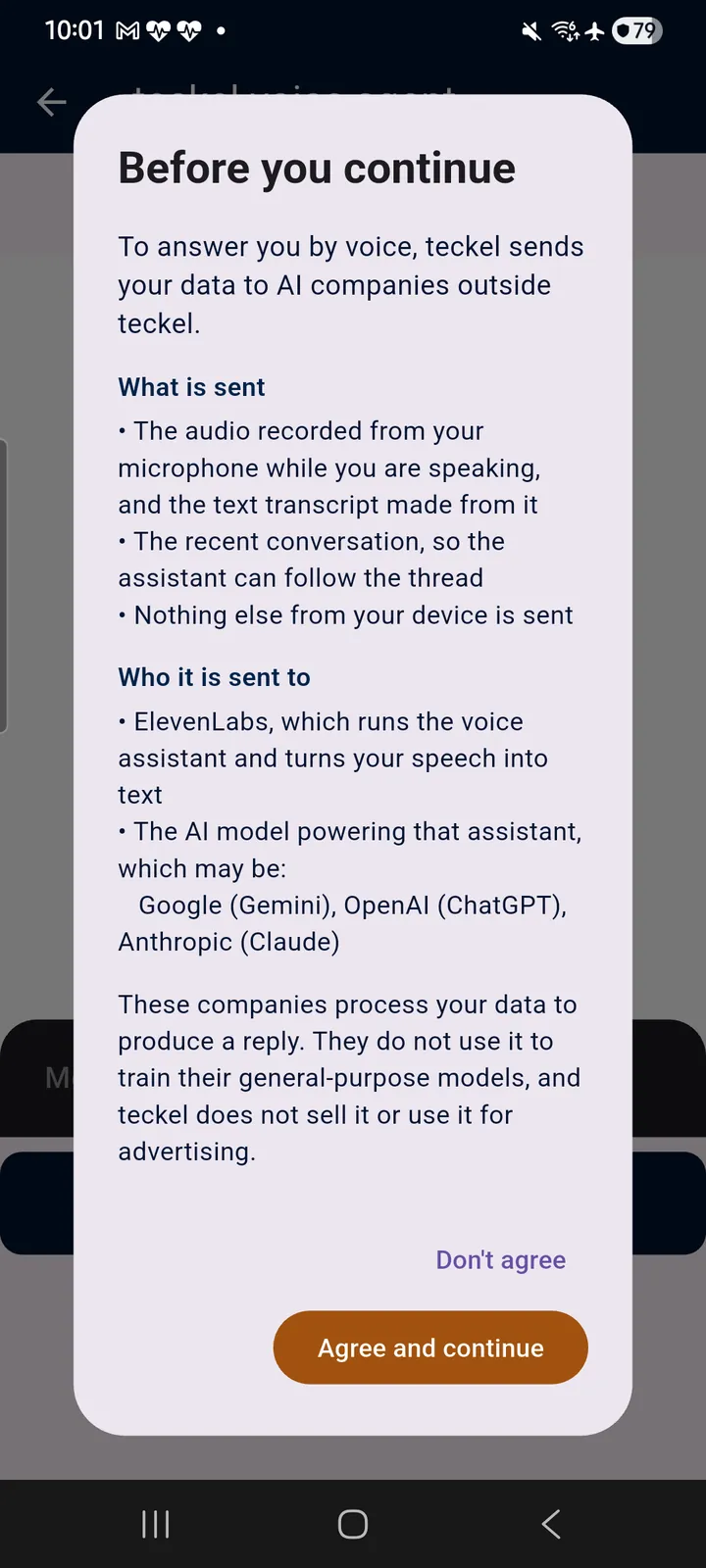
Before a session starts, the App tells you where your voice goes. When you tap “Connect”, a Before you continue screen explains that, to answer you by voice, teckel sends your data to AI companies outside teckel: what is sent (the audio recorded from your microphone while you are speaking and the text transcript made from it, and the recent conversation — nothing else from your device) and who it is sent to (ElevenLabs, which runs the voice assistant and turns your speech into text, and the AI model powering it — Google (Gemini), OpenAI (ChatGPT) or Anthropic (Claude)). Tap Agree and continue to go ahead, or Don't agree to return to the agent screen without connecting. Your phone then asks whether the App may record audio; the agent cannot hear you without that permission. The teckel Privacy Policy at teckel.io/gdpr-and-privacy-policy has the detail.
4.11 What a Conversation Costs
Each response ends with a per-call token count in the form [This call i/o: , and the balance strip updates as you go — so the cost of a conversation is visible while you have it. A model edition's input and output cost factors (Section 4.7) determine how those tokens translate into tc, which is why a cheaper edition can be the right choice for routine questions.
Do not navigate away while the models are thinking — the App warns about this explicitly. Leaving the screen mid-response disrupts the flow of the conversation and can still incur charges for the incomplete work.
4.12 A Note on AI Answers
The AI models available through teckel AI are provided by third parties. Their answers can be wrong, misleading or incomplete, and in no way represent the views of teckel — verify anything that matters before acting on it. Please see the teckel Terms at teckel.io/terms-and-conditions and the teckel Privacy Policy at teckel.io/gdpr-and-privacy-policy for how third-party AI providers handle what you share with them.
5. Your Ethereum Accounts
5.1 Accounts in a Nutshell
The teckel App keeps your Ethereum Accounts on your phone, under your control: it creates, imports, exports and manages the key pairs that identify you, and each private key stays on the phone unless you choose to back it up (Section 5.3). Your Account is an Ethereum account, but the App offers no facility for sending ether as part of normal use; if ether is ever sent to an Account's address, the way to move it is to export that Account's private key (Section 5.4) into other Ethereum software (teckel Terms, teckel.io/terms-and-conditions).
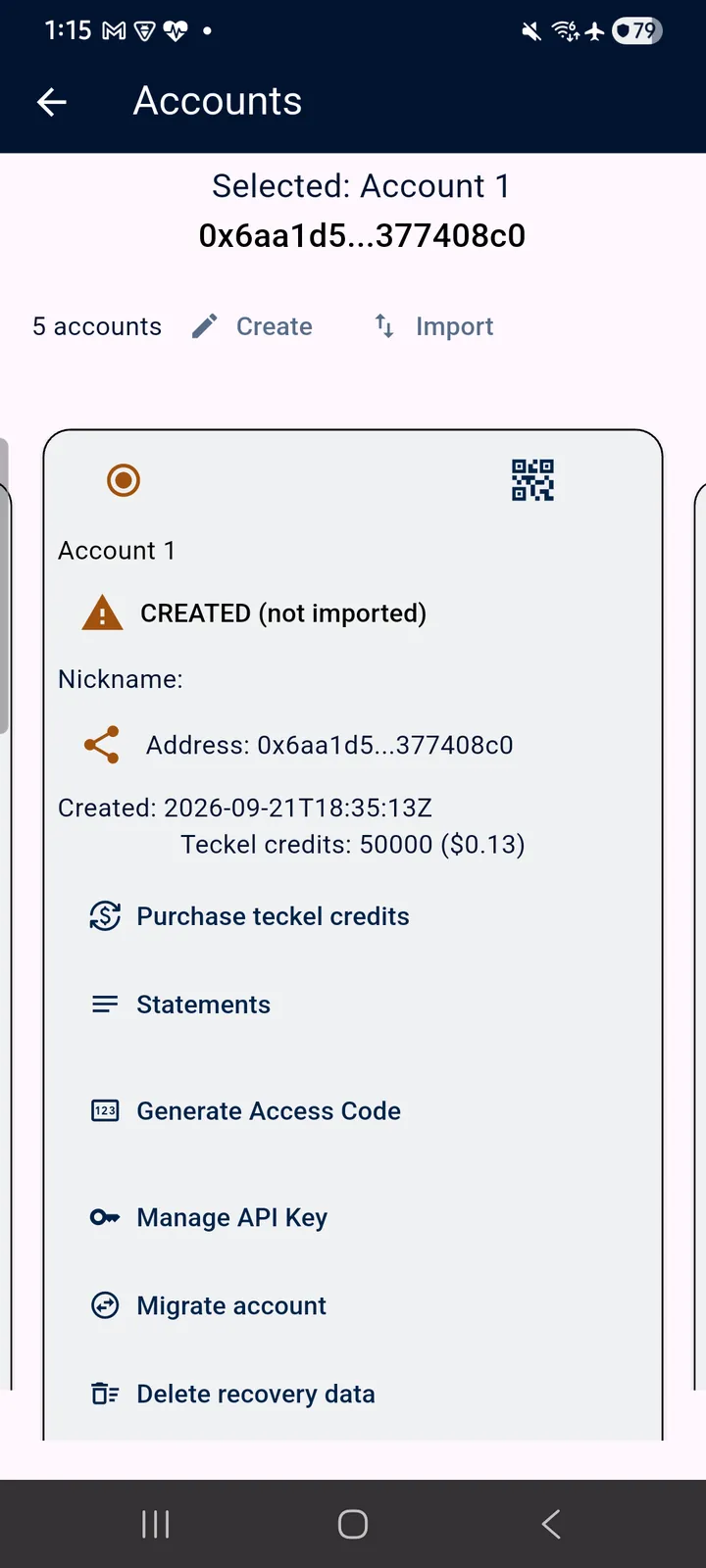
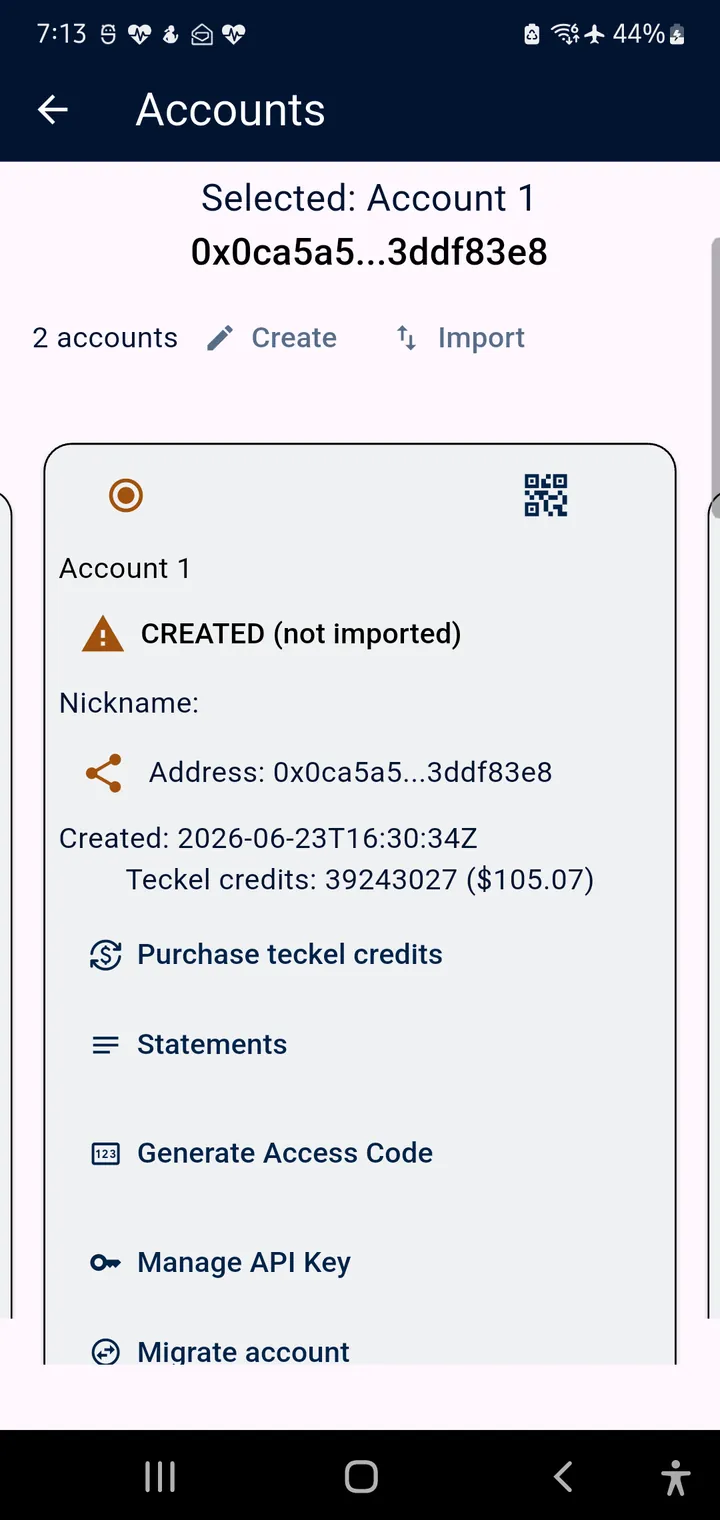
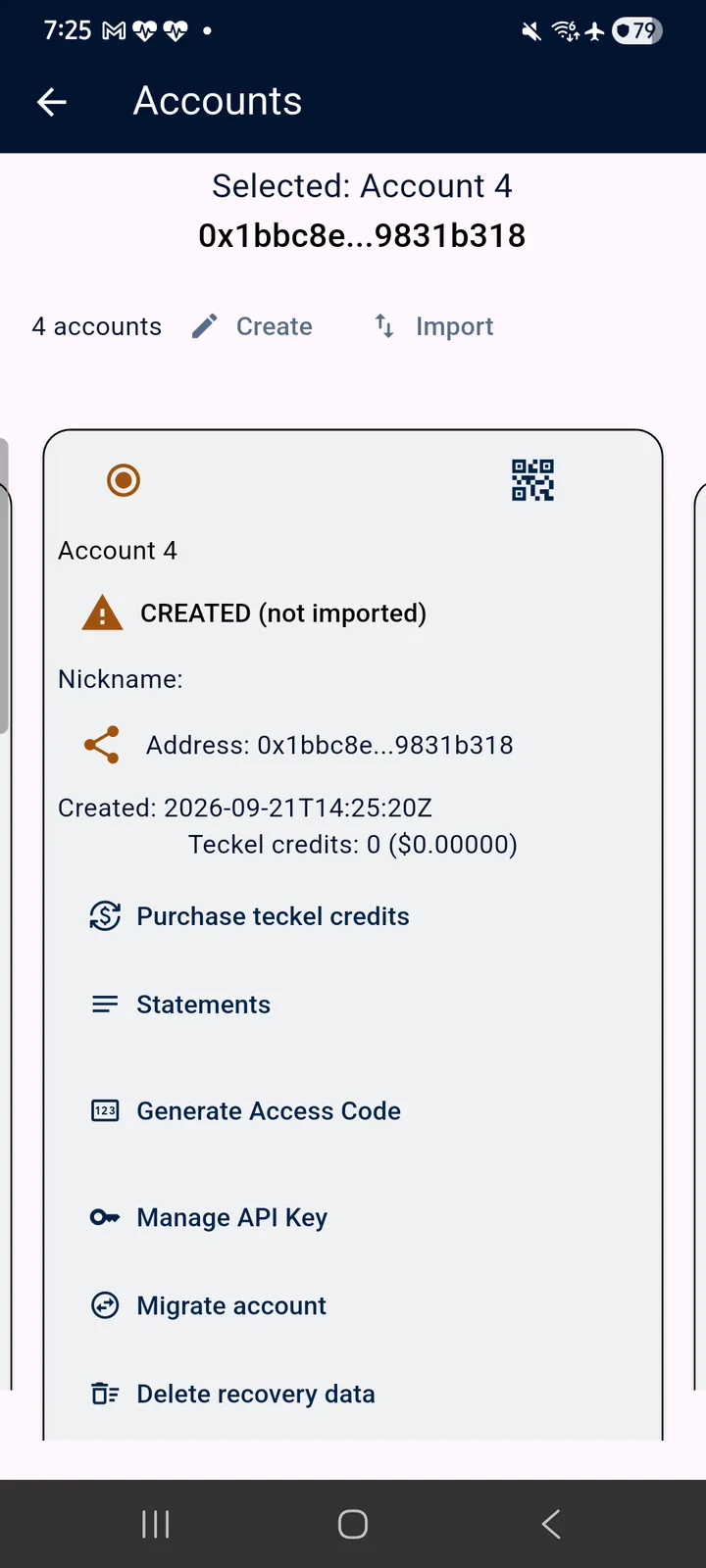
An Ethereum Account (a cryptographic public/private key pair) is what identifies you on the teckel Platform: it holds your teckel credits (tc), and it is the identity under which you use teckel AI, teckel talk, IPFS and the teckel Web3 services — and to which a Benedict is bound (Chapter 6). You may create or import any number of Accounts, but only one Account is active at any time: the active Account is the one shown in the balance strip, the one your usage draws tc from, and the one whose content the IPFS and teckel talk areas show. Make an Account active by tapping the radio icon on its card.
Tap the card icon in the top navigation bar to open the Accounts screen. Account cards sit side by side — swipe horizontally to move between them.
5.2 Creating and Importing Accounts
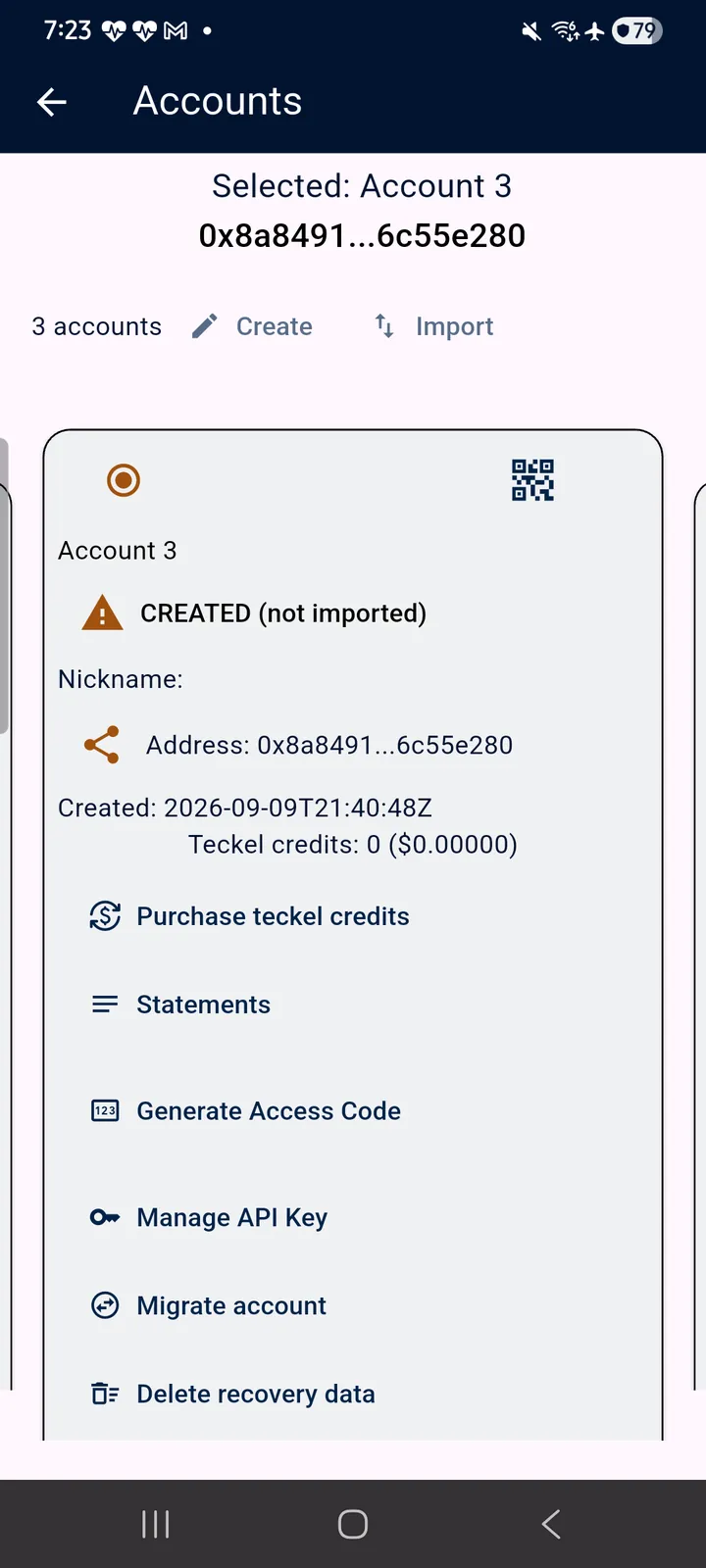
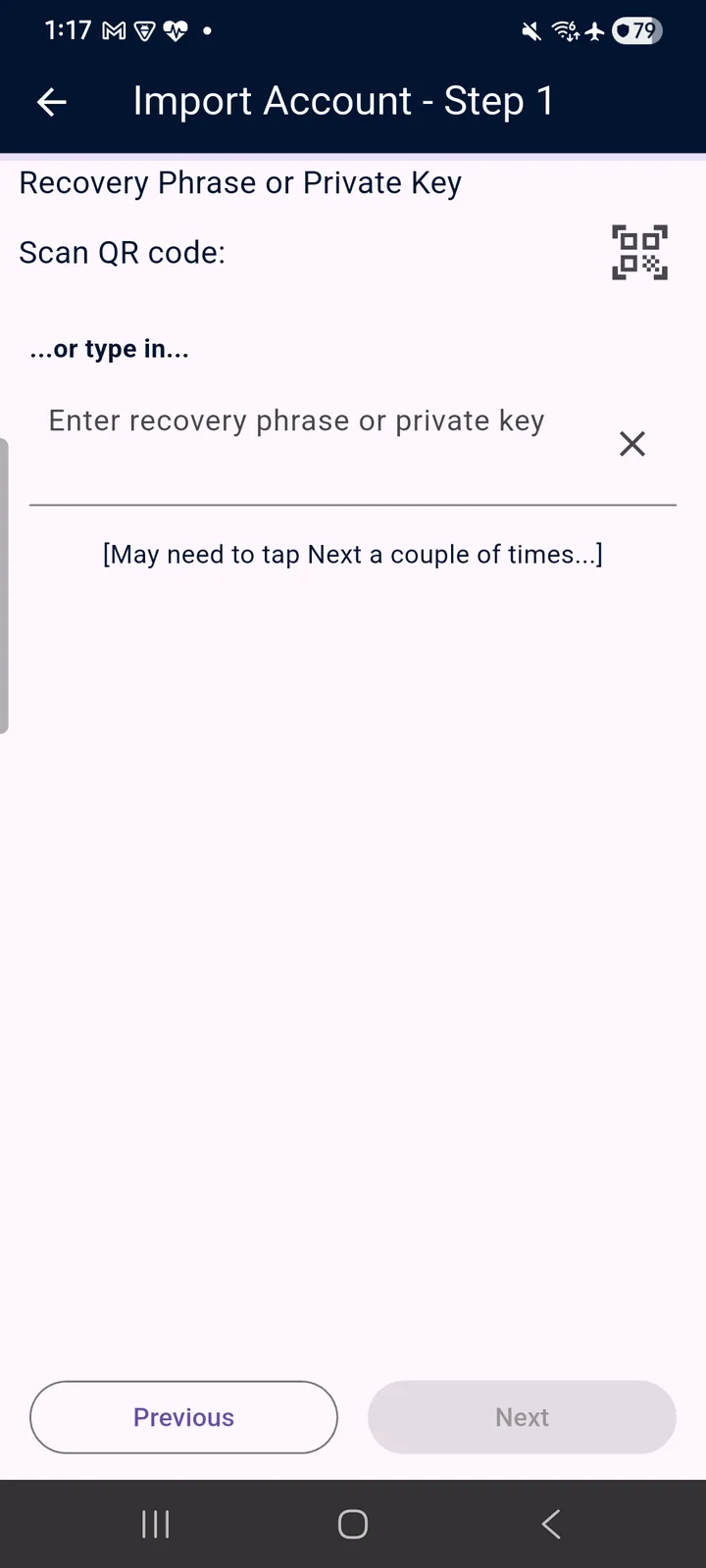
Your first Ethereum Account is auto-generated by the App at initial installation (Chapter 3). For any further Accounts: tap Create and the App generates a brand-new Ethereum Account immediately — one tap, automatically and randomly, with no forms — and makes it the active Account. Tap Import to bring in an existing account via its secret recovery phrase or private key.
Importing takes either a scan of the Account's exported QR code or the recovery phrase / private key typed in.
★ An Account carries its teckel talk identity with it: import an Account onto another device and the private groups it hosts or belongs to are there too (Chapter 8), because groups are bound to the Account, not to the handset.
NOTE: the secret recovery phrase is not stored within the App — it is only used to derive the private key. The private key is stored within the App, in an encrypted area on the device, and the App is locked down using best-practice access security measures: initial App launch, and private-key access for Accounts created in the App, require your phone's PIN or biometric. However, even though this is the case, if your phone is lost, stolen or compromised by malware, your private key could also be compromised, and you assume these risks. Whoever knows the secret recovery phrase or the private key of an Ethereum Account has complete control over any assets held by that Account. You must keep all your private keys and secret recovery phrases confidential, hidden and secure at all times, in a location that is off of the devices on which you have installed the teckel App. A private key cannot be changed or “rotated”: if you suspect that an Account's private key or secret recovery phrase has been exposed, treat everything held at that Account's Ethereum address as at risk of theft. Any ether or other Ethereum assets there can only be protected by moving them to a new Account whose key has never been exposed — outside the teckel App, by exporting the key (Section 5.4) into other Ethereum software; teckel credits cannot be moved to another account (teckel Terms, teckel.io/terms-and-conditions).
Since an imported Account may already be compromised without your knowledge prior to importation, we recommend letting the App create a new Account to use for your teckel activity.
5.3 Migrate Every Account You Create
Migrate every Account you create — today, not on the day you need it. “Migrate account” saves an Account so that it can be put back: on a new phone, on the phone that replaces a lost one, or on the same phone after a fresh install. It is the one step in this chapter that has to happen before anything goes wrong: a lost phone is recoverable if you migrated the Account on it, and is not if you did not.
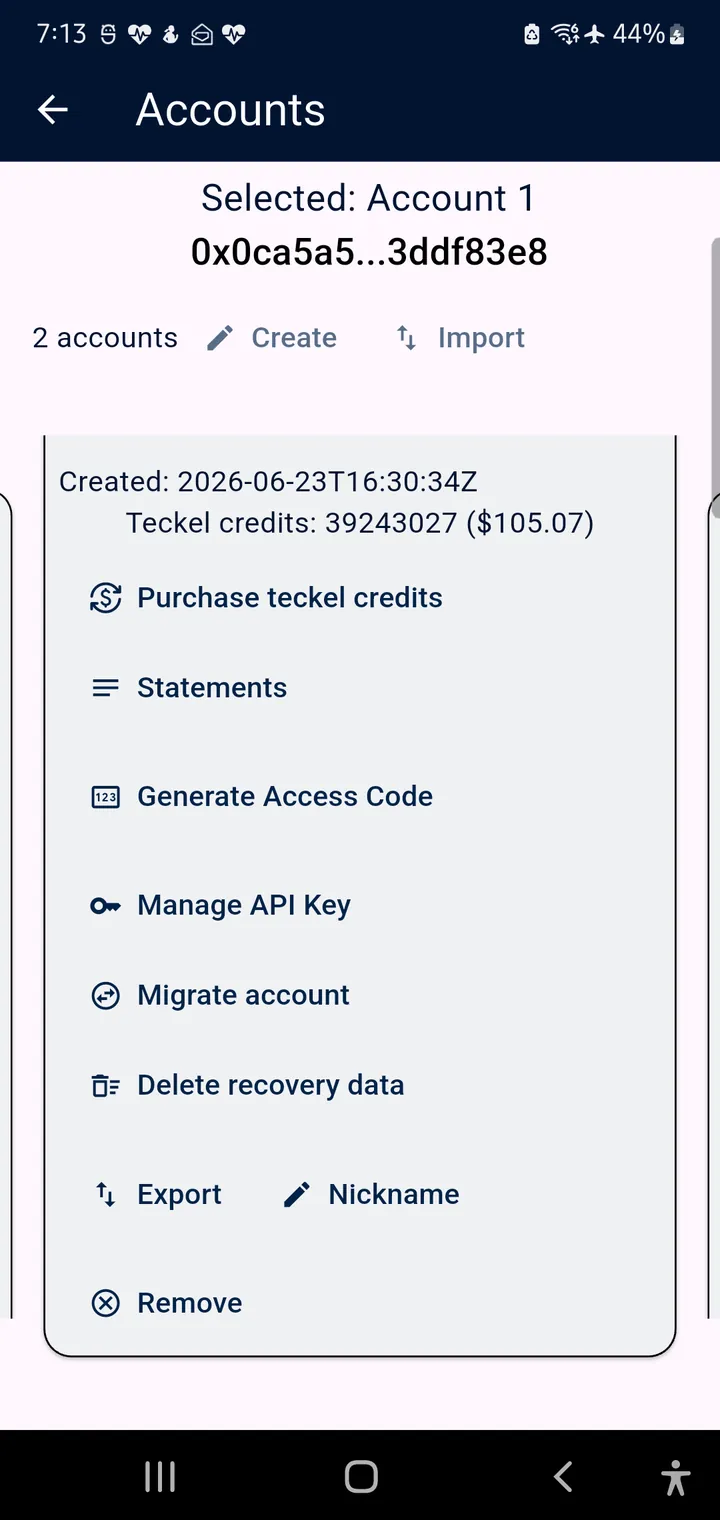
Open the Accounts screen, find the Account, and tap Migrate account on its card — it sits directly below “Manage API Key”, and it is offered on imported Accounts as well as created ones. The first step offers two directions:
- Migrate FROM this device — save this phone's Account, to an e-mail address and a passphrase you choose.
- Migrate TO this device — restore an Account you migrated earlier, using that same e-mail address and passphrase. You do not need the old phone to do this.
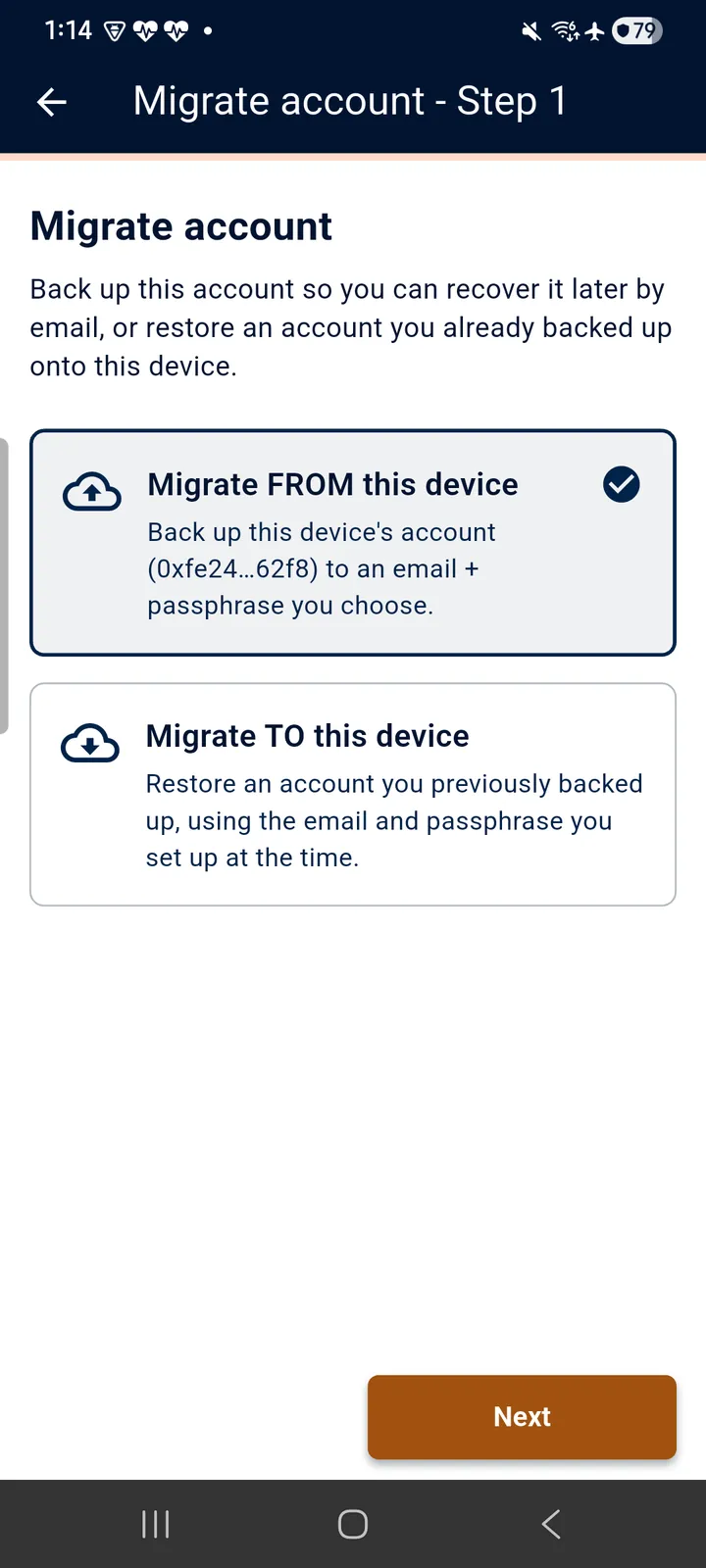
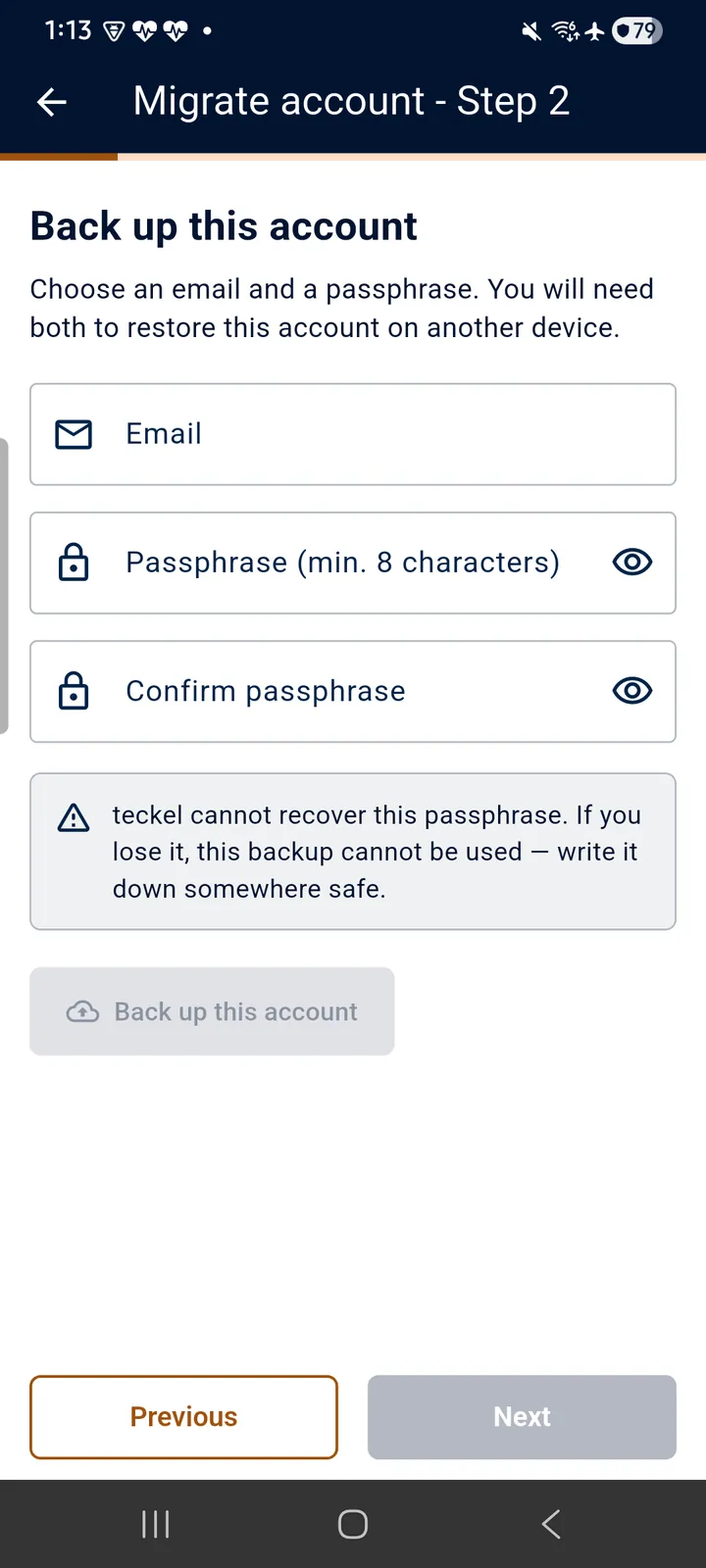
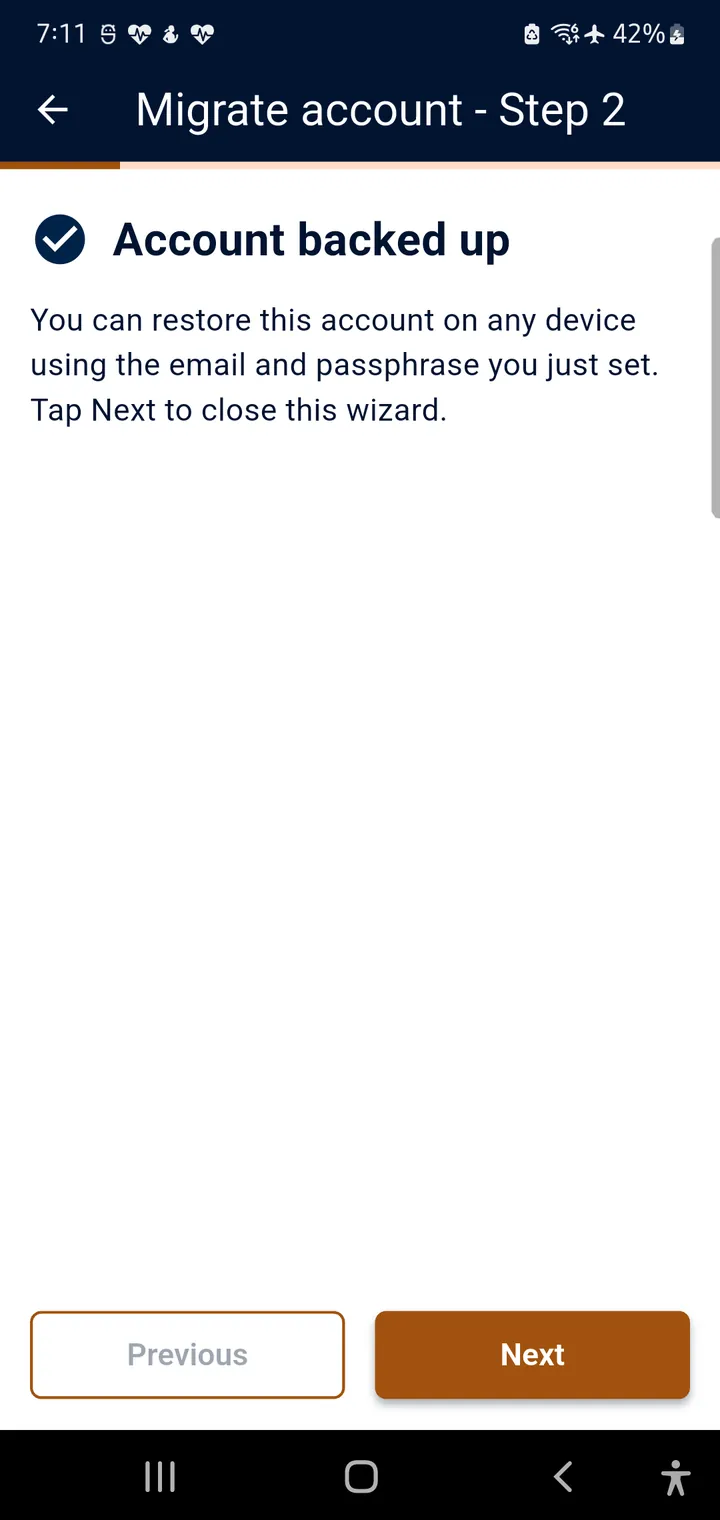
Backing up (Migrate FROM this device). Choose Migrate FROM this device and tap Next. Enter the e-mail address and a passphrase of at least eight characters, type the passphrase again, and tap Back up this account. The App asks for your phone's PIN or biometric, encrypts the Account and saves it, and shows Account backed up: “You can restore this account on any device using the email and passphrase you just set.” Tap Next, then Finish, to close the wizard. Within seconds an e-mail arrives at that address with the subject “Your teckel account backup is saved” — that is your confirmation the backup exists. Repeat for every Account you want to keep: each one is backed up from its own card.
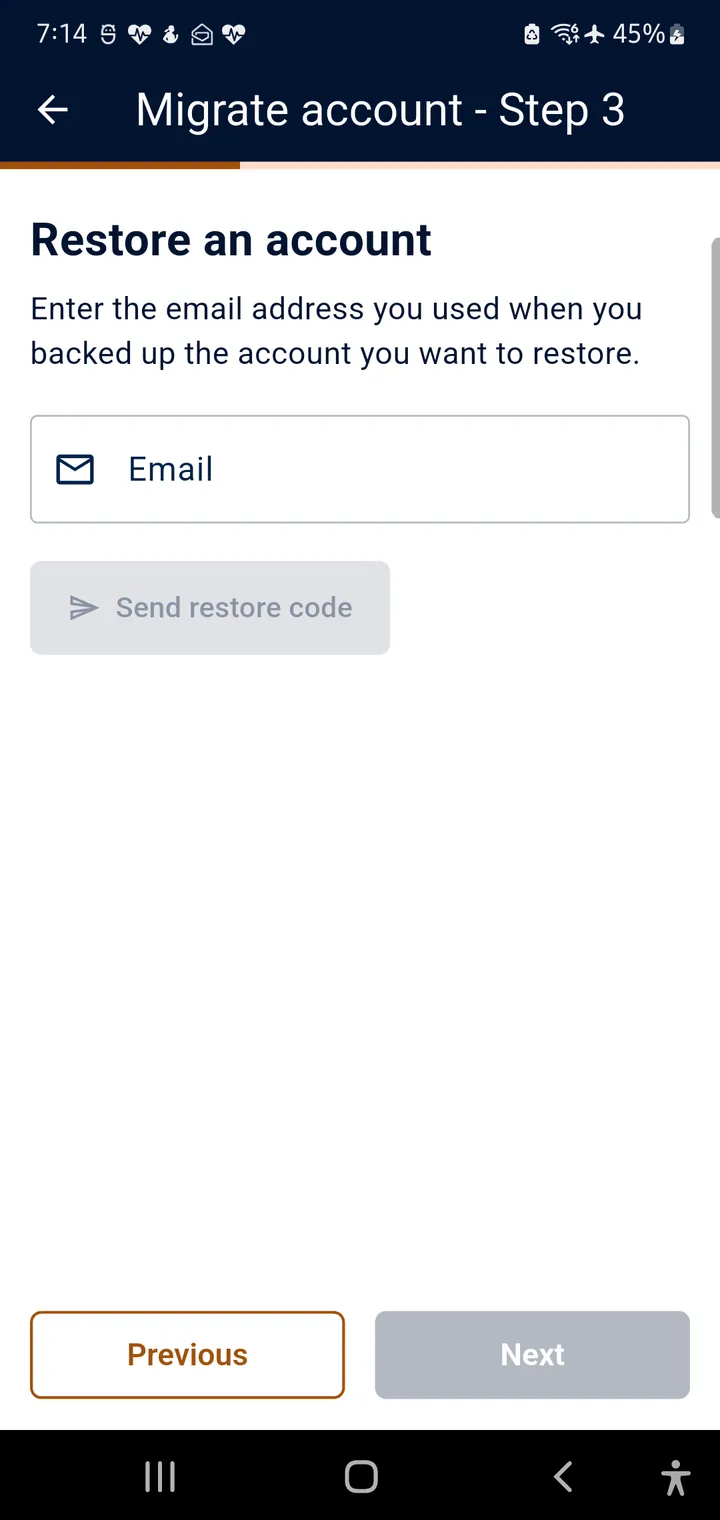
Restoring (Migrate TO this device). On the phone that should receive the Accounts — a new phone, or the same phone after a reinstall — open the Accounts screen, tap Migrate account on any card, choose Migrate TO this device and tap Next. Then:
- Enter the e-mail address you backed up with and tap Send restore code. (For privacy, the App gives the same answer whether or not that address has a backup: “If that email has a backed-up account, a restore code has been sent to it.”)
- Check that inbox for a six-digit code, enter it, and tap Verify code. In the App's words, the code “expires in 15 minutes and can only be used once”. If no code arrives, wait a while before asking for another: only a few can be sent to an address each day.
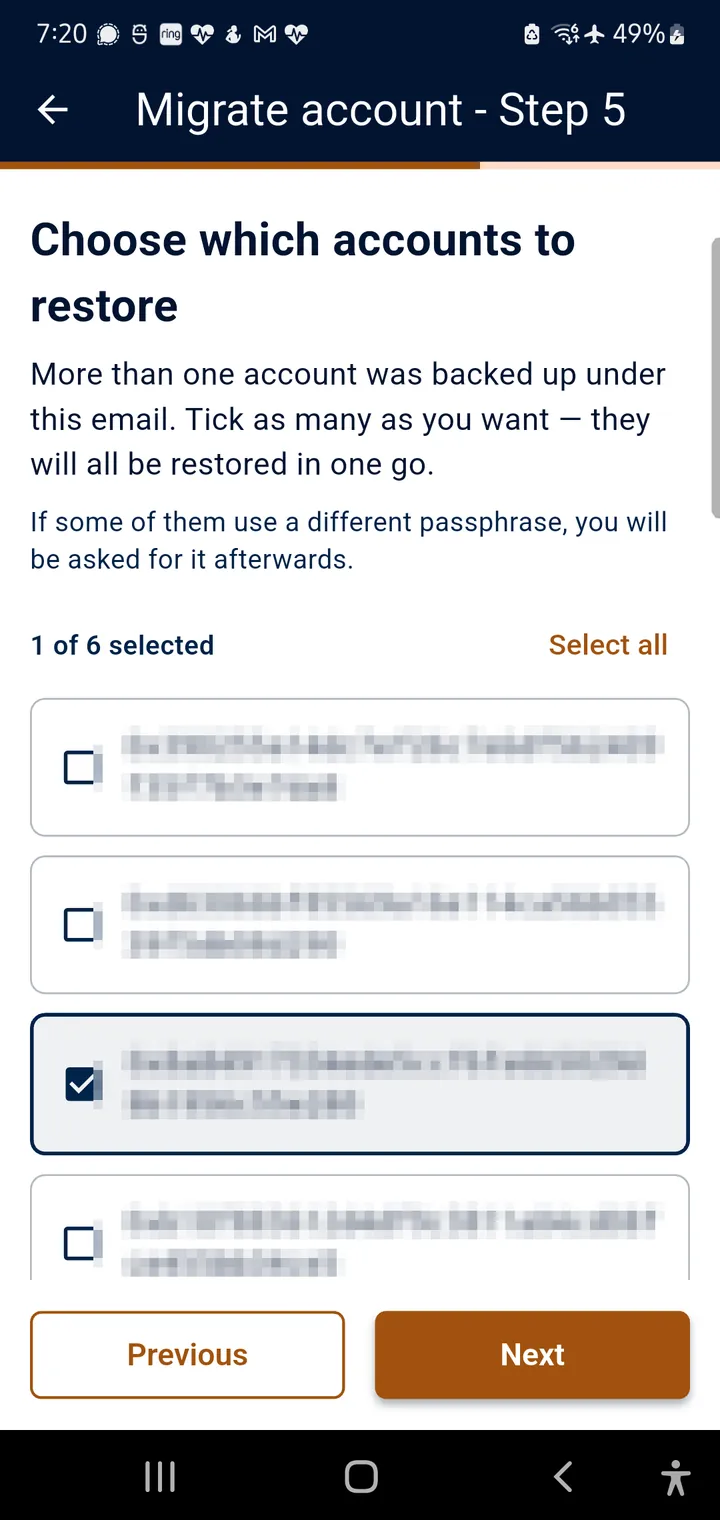
- If more than one Account was backed up under that address, the App lists them all: “Tick as many as you want — they will all be restored in one go.” Tick the ones you want and tap Next.
- Enter the passphrase you set when you backed up and tap Restore (“Restore this account”, or “Restore 4 accounts” when there are several). Accounts backed up with the same passphrase are restored together; for any that used a different one, the App asks for it afterwards.
- The App restores the Accounts one after another (“Restoring account 1 of 4…”) and then lists them under Added to this device. Tap Finish.
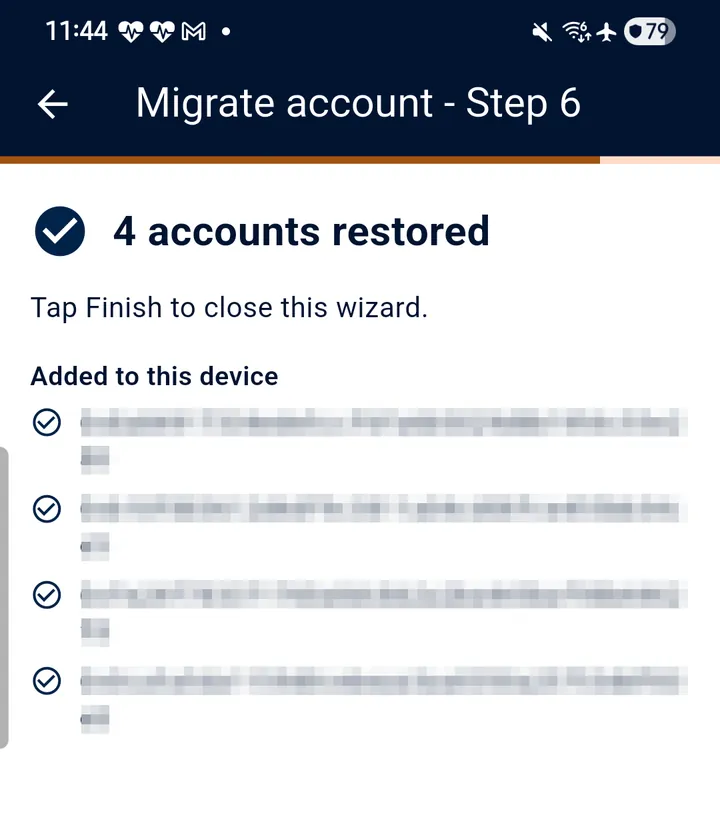
What a restored Account looks like. Each restored Account keeps its address and its teckel credits — the balance belongs to the Account, not to the phone, so it comes back exactly as it was. Three things may surprise you, and none of them is a fault:
- A new Account number. Account numbers on a phone are never reused, so a restored Account takes the next free number on the phone that receives it — a phone that has already used the numbers 1 to 9 will show a restored Account as “Account 10”. The number is only a label on that phone; the Account is the same.
- “IMPORTED (not created)”. On the receiving phone, every restored Account is marked as imported, even one that was originally created in the App.
- The last Account restored becomes the active one. Tap the radio on another card to change it.
In our tests (App 2.0.6), an Account's teckel talk private groups came back with it.
The passphrase is yours to keep. Choose one you can find again and write it down somewhere under your control — but not in the same inbox as the e-mail address it goes with: a backup and its passphrase kept together protect very little. If the passphrase is lost, the backup cannot be restored, so treat it with the same care as a private key. If you do not see “Migrate account” on an Account's card, contact us at teckel.io/support before assuming anything.
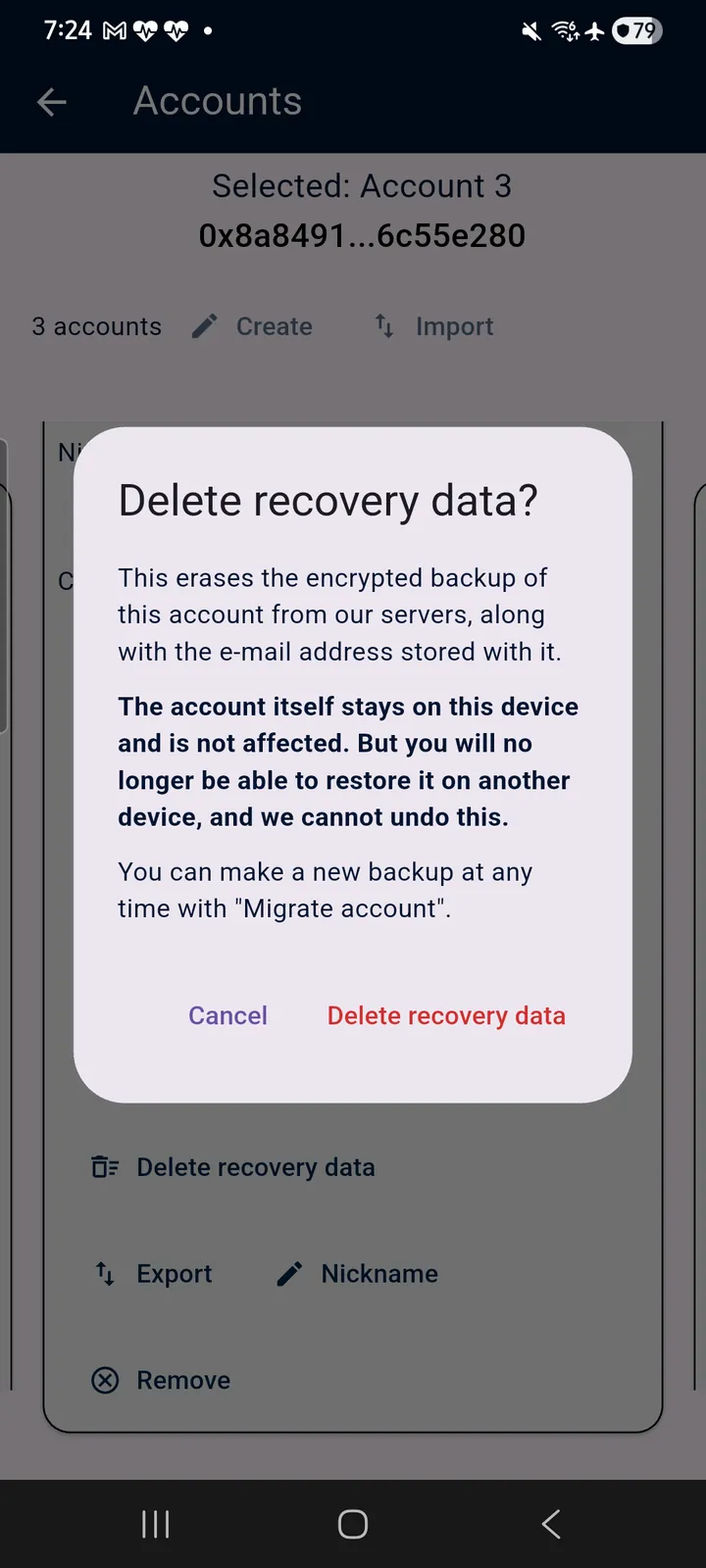
Deleting the backup. Delete recovery data, just below “Migrate account”, removes a migration backup again. In the App's own words: “This erases the encrypted backup of this account from our servers, along with the e-mail address stored with it. The account itself stays on this device and is not affected. But you will no longer be able to restore it on another device, and we cannot undo this.” The App asks you to confirm first.
Reinstalling. Update the App; never uninstall it to get a newer version. Removing the App removes everything in it, and a fresh install simply creates a new, empty Account. If you have migrated, a reinstall is routine: migrate first, then restore with “Migrate TO this device” afterwards. A migration carries your Accounts; it does not carry what the App keeps only on the phone. Uninstalling removes your Prompt Library, your teckel talk address book and your settings (notifications, content filters, blocked accounts), so note anything there you want to keep before you uninstall. If you have not — or if it has already happened — contact us at teckel.io/support before you uninstall anything, and before you build up new work: we will look at what can be recovered for you. Your teckel credits are different: if an Account cannot be restored from a backup, its tc balance is lost with it — tc cannot be moved to another account (teckel Terms, teckel.io/terms-and-conditions).
5.4 Exporting an Account
Export is the offline alternative to migrating: it shows the Account's private key as a QR code for you to keep off the phone. Accounts created in the teckel App can be exported from it; Accounts you imported cannot be re-exported (you already hold their keys elsewhere — that is the point of the rule, and it is why “Export” appears greyed out on an imported Account's card).
Keep an exported copy of every Account you create, offline and off your device, by tapping the “Export” icon. Tip: print the exported QR code and keep the printed copy in a safe. Do not photograph it with your phone — a phone photo is usually copied to cloud storage automatically, just like a screenshot. An Account that has been neither migrated nor exported cannot be brought back from the phone alone if the phone is lost or the App is removed. The App also warns you about this on the Account card:
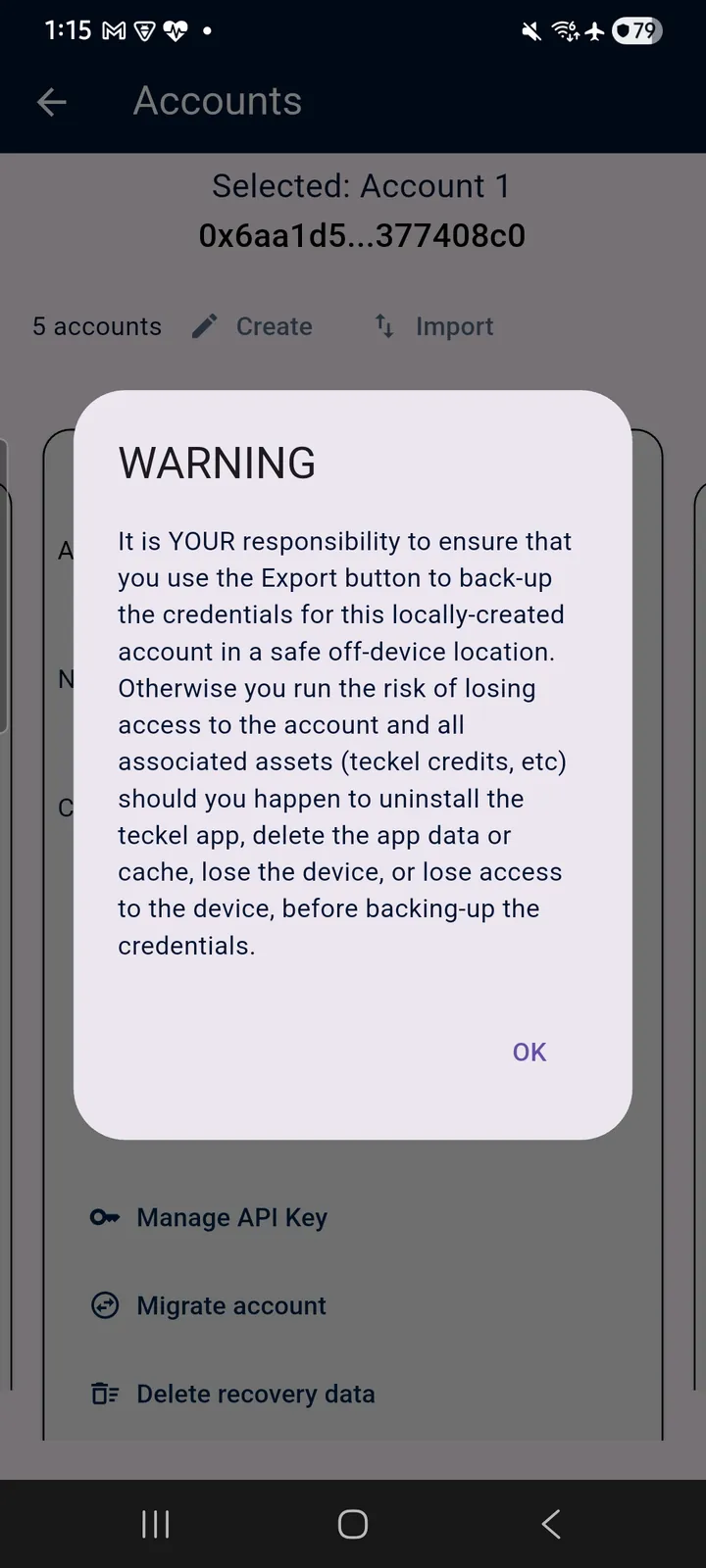
★ Never screenshot the private-key QR code. The Export screen shows a warning first and keeps the code folded away until you tap “Click to reveal…”; once it is showing, a screenshot of it is your private key — and screenshot galleries are often copied to cloud storage automatically. Use the physical-copy tip above instead.
5.5 Removing an Account
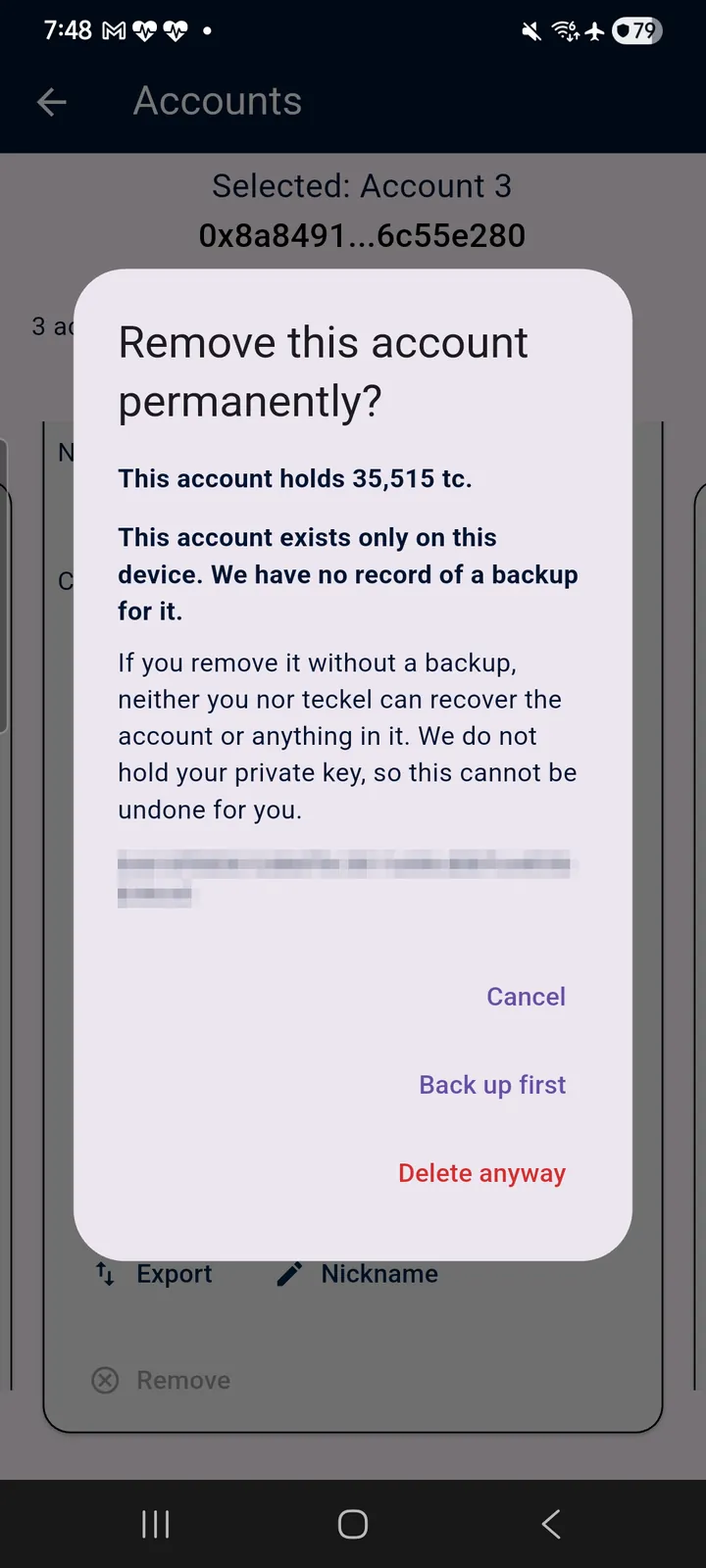
Tap “Remove” on an Account's card to remove it from your device. The App lets you remove any Account, whatever its balance — app stores require that you can delete your account on demand — but it asks first, and says plainly what you would lose: how many teckel credits the Account holds, whether teckel has a record of a backup for it, and that “If you remove it without a backup, neither you nor teckel can recover the account or anything in it. We do not hold your private key, so this cannot be undone for you.” You can then choose Cancel, Back up first or Delete anyway. Any tc balance is lost with the Account (tc cannot be moved to another account). Be sure the Account is migrated or exported (Sections 5.3 and 5.4) before you remove it — especially if the Account holds tc or other Ethereum assets, or you expect future transfers into it.
Remove works on this phone only. It takes the Account off the device; it does not delete what teckel holds for the Account on its servers — including a migration backup, which can still be restored after the Account is removed, and a Benedict bound to the Account. To delete a migration backup, tap Delete recovery data on the Account's card before you remove it (Section 5.3); to ask about anything else held for an Account, contact us at teckel.io/support.
5.6 Generate Access Code
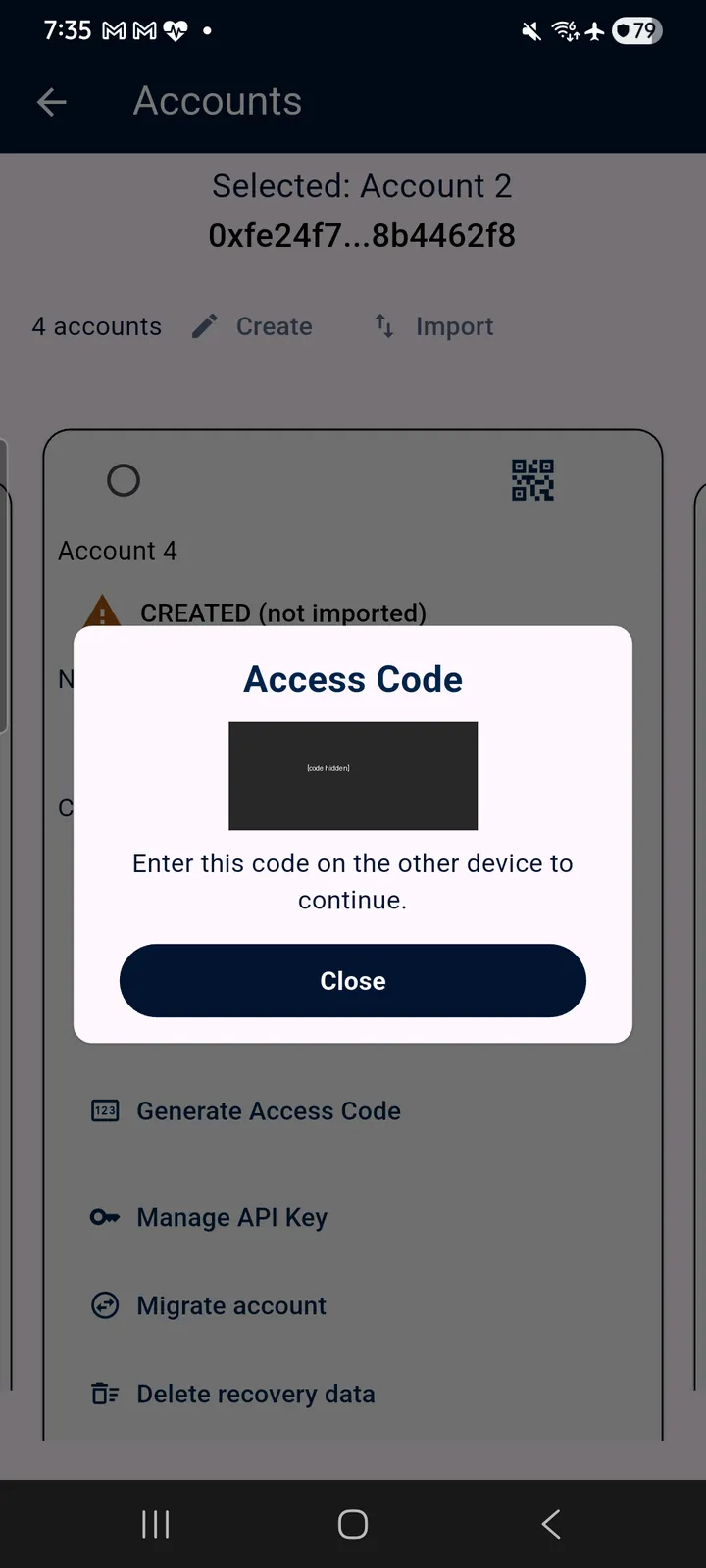
Tapping Generate Access Code instantly produces a six-digit code tied to the Account, shown in an Access Code dialog with the instruction “Enter this code on the other device to continue.” Tap Close when you have entered it. Connected teckel services ask for this code to authorise access to your account; it takes the place of a standing password: you generate a fresh code when a service asks for one, enter it there, and let it expire. In particular, it is how you sign in to your Benedict website (Chapter 6).
5.7 Manage API Key
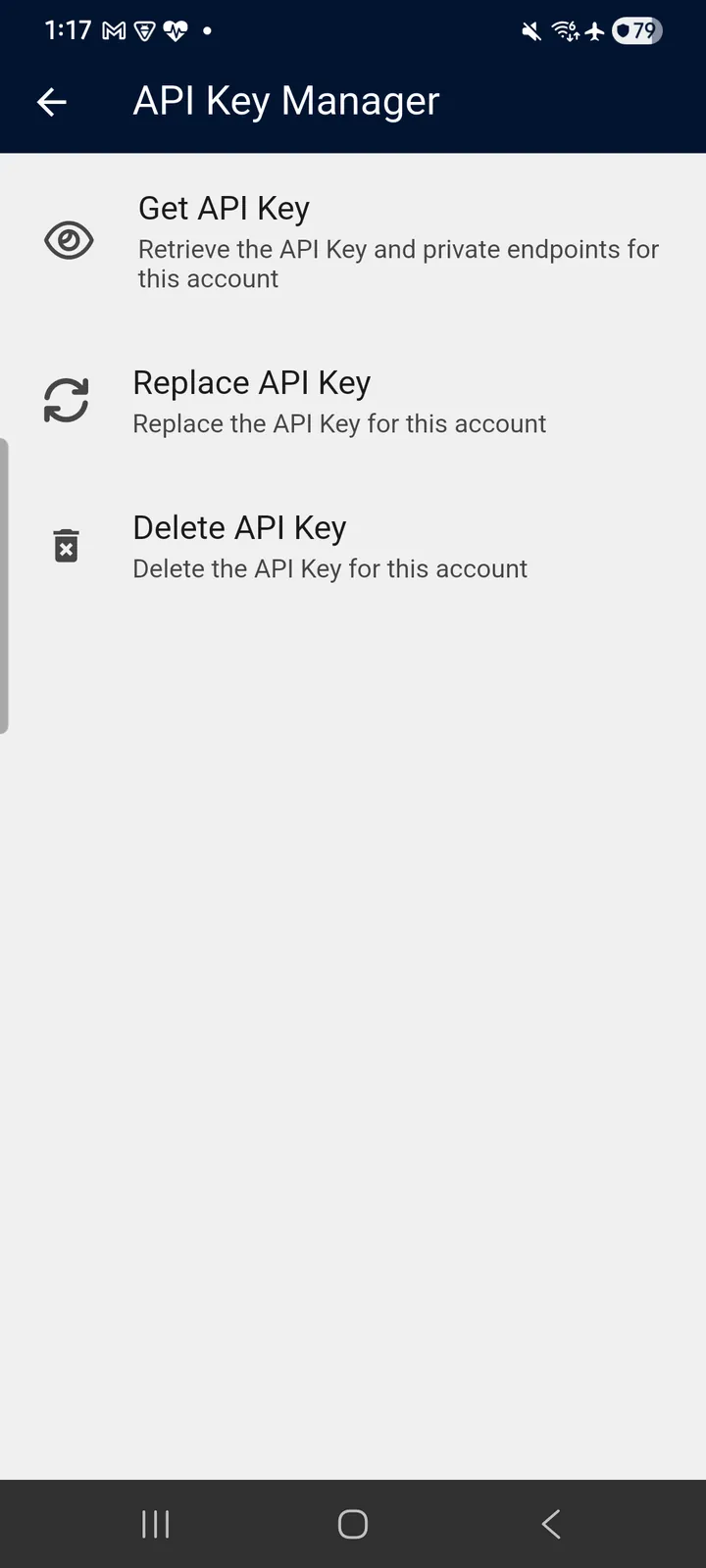
If you are a developer or otherwise need direct access to the teckel Web3 services, tap Manage API Key to get, replace or delete the API key associated with your Ethereum Account. Treat an API key like a password: it authorises usage that draws on your Account's tc. Replacing or deleting the API key does not affect the files you have stored on IPFS: they are encrypted with a separate key held for your Account. The one exception is content stored before 22 September 2026, which was encrypted with the API key itself — if you replace or delete the key, that older content cannot be recovered. Documents stored by Benedict are not affected.
5.8 Nicknames
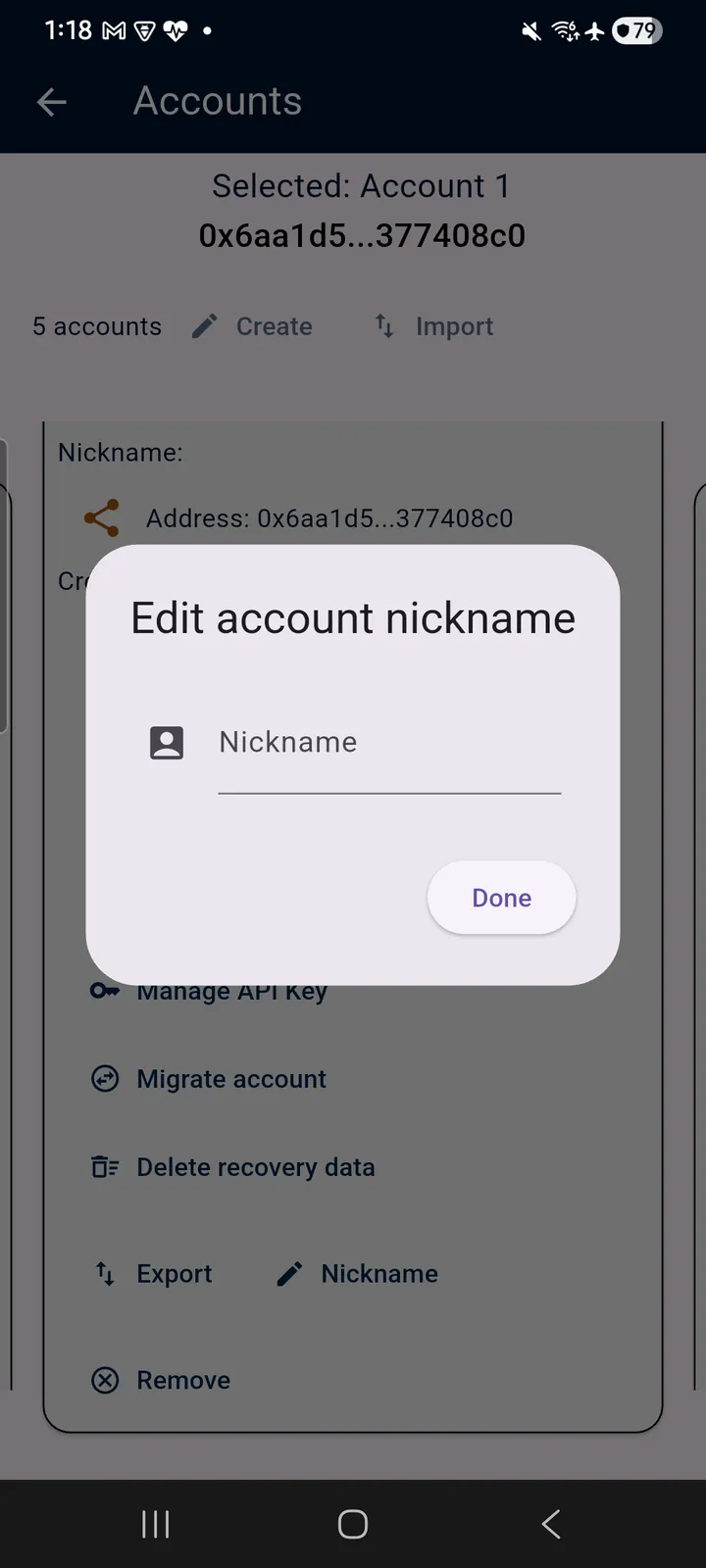
Tap the “Nickname” icon on an Account card to give the Account a custom name — useful once you hold more than one. (Special characters may be removed when the nickname is saved.)
6. Creating Your Benedict
6.1 What Benedict Is
Benedict is the compliance documentation assistant from teckel: a voice assistant, with its own management website, that a practice talks to in order to fill in and submit its compliance forms. The teckel App is where a Benedict is created — the App's setup wizard builds the practice's management website and voice agent, bound to your active Ethereum Account — and where its access codes are generated thereafter (Section 5.6). One Benedict per account. To learn about Benedict itself, start at teckel.io.
6.2 Starting the Wizard
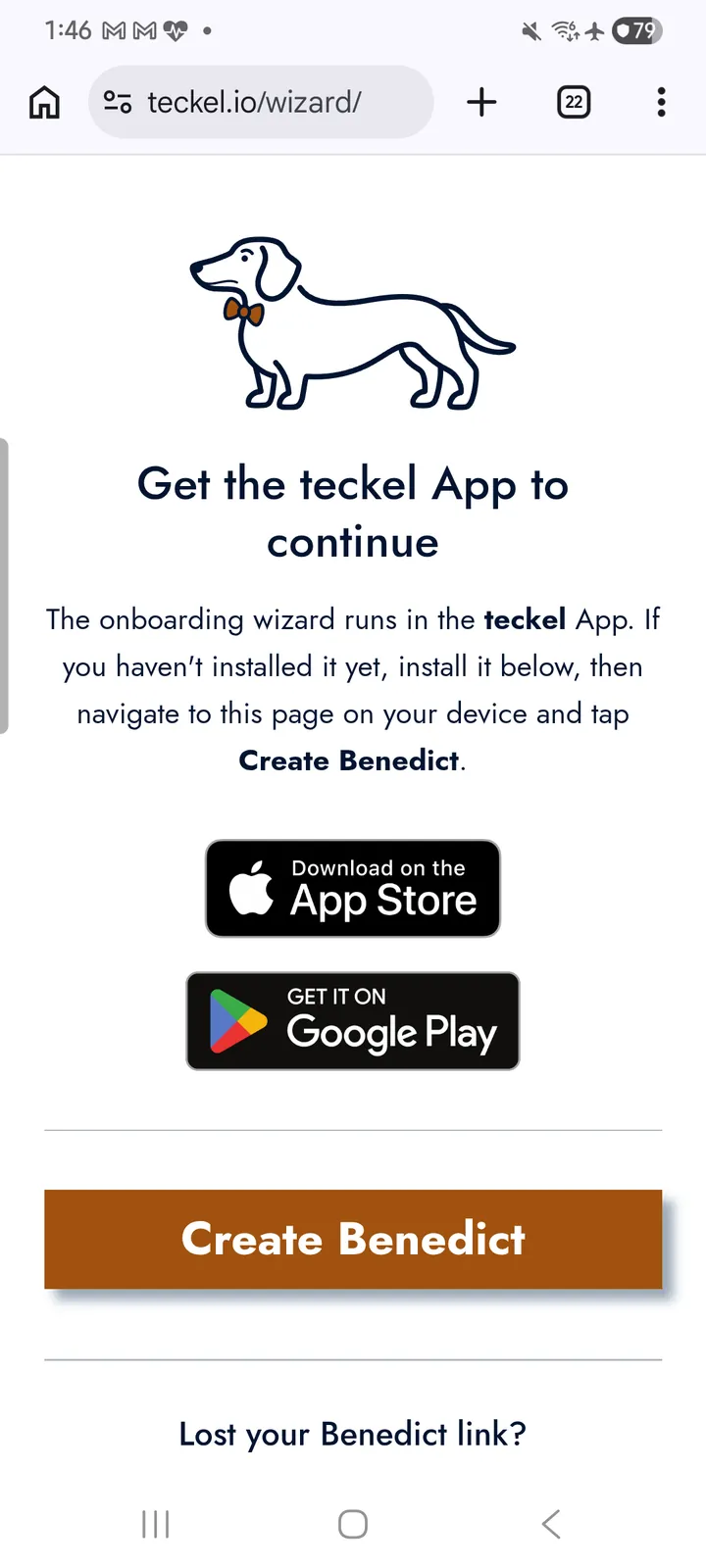
On the device that has the teckel App installed, browse to teckel.io/wizard and tap Create Benedict — the page hands over to the App's setup wizard. (The same page carries the store badges if the App is not yet installed, and the “Lost your Benedict link?” recovery form if you ever misplace your website address.)
6.3 The Wizard, Step by Step
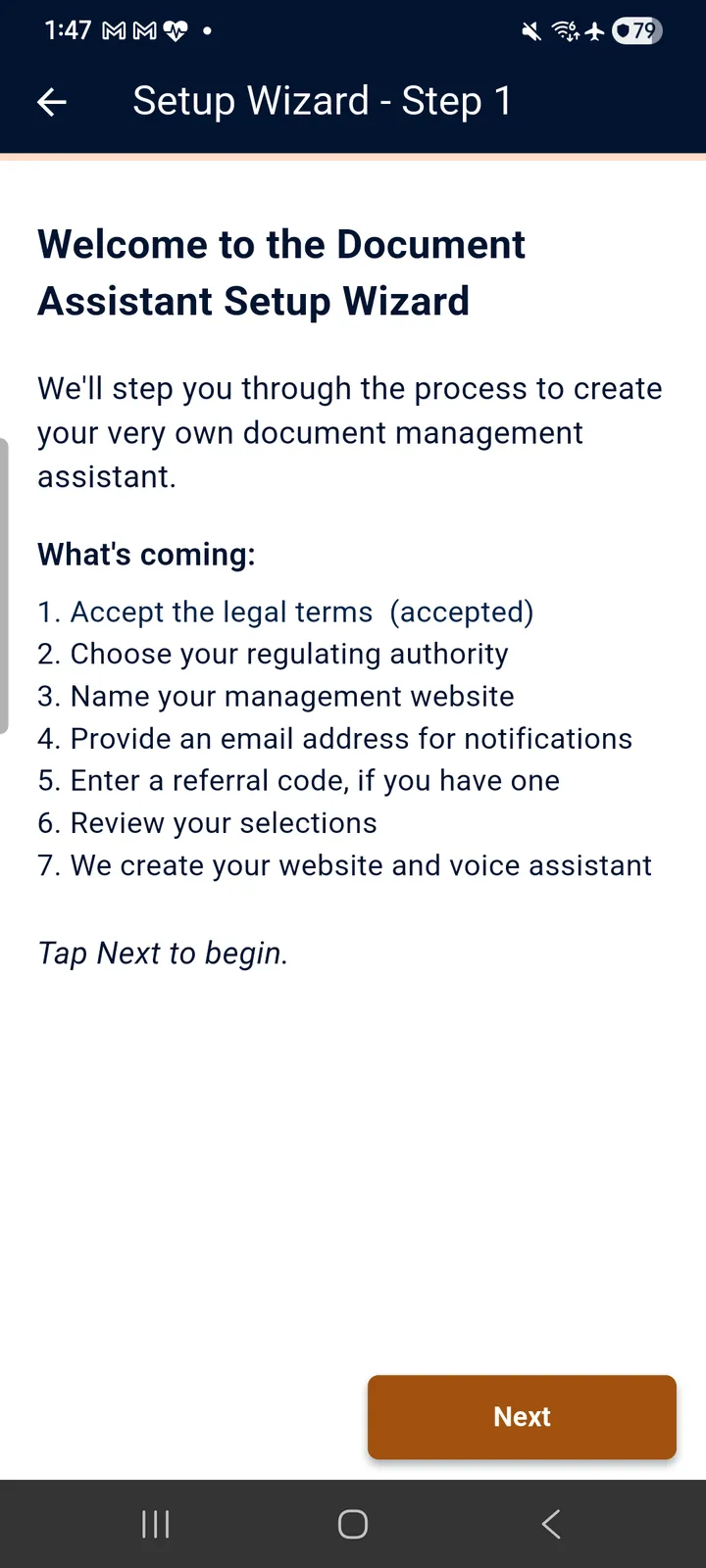
The wizard asks for remarkably little — everything else about your practice is added later, by asking Benedict to update your settings. The steps below are listed in the order the App shows them.
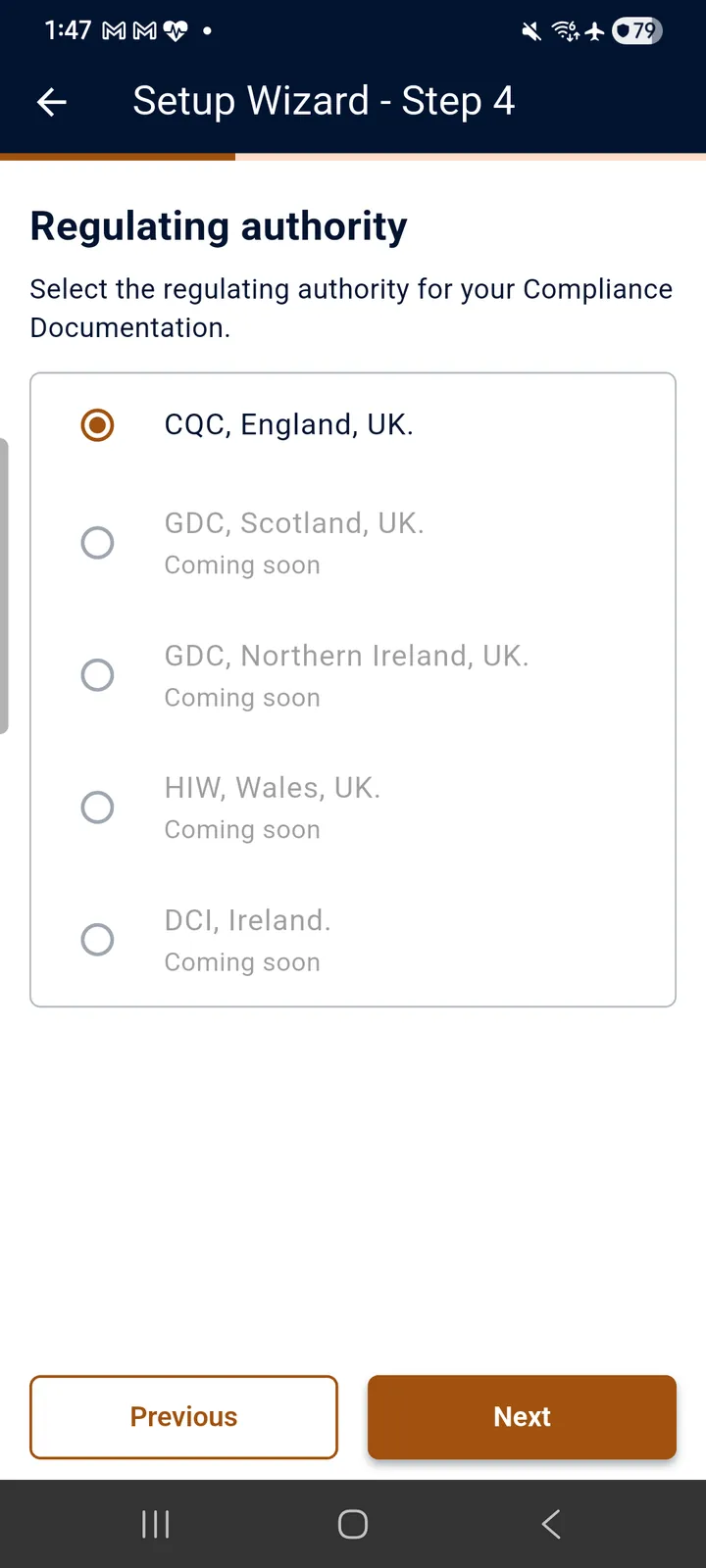
- Regulating authority — the regulator your compliance documentation answers to. CQC (England, UK) is live today; further authorities are listed as coming soon.
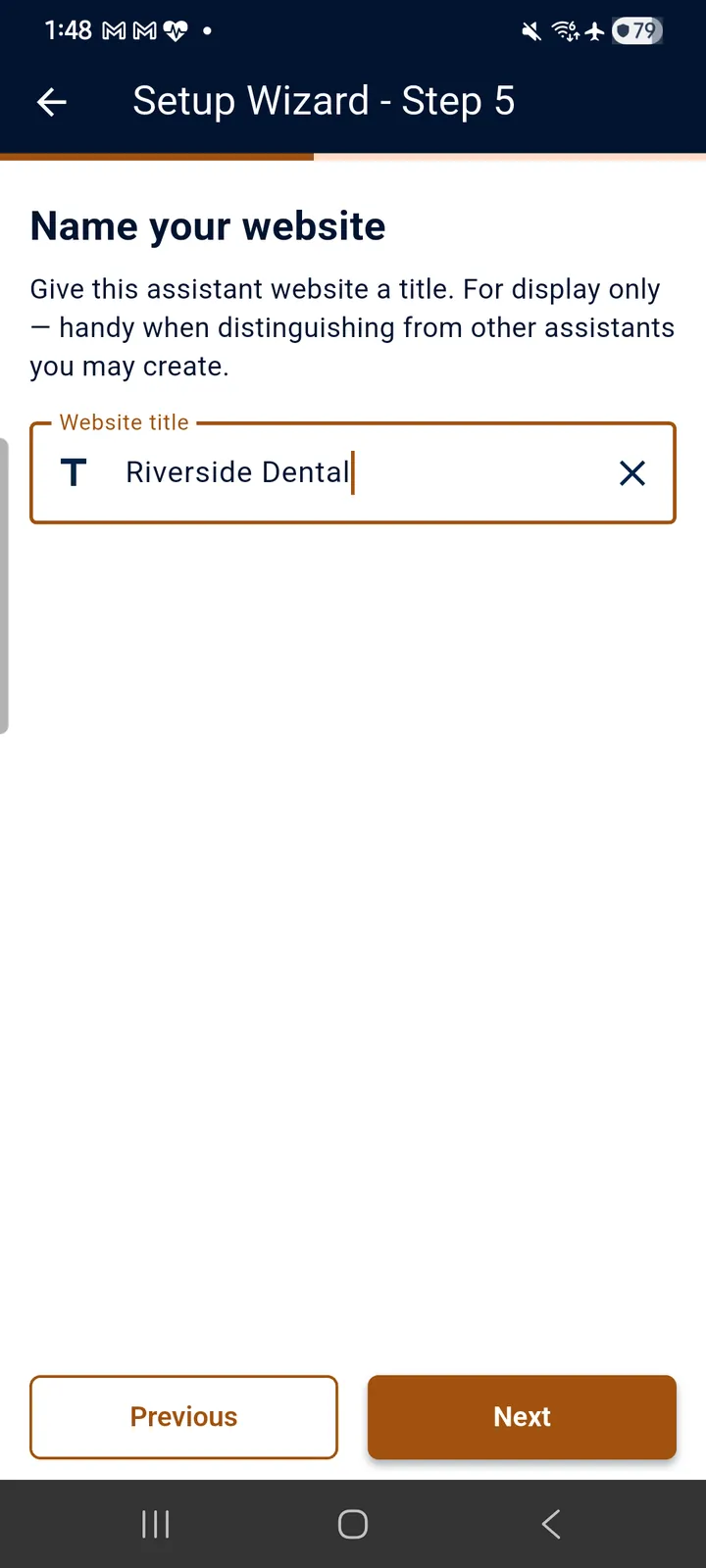
- Website title — a display-only name for this assistant website. (Special characters may be removed when it is saved.)
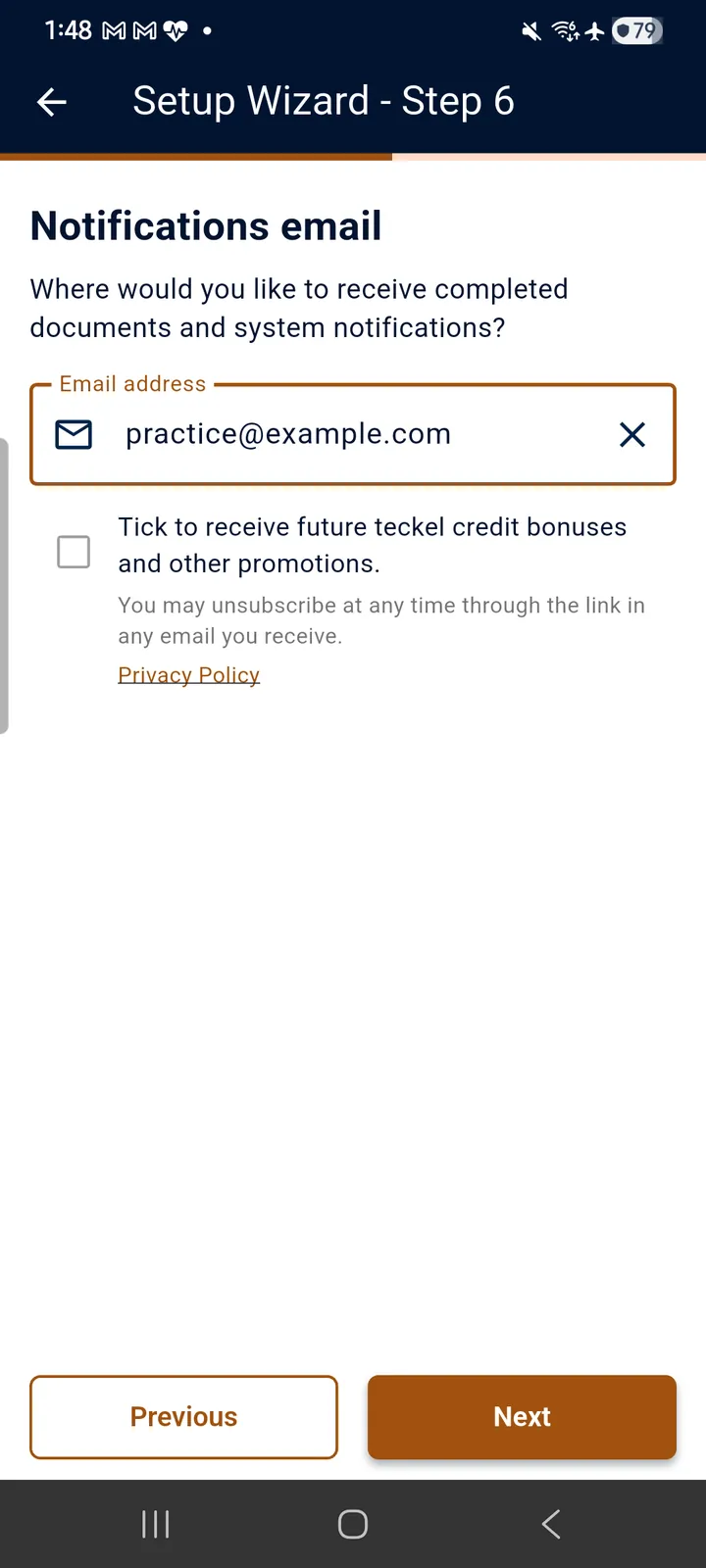
- Notifications e-mail — where completed documents and system notifications are sent.
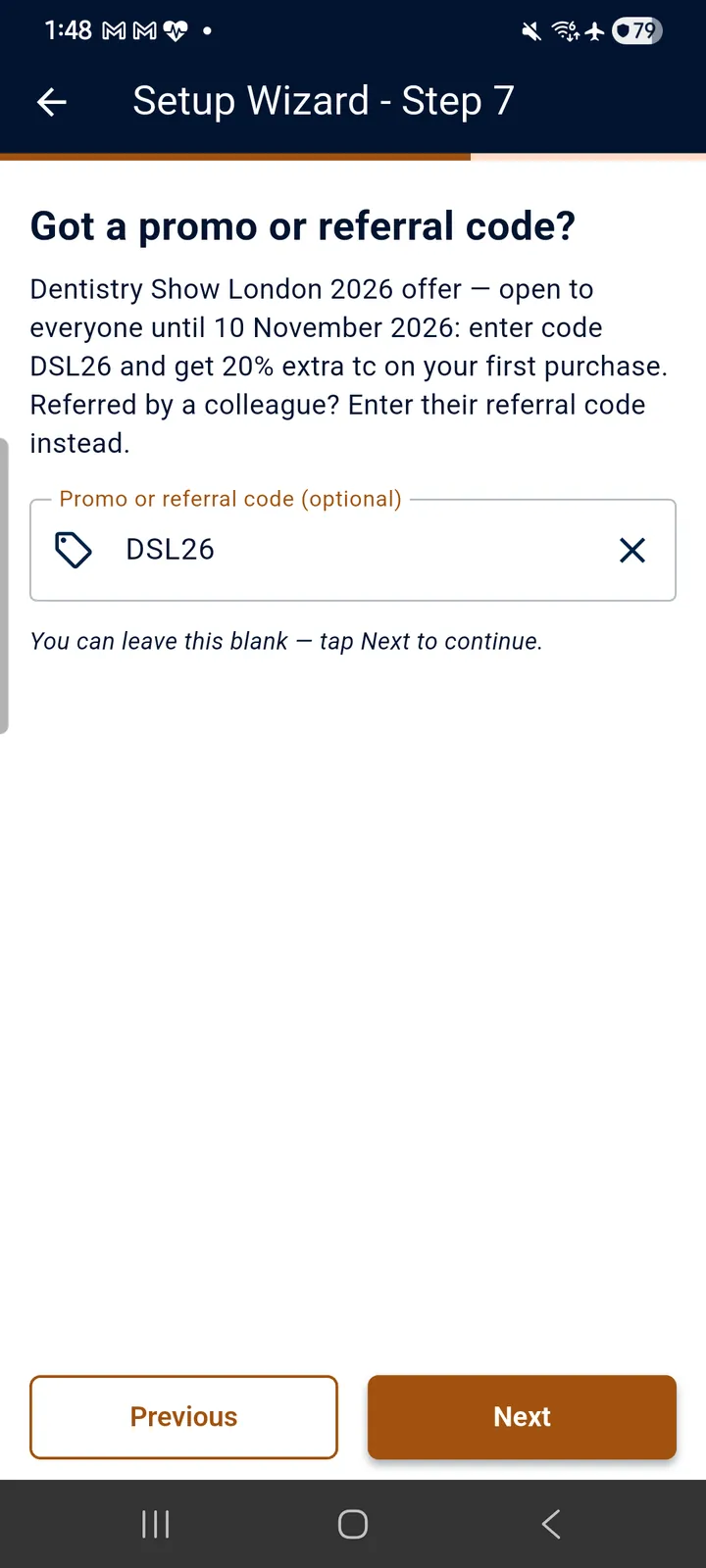
- Promo or referral code — optional. If a colleague referred you, enter their referral code here; the step may also come pre-filled with a current offer code. Leave it blank to skip.
- Review — check your answers, then let the wizard build.
On the notifications-e-mail step you may also tick an optional box to receive future teckel credit bonuses and other promotions by e-mail. It is off unless you tick it, you can unsubscribe at any time through the link in any e-mail you receive, and leaving it unticked has no effect on creating or using your Benedict.
The promo or referral code step asks “Got a promo or referral code?” At the time of writing it comes pre-filled with the Dentistry Show London 2026 offer: “open to everyone until 10 November 2026: enter code DSL26 and get 20% extra tc on your first purchase.” A referral code from a colleague goes in the same box instead. The App notes, “You can leave this blank — tap Next to continue.”
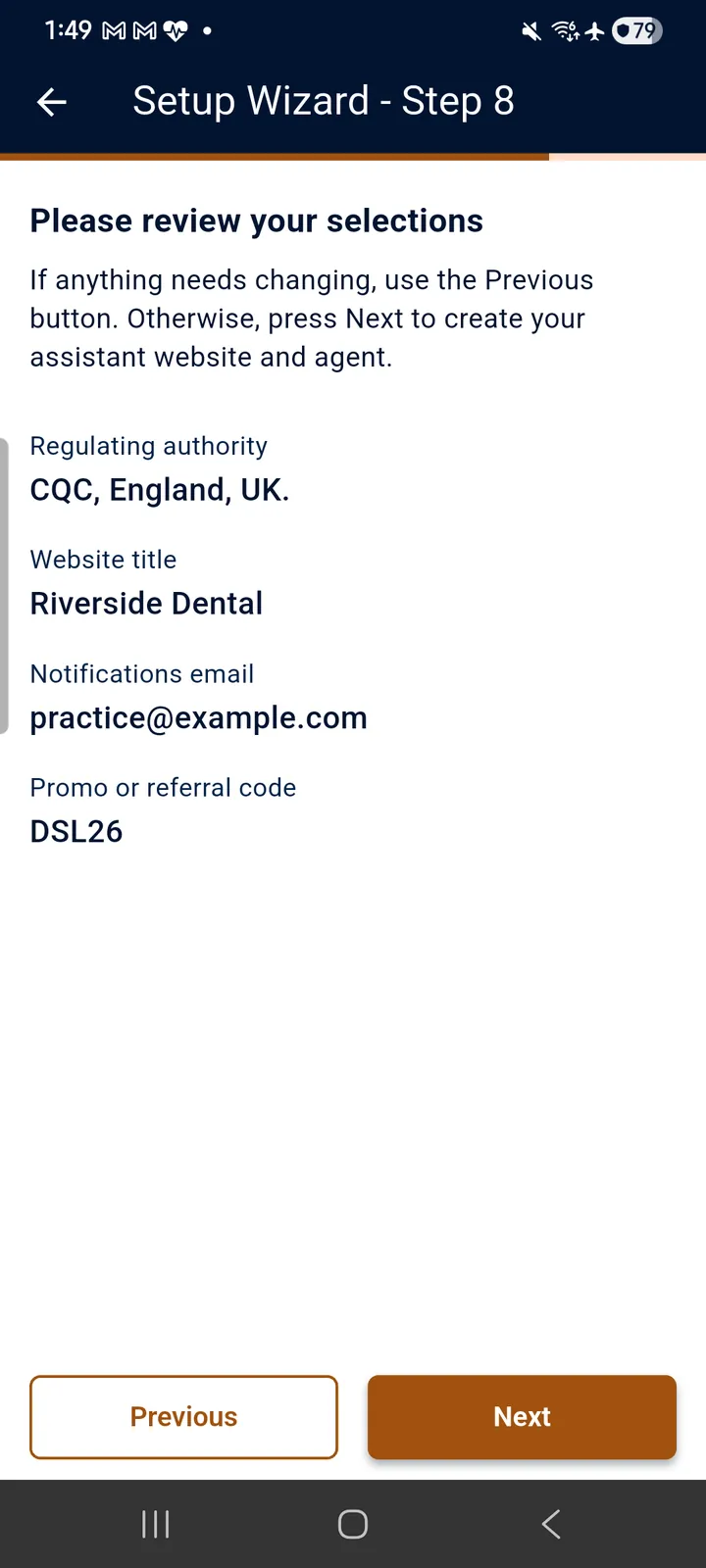
Creation takes a couple of minutes — stay on the page while the spinner runs.
6.4 Setup Complete — Save Your Website URL
When setup completes, the wizard shows your website URL with Copy URL and Open in browser buttons. Save the URL to a safe location — bookmark it. That address is where you talk to Benedict, fill in and submit your compliance forms, and see them on screen as you work. A brand-new site can take up to 15 minutes to become reachable; if you see a 404 at first, wait briefly and try again.
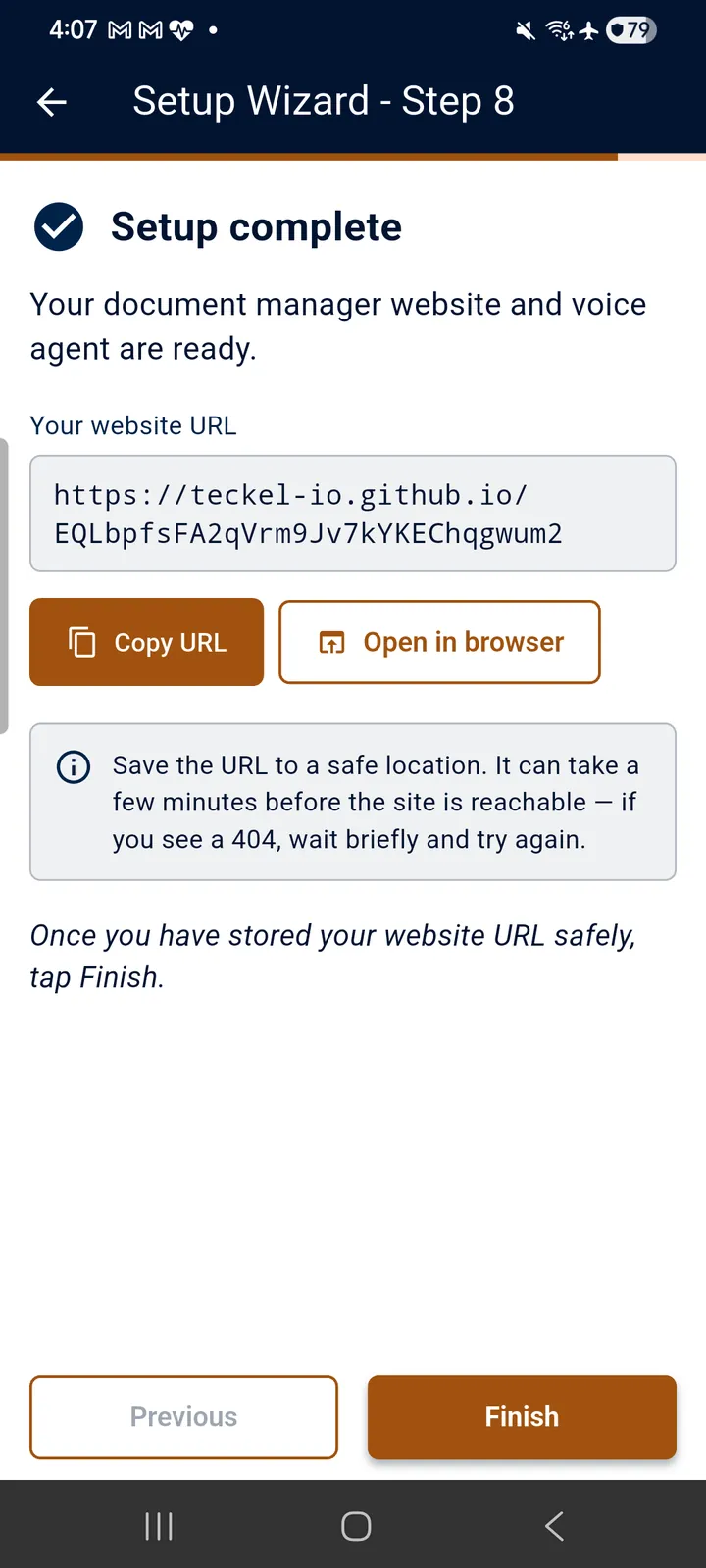
The same details also arrive at your notifications e-mail address: the subject line “Your Benedict compliance portal is ready”, carrying the website URL and a link to the website's own user guide (guide.html under your website address) — which is where Benedict itself, the forms, and the day-to-day workflow are documented.
6.5 Signing In — the Access Code
There is no password. To start a session on your Benedict website you enter a six-digit access code, generated in the teckel App from the Account that owns the Benedict: open the App, go to your Accounts (the card icon), and tap “Generate Access Code” (Section 5.6). Generate a fresh code whenever the website asks for one.
7. teckel Credits (tc)
7.1 Pay As You Go
teckel credits (“tc”) are the pay-as-you-go unit for everything in the teckel App and the wider teckel Platform: teckel AI conversations, teckel talk, IPFS storage, Benedict and the teckel Web3 services. There is no subscription — you spend tc as you go, and top up when you choose. The balance strip on the home screen shows the active Account's balance, alternating between tc and its approximate value in your local currency.
The first Ethereum Account — auto-generated by the App at initial installation — is automatically given 50,000 free tc (the grant applies to that first Account only). tc balances belong to their Account and are not transferable between Ethereum Accounts. Current tc pricing is published at teckel.io/pricing; the legal particulars are in the teckel Terms at teckel.io/terms-and-conditions.
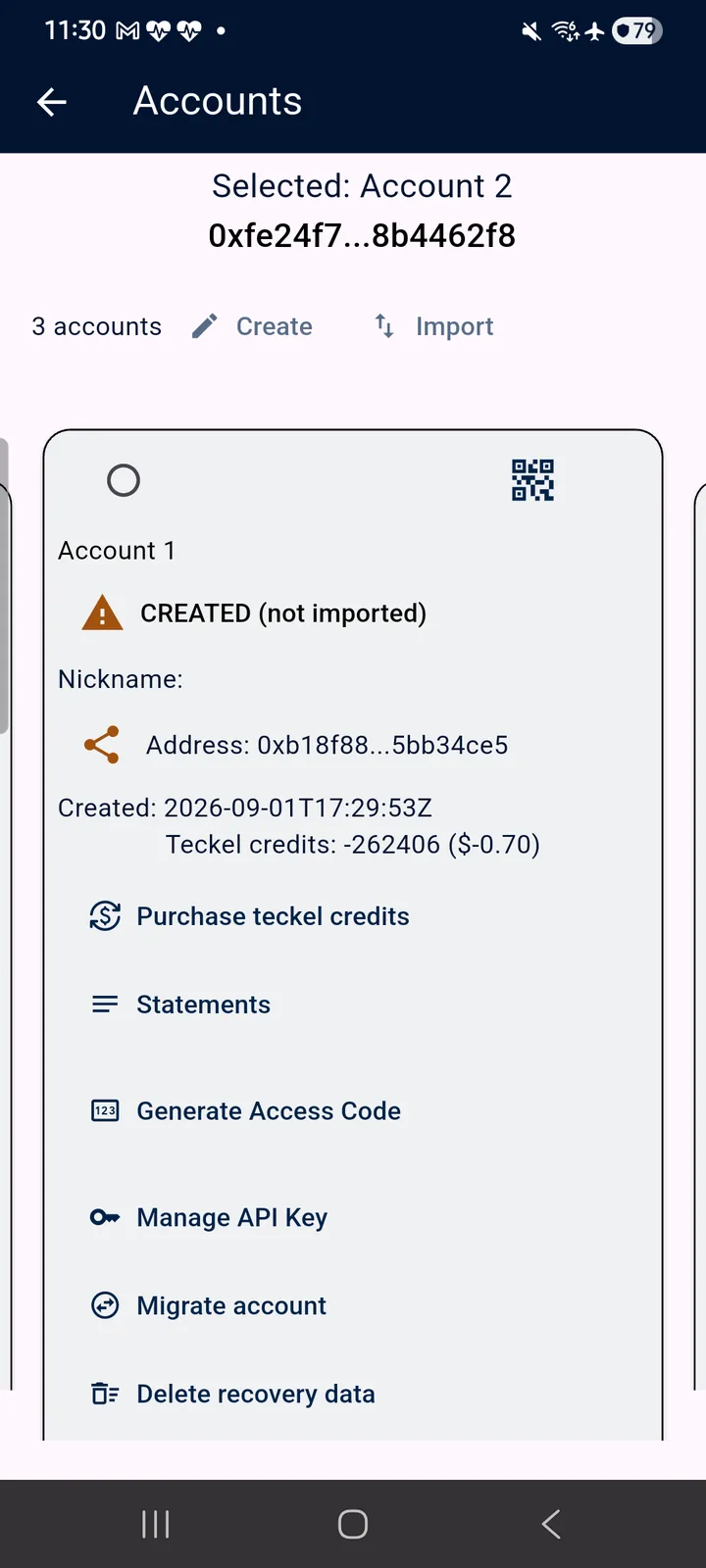
A balance can go below zero. Some usage is charged as it runs — a session with the teckel voice agent, for example (Section 4.10) — and the balance is checked when it starts, so a session that costs more than you hold leaves the balance negative: the Account card then shows a minus sign, as in Figure 7.1. Top up before you next use the Account.
Benedict runs on the balance too. A Benedict uses the tc of the Account that owns it, and it stops answering shortly before that balance reaches zero; after a top-up it can take a little while to come back. Your complete records archive can only be requested by asking Benedict, so do not leave that until the balance has run out. Documents submitted through Benedict, and their evidence files, are kept whatever the balance.
7.2 Purchasing tc
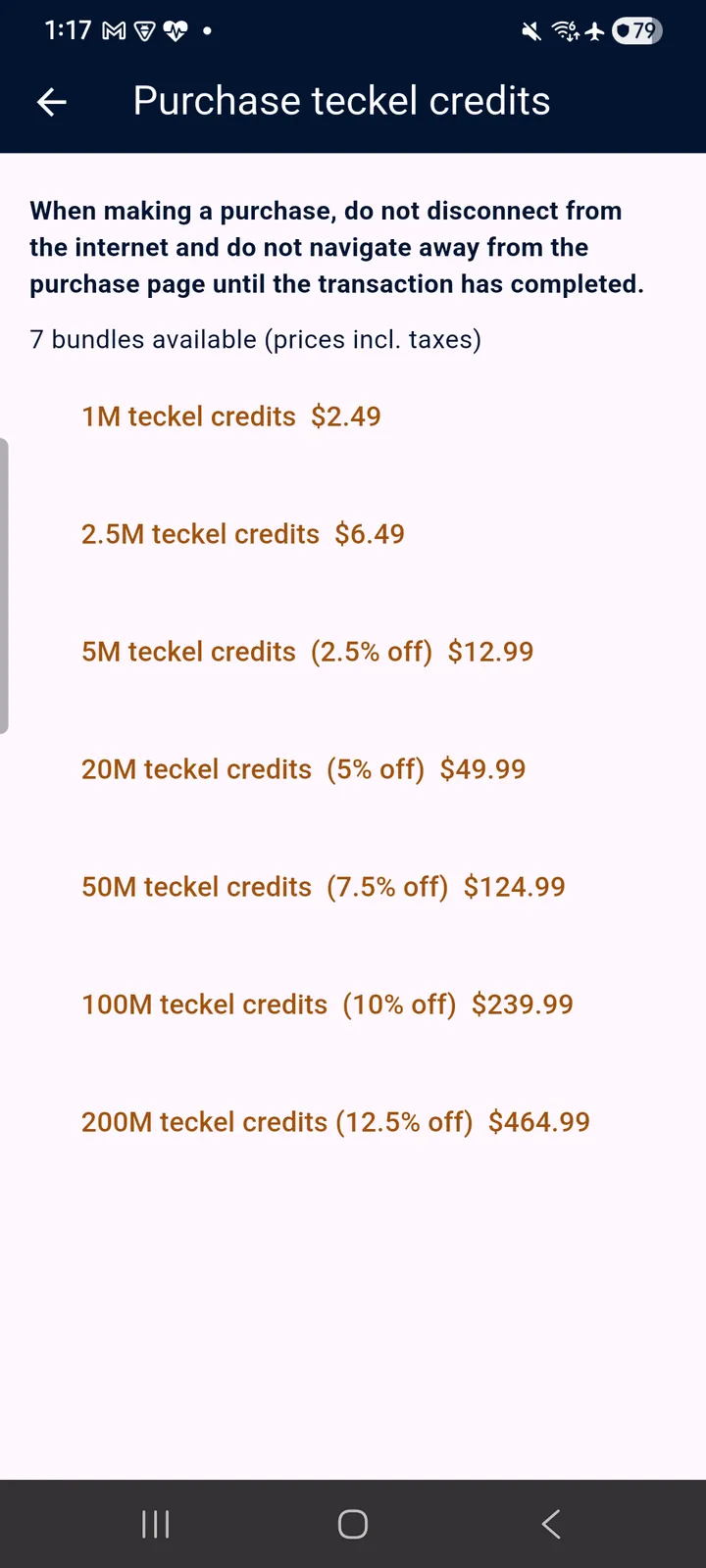
Tap the dollar-arrows icon in the top navigation bar — or “Purchase teckel credits” on an Account card — to purchase additional tc for the active Account through an in-app purchase. tc can only be purchased using ordinary (fiat) currencies through in-app purchases, and the store shows prices in your local currency, taxes included.
7.3 Statements
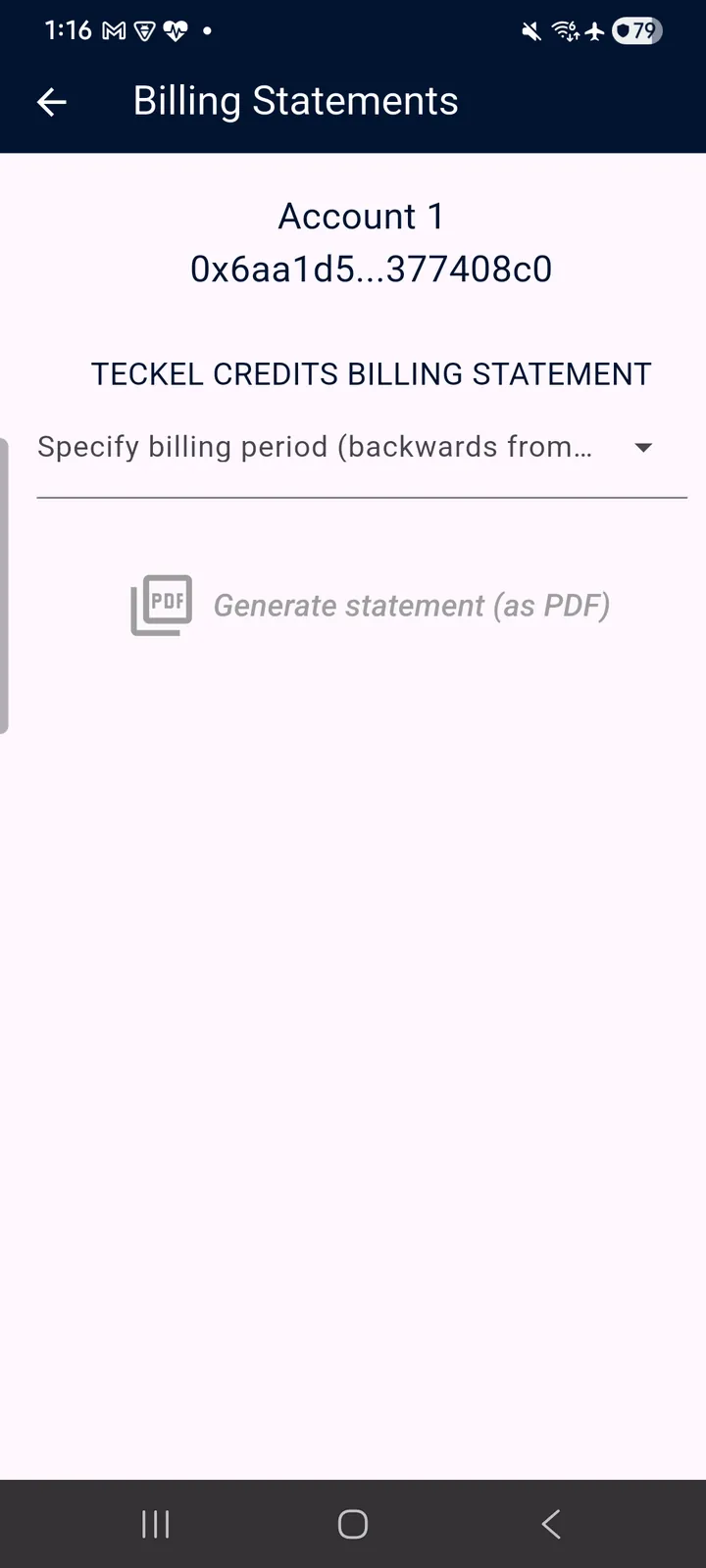
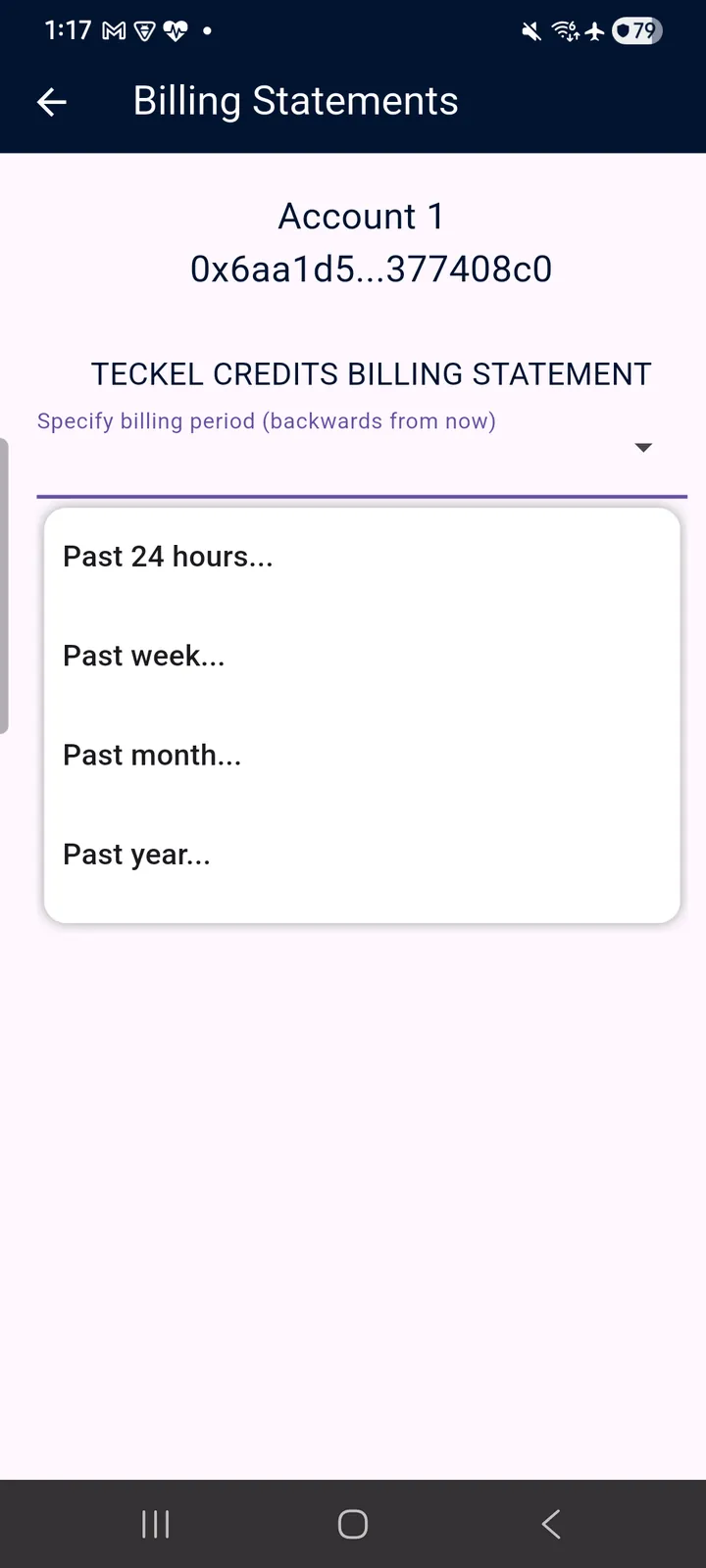
Tap the “Statements” icon on an Account card to view the Account's tc purchases and balance history for a chosen billing period (past 24 hours, week, month or year), and generate the statement as a PDF, which the App hands to your phone's share sheet — save it to your files or send it on, for example to your bookkeeping.
8. teckel talk — Anonymous Secure Messaging
8.1 The Landline on Your Mobile
teckel talk is anonymous, secure messaging built around your Ethereum Account rather than your phone number or an e-mail address. The best way to think of it: your old-school telephone landline on your mobile device, with “chat-rooms” as the “party lines” — untappable once every member of a room sets the same secret key (Section 8.5). Users are identified only by a partially redacted Ethereum address (plus any nicknames you assign), with no profile, no directory and no sign-up. teckel talk usage draws on the teckel credits (tc) of your active Account, pay-as-you-go.
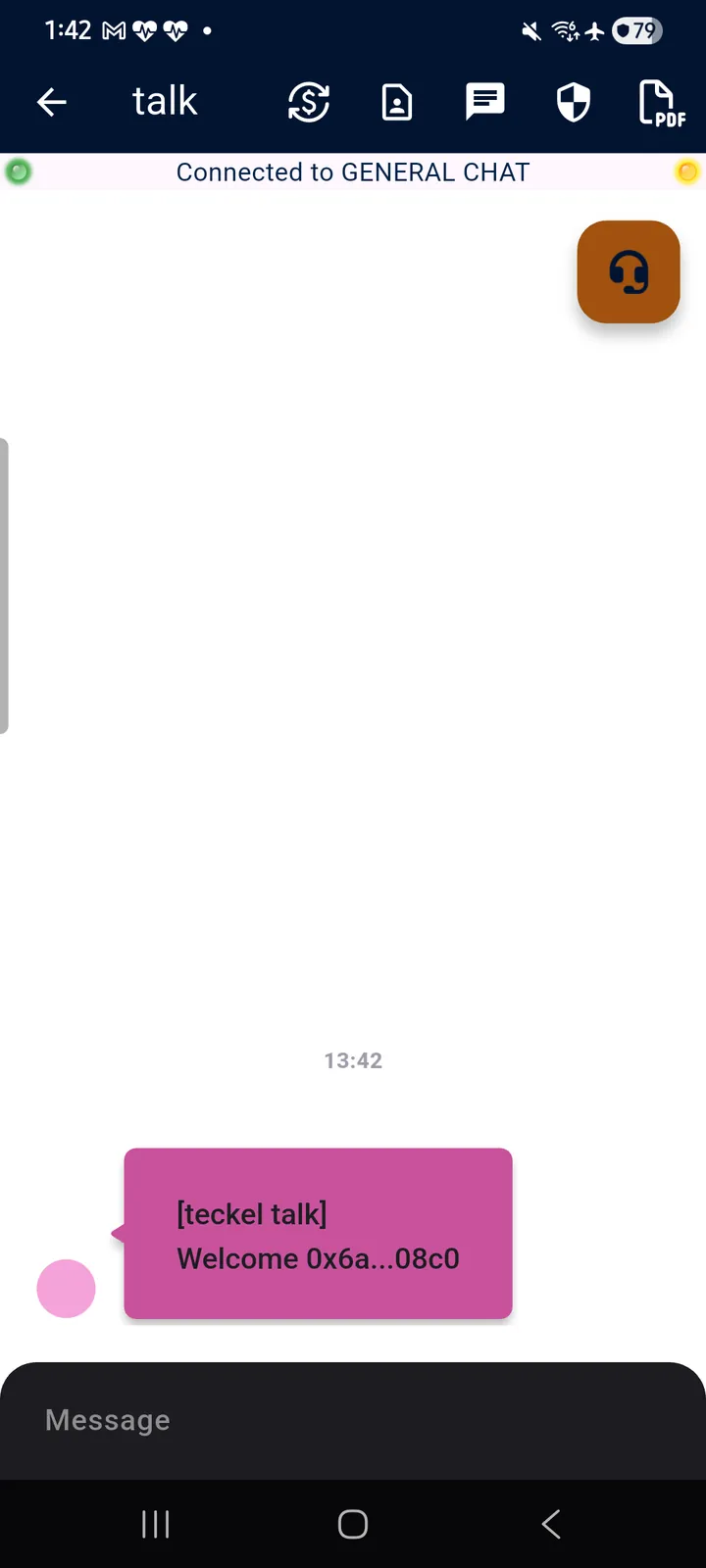
Tap the speech-bubble icon in the top navigation bar and you land directly in the public GENERAL CHAT. Along the top of every teckel talk screen sit five tools (each description below is the App's own long-press text):
- Dollar arrows — “Purchase teckel credits.”
- Contact card — “Open your address book.”
- Speech bubble — “Select a group chat-room (private).”
- Shield — “Enforce end-to-end encryption using a secret key (which must be known to anyone you wish to chat with securely).”
- PDF — “Export transcript of chat window (in pdf format).”
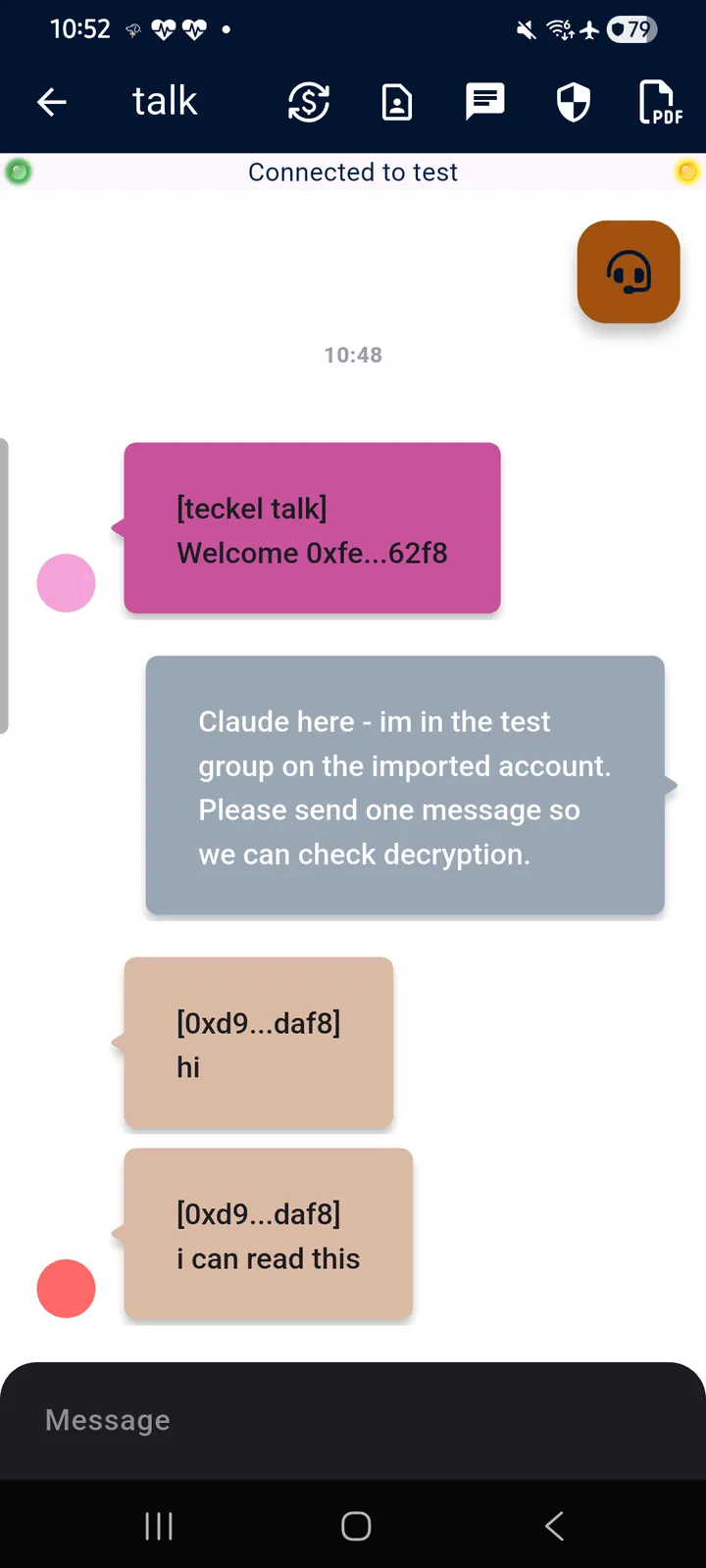
The status banner shows which room you are connected to, with an indicator dot at each end. BOTH dots must be green before your side is end-to-end encrypted; a yellow dot means the chat is encrypted in transit only — readable by others in the room.
★ The dots report YOUR OWN key state, not anybody else's. Two green dots confirm that you are set up for end-to-end encryption; they do not tell you whether the other members hold the same secret key. If someone's messages reach you as unreadable ciphertext while your dots are green, their key simply differs from yours — compare keys with them (see Section 8.4).
8.2 The General Chat
The GENERAL CHAT is a public chat-room open to all teckel App users. On entry you are greeted by a [teckel talk] welcome bubble addressed to your partially redacted address — that is the whole of what other users see of you.
8.3 Message Actions
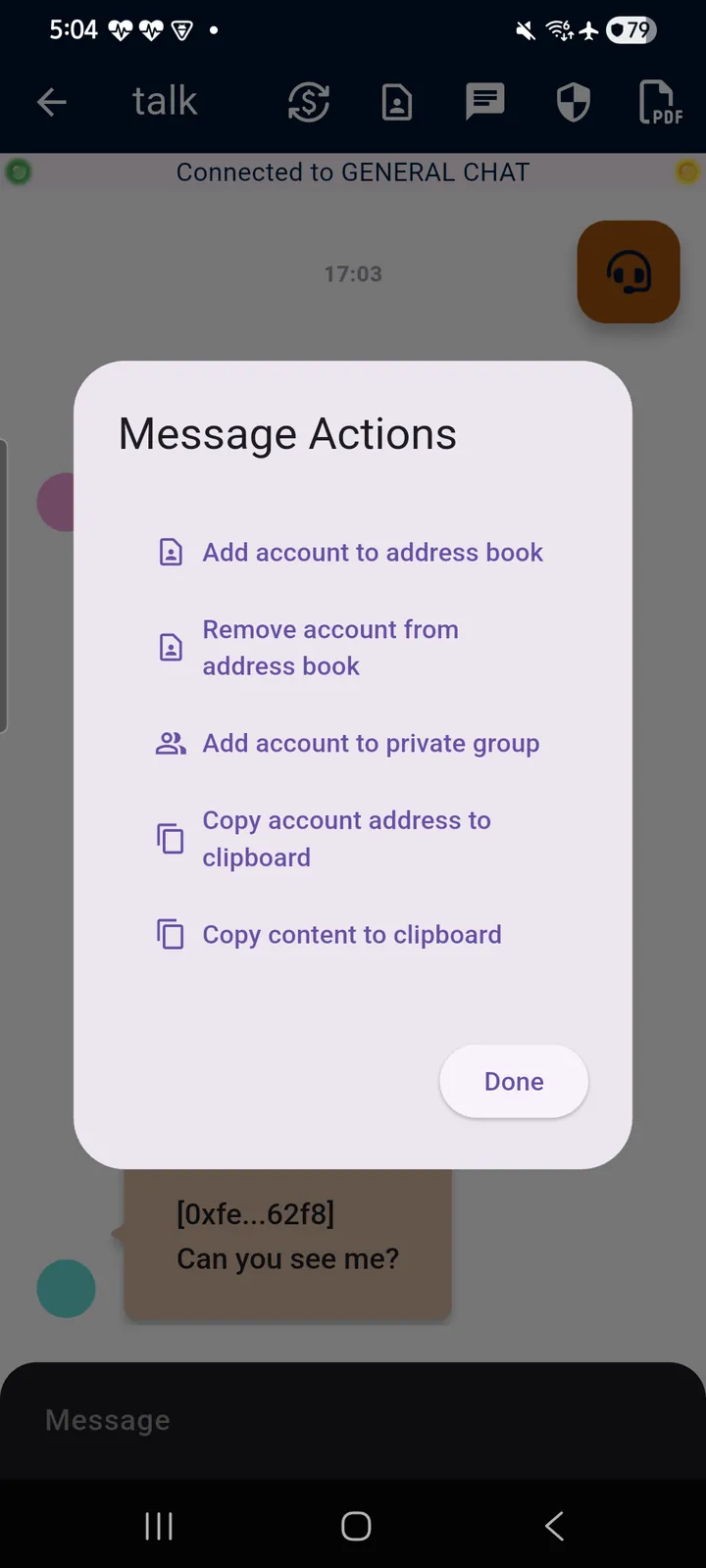
Tap any message in a teckel talk chat-room to open its Message Actions: add the sender's account to (or remove it from) your address book, add the sender to a private group, copy their account address, or copy the message content. It is the quickest route from “met someone in the general chat” to “talking privately” — see Section 8.5. (The message actions in teckel AI chats are a different, smaller set — see Chapter 4.)
8.4 The Shield — a Private Channel Inside a Public Room
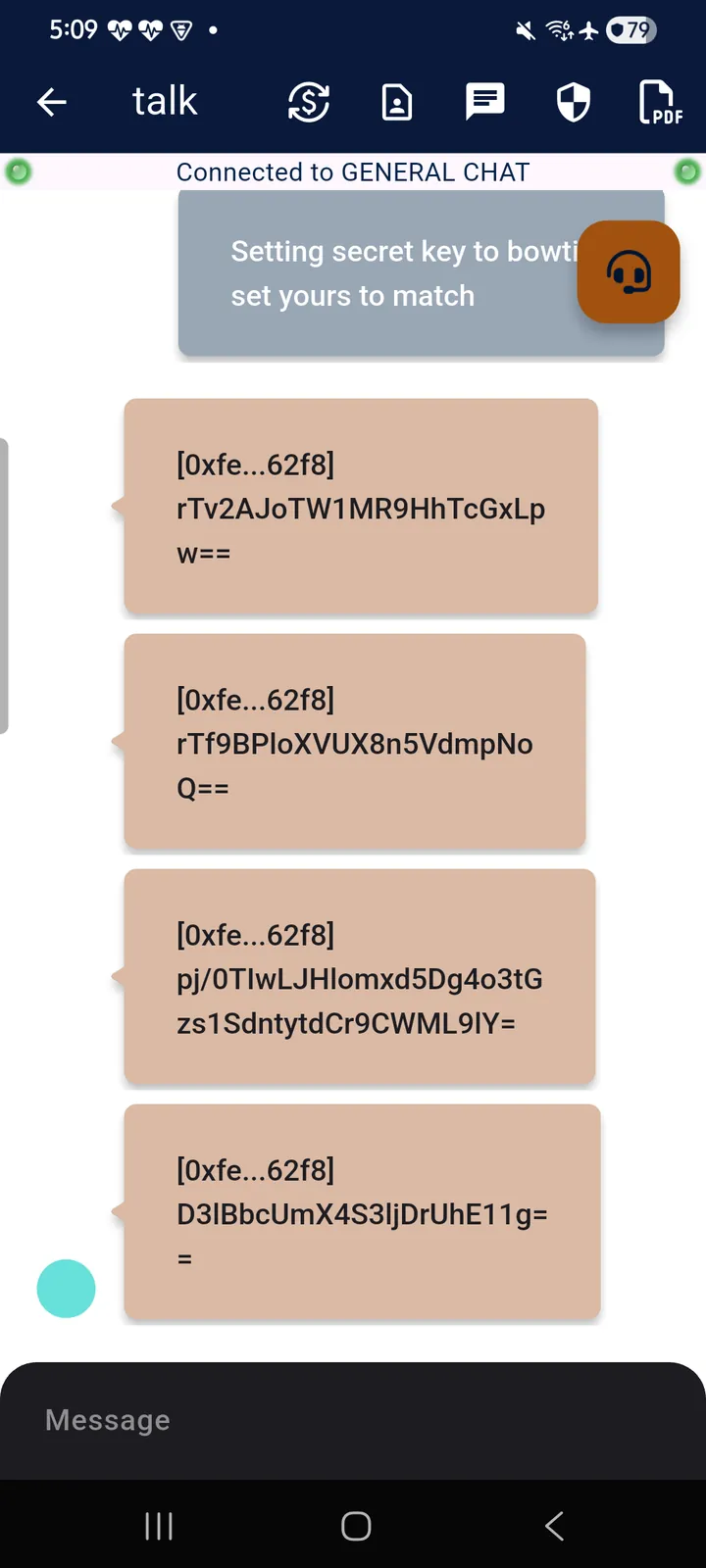
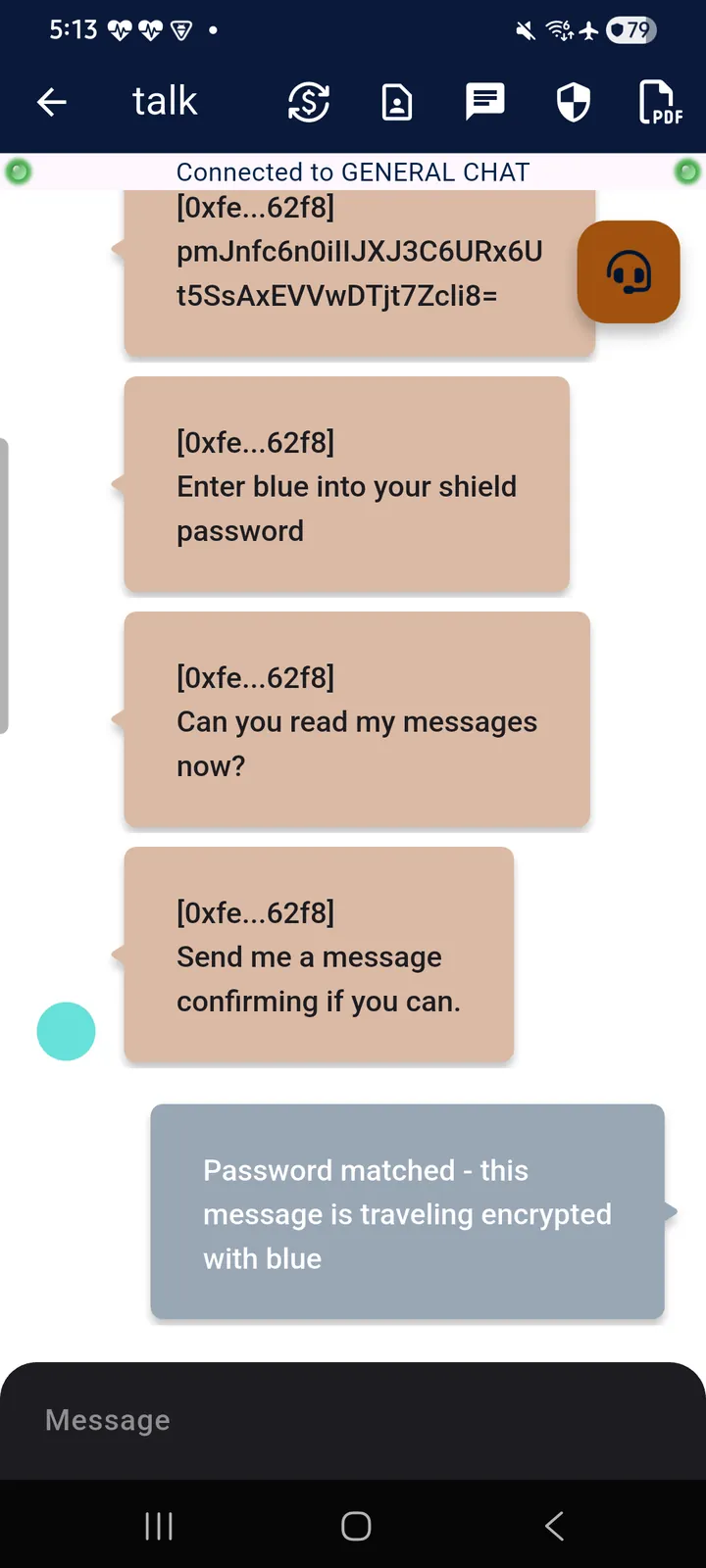
Even in the public GENERAL CHAT you can speak privately. Tap the shield icon and specify a secret key: from that moment your messages are end-to-end encrypted with that key, and only users who have entered the same key can read them — everyone else sees ciphertext. Agree the key with your counterpart (ideally somewhere other than the public room), each enter it behind your own shield icon, and you have a private channel running inside the public chat. Clear the key (the “⊗” in the shield dialog) to return to the open conversation.
★ Because the indicator dots report only your own state, a key set for one conversation stays set as you move around — carry a key into a room whose members use a different one (or none) and their messages will look like gibberish even though your dots are green. When in doubt, check the shield: it shows the key currently in force, or “[none]”.
8.5 Private Groups
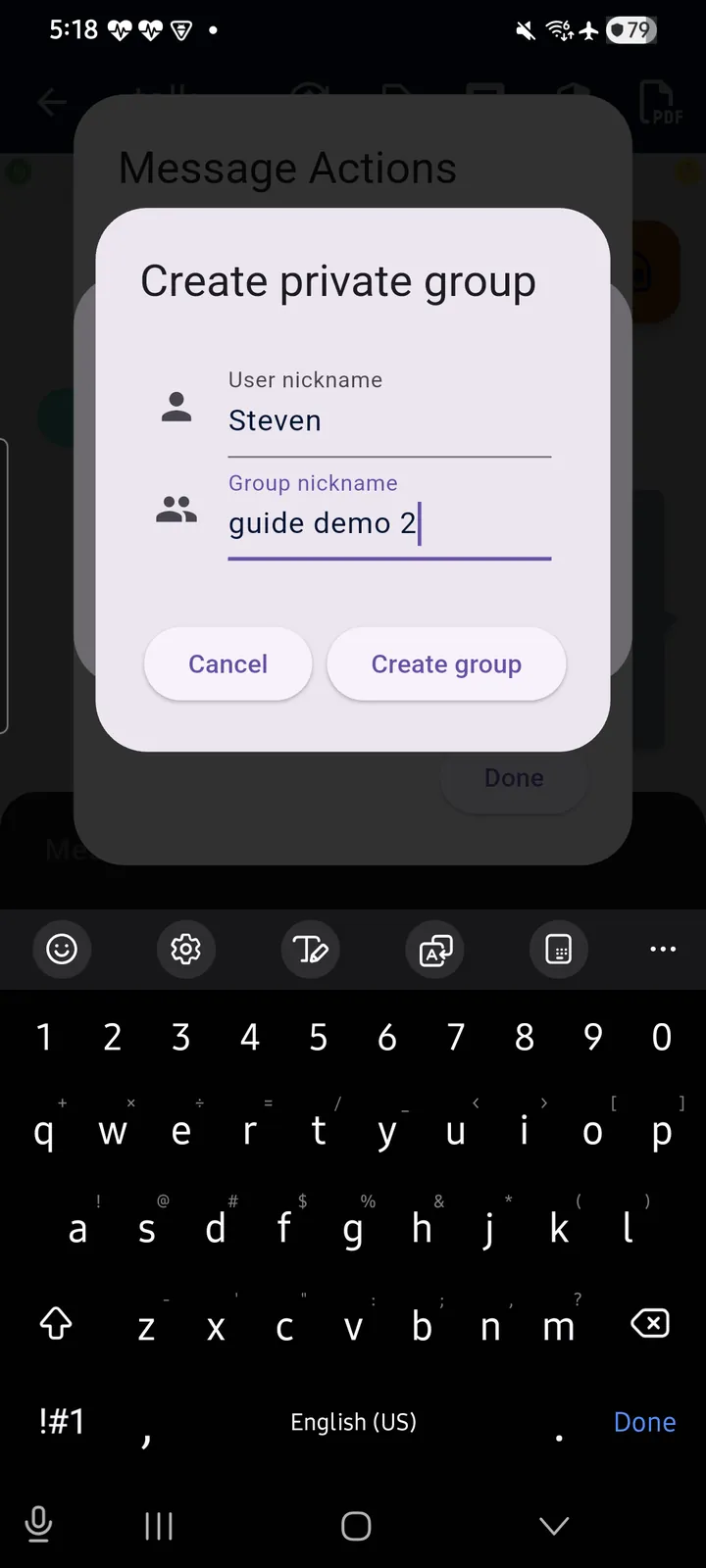
Beyond the GENERAL CHAT you can create any number of private group chat-rooms per Ethereum Account. The quickest way: tap a message from the person you want (Figure 8.2) and choose “Add account to private group” — the App offers to create a New group (naming the member and the group in one dialog) or add them to an Existing one.
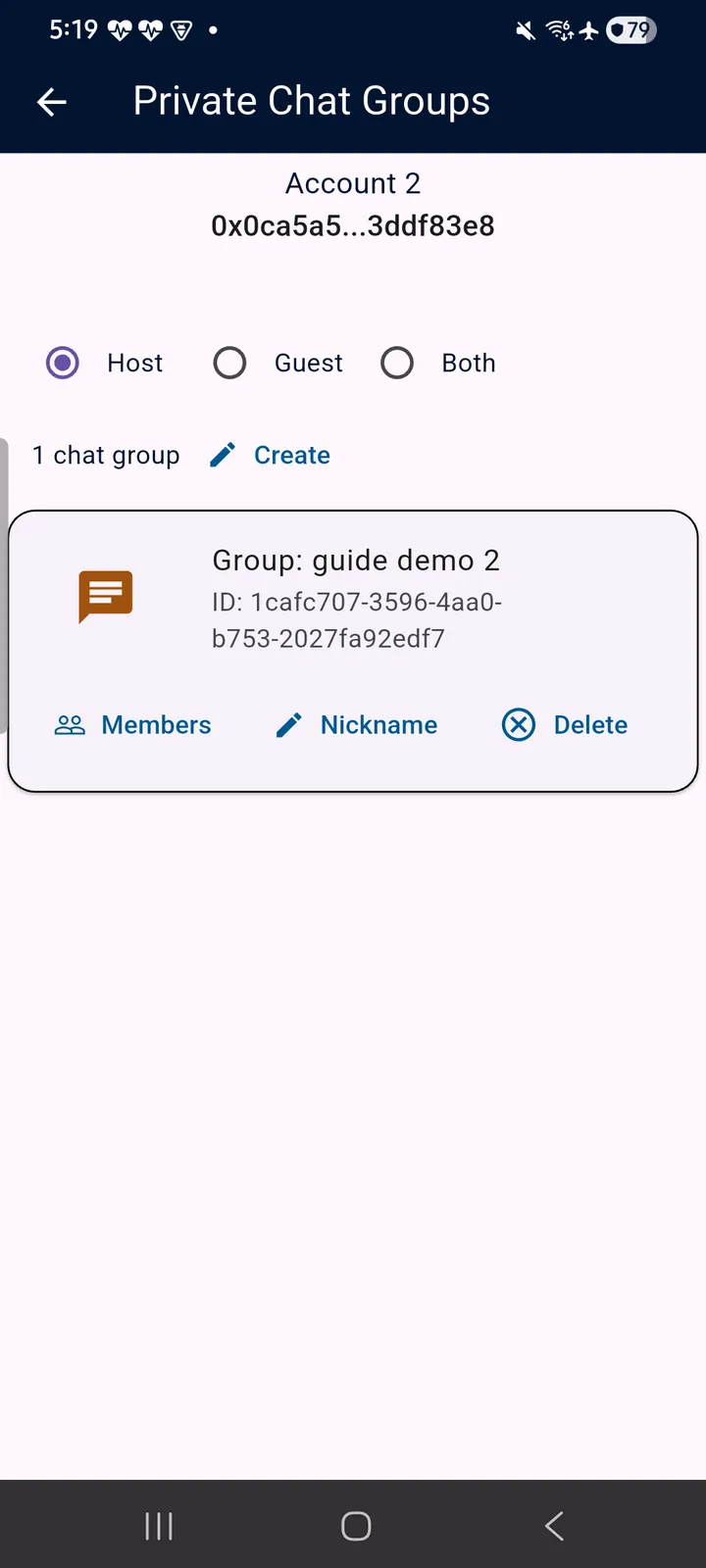
The speech-bubble icon opens Private Chat Groups: your groups filtered by Host (groups you created), Guest (groups you belong to) or Both. Each group card carries its chat-room button, its ID, and Members / Nickname / Delete actions.
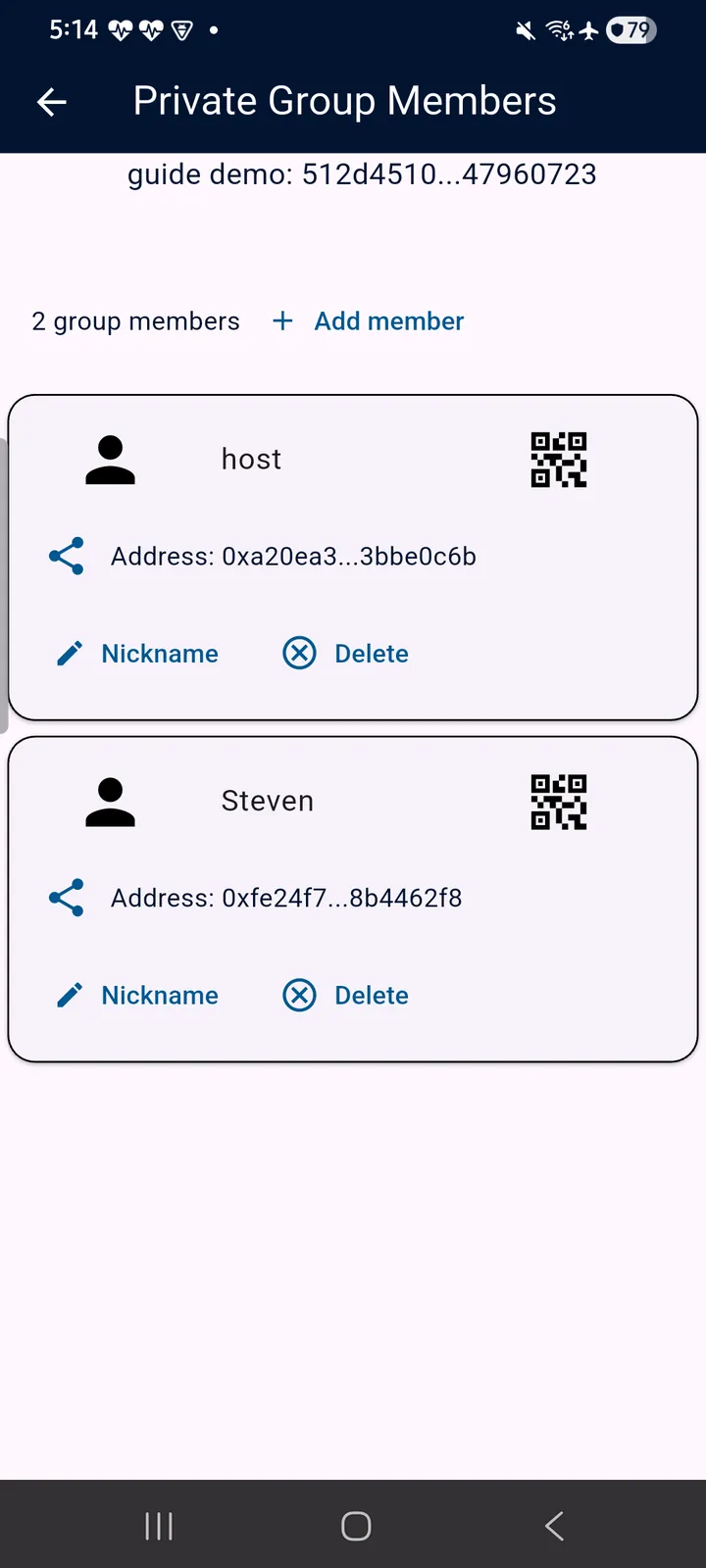
Enter a group's chat-room from its card. A private group limits who is in the room, but it does not by itself switch on end-to-end encryption: on entry the secret key is “[none]” and the right-hand indicator dot is yellow, meaning transit encryption only. To make the conversation end-to-end encrypted, every member sets the same secret key behind the shield icon exactly as in the GENERAL CHAT (Section 8.4) — at which point both dots turn green.
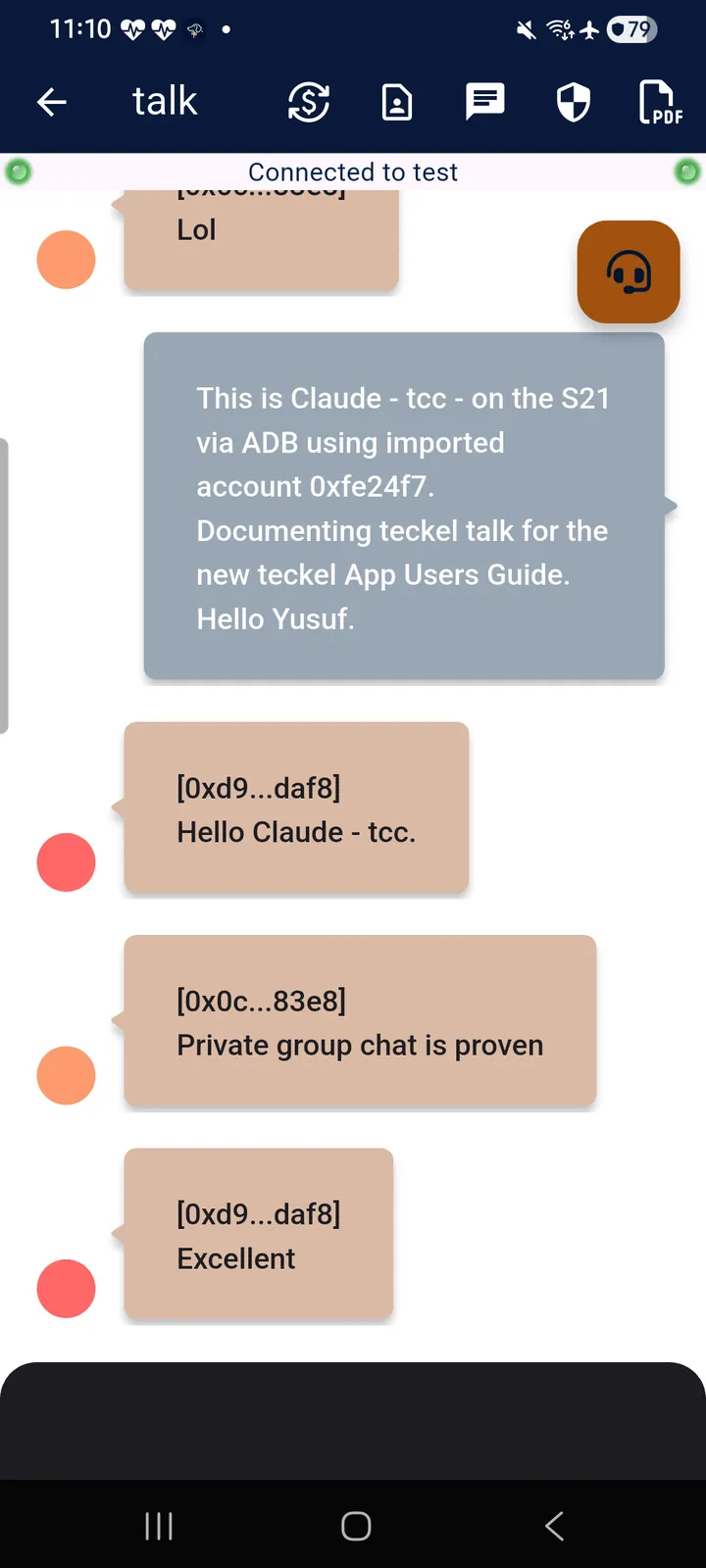
Chat-rooms do not keep history. Leave a room and come back and you start a fresh session: earlier messages are not reloaded. Use the PDF export tool (Section 8.1) before you leave if you want a record of a conversation.
8.6 Content Filtering and Blocking
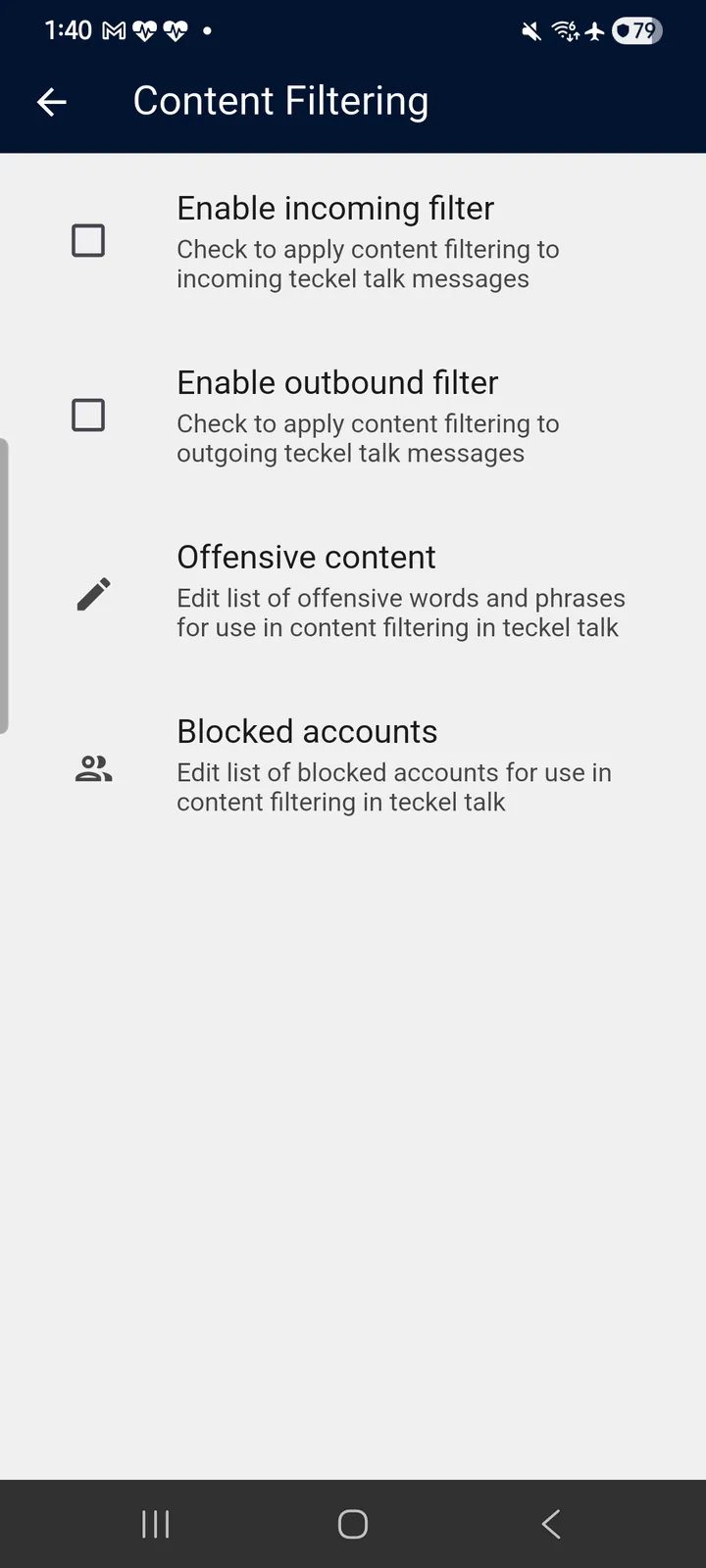
Content moderation for teckel talk lives in the App's Settings under Content Filtering (see Chapter 10) and is highly customisable — and identical on Android and iPhone:
- Enable incoming filter — apply content filtering to incoming teckel talk messages.
- Enable outbound filter — apply content filtering to your outgoing messages.
- Offensive content — edit your own list of words and phrases to filter.
- Blocked accounts — edit your list of blocked accounts.
Please report any abuse on the teckel Platform at teckel.io/report-abuse.
9. IPFS
The InterPlanetary File System (IPFS) is a peer-to-peer file storage protocol that leverages content addressing (as opposed to location addressing) across a decentralised network of storage nodes: a file is referred to by a fingerprint of what it is — its CID — not by where it happens to sit, which makes references to stored data permanent and tamper-evident. Keeping a file reliably available on IPFS is achieved by “pinning” it; what teckel pins is stored in two places, in two buildings.
The globe icon in the top navigation bar opens IPFS Content: the IPFS files that belong to your active Ethereum Account. Along the top sit three tools (the App's own long-press texts): toggle auto-scrolling through the content; search by content type and nickname (the icon turns red while search filters are active); and upload a file from this device to IPFS. IPFS storage and bandwidth draw on the active Account's teckel credits (tc), pay-as-you-go; current pricing is published at teckel.io/pricing.
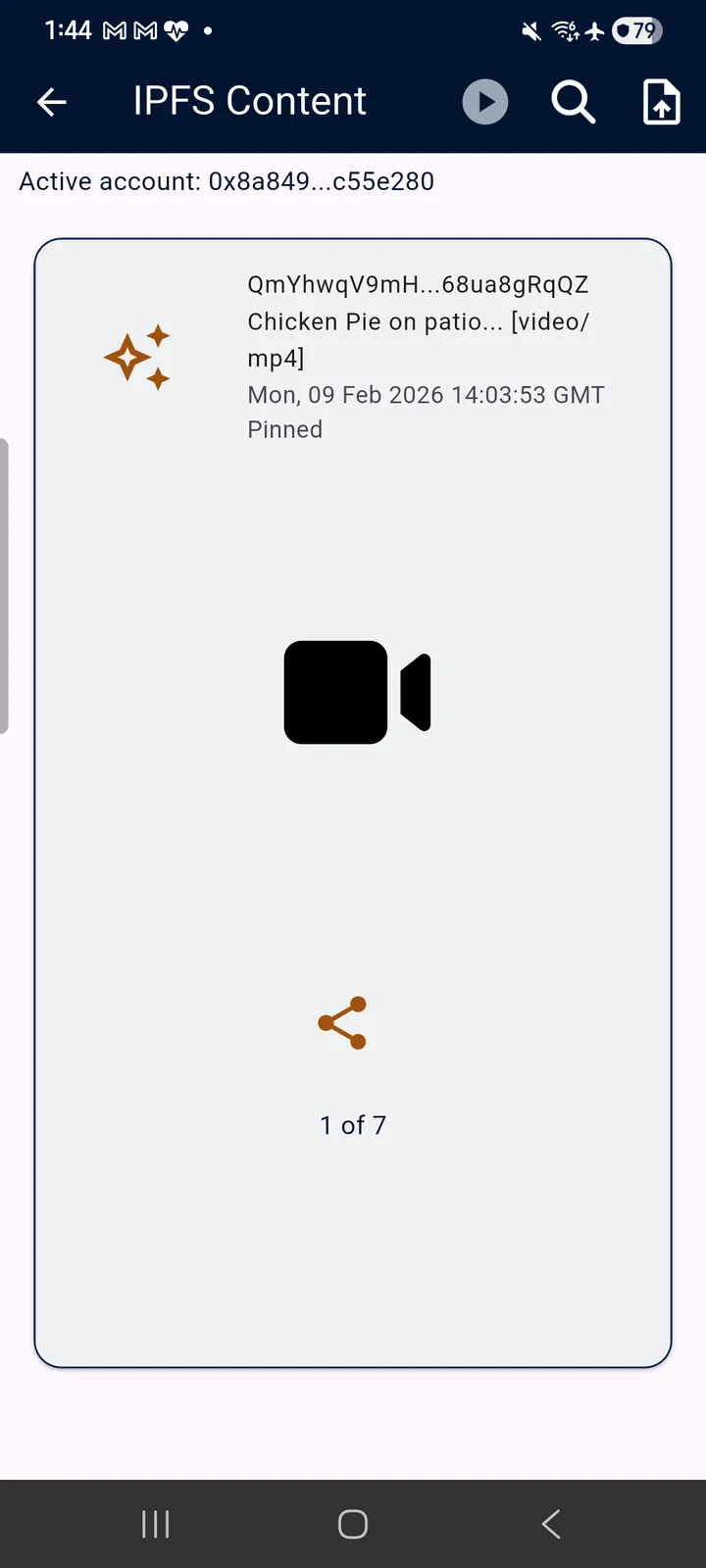
Four behaviours worth knowing:
- The list is per Account: switch the active Account (Chapter 5) to see that Account's content. A brand-new Account starts empty.
- Encryption is your choice when you upload. When you choose to encrypt a file, teckel encrypts it with a key held for your Account: no other Account can decrypt it, and replacing or deleting your API key does not affect it (Section 5.7). The file is scanned on teckel's servers before it is encrypted, so it is not end-to-end encrypted — teckel can see the content.
- Removing an item removes it from your Account's inventory — it does not definitively remove the content from the IPFS network, and teckel's second copy stays. Content addressing is permanent by design; treat anything uploaded to IPFS as potentially permanent — a privacy warning, not a guarantee that it stays available.
- If your Account's balance cannot cover its storage, pinned files can be removed automatically to free space, and topping up afterwards does not bring them back. Top up before your balance runs out. Documents submitted through Benedict, and the evidence files attached to them, are kept whatever your balance (Section 7.1).
10. Settings
Tap the three vertical dots at the right-hand end of the top navigation bar, then “Settings”.
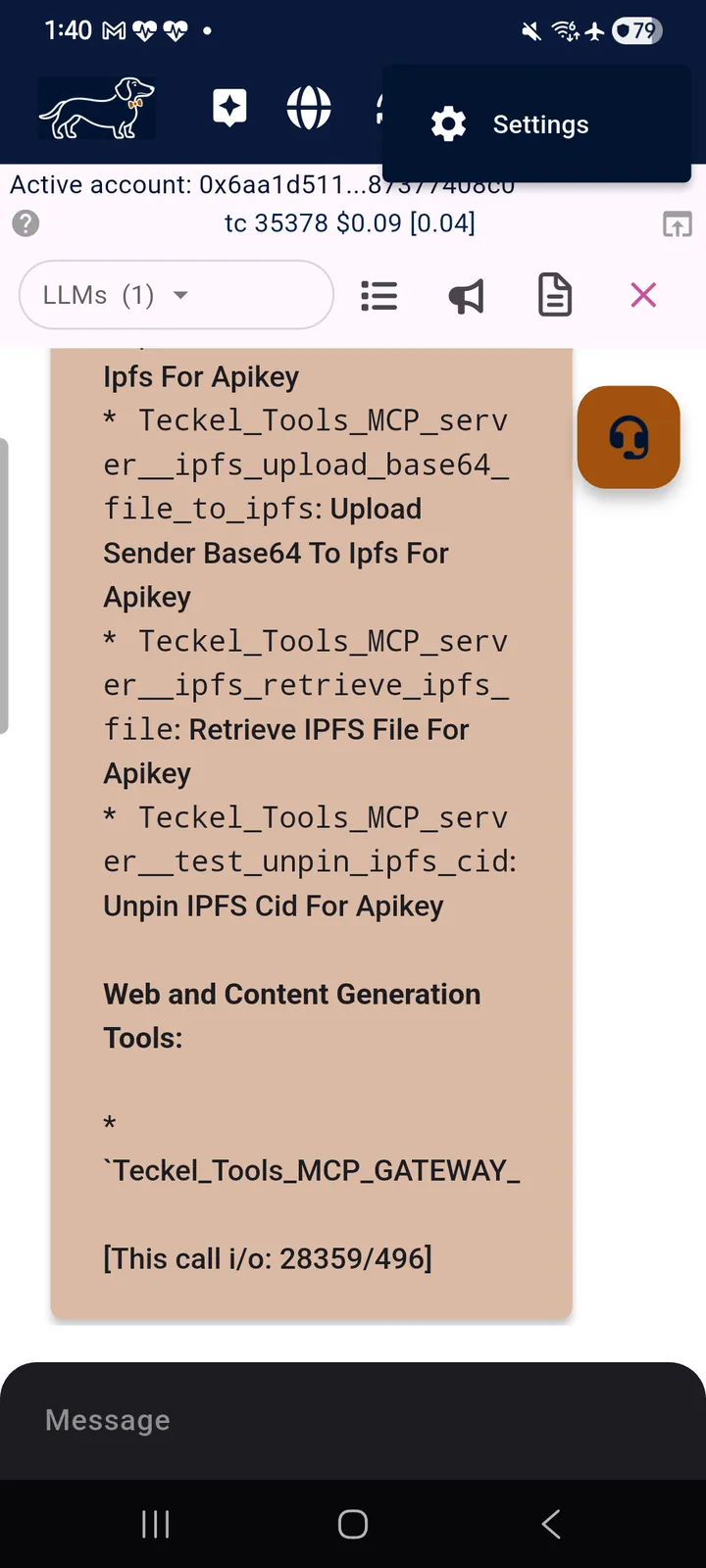
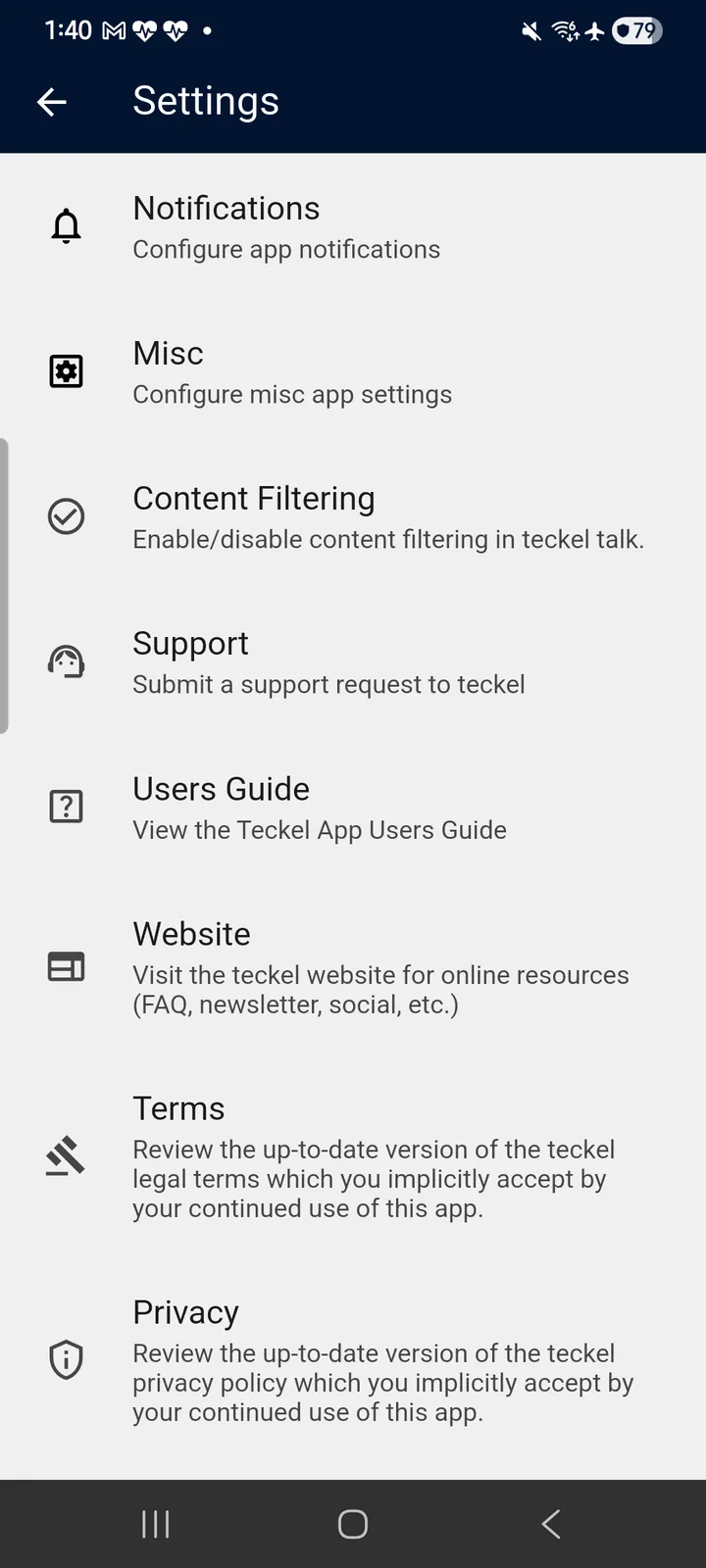
The Settings screen offers (each description below is the App's own):
- Notifications — configure app notifications.
- Misc — configure miscellaneous app settings.
- Content Filtering — enable or disable content filtering in teckel talk — highly customisable; see Section 8.6.
- Support — submit a support request to teckel (see also teckel.io/support).
- Users Guide — view this teckel App User Guide.
- Website — visit the teckel website for online resources (FAQ, newsletter, social, etc.).
- Terms — review the up-to-date version of the teckel legal terms, which you implicitly accept by your continued use of this app (also at teckel.io/terms-and-conditions).
- Privacy — review the up-to-date version of the teckel privacy policy, which you implicitly accept by your continued use of this app (also at teckel.io/gdpr-and-privacy-policy).
A. Frequently Asked Questions (FAQ)
To view frequently asked questions (FAQ) — including what happened to the original “full” teckel App and the NFT Marketplace — please visit our website at teckel.io/faq.
B. Contact Us
If you have any questions about this teckel App User Guide please contact us through our website at teckel.io/support.
C. Report Abuse
Please report any abuse on the teckel Platform by accessing this link: teckel.io/report-abuse.
Last updated: 2026/09/24